Workflows
A workflow is the approval chain a contract follows when it is submitted. Each workflow applies to one or more contract types and can have conditions, such as a minimum contract value.
Who can manage workflows
You need the Workflows: manage permission (admins have it). People who create contracts can see the workflow list so they can pick one.
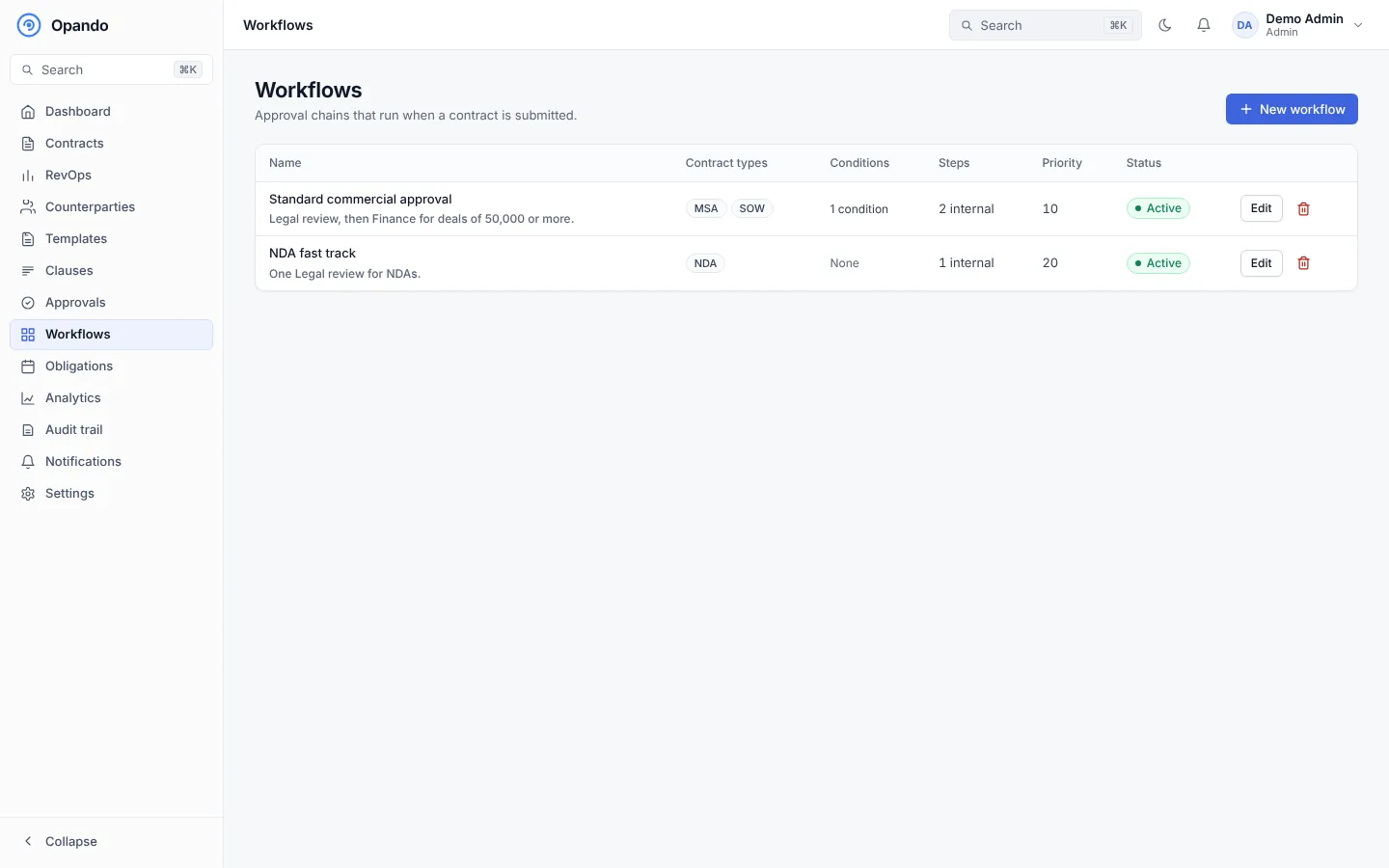
The list shows each workflow's name, contract types, conditions, number of steps, priority and status. Edit opens it; the bin icon deletes it.
Create or edit a workflow
Select New workflow. The wizard has two steps.
1. Setup
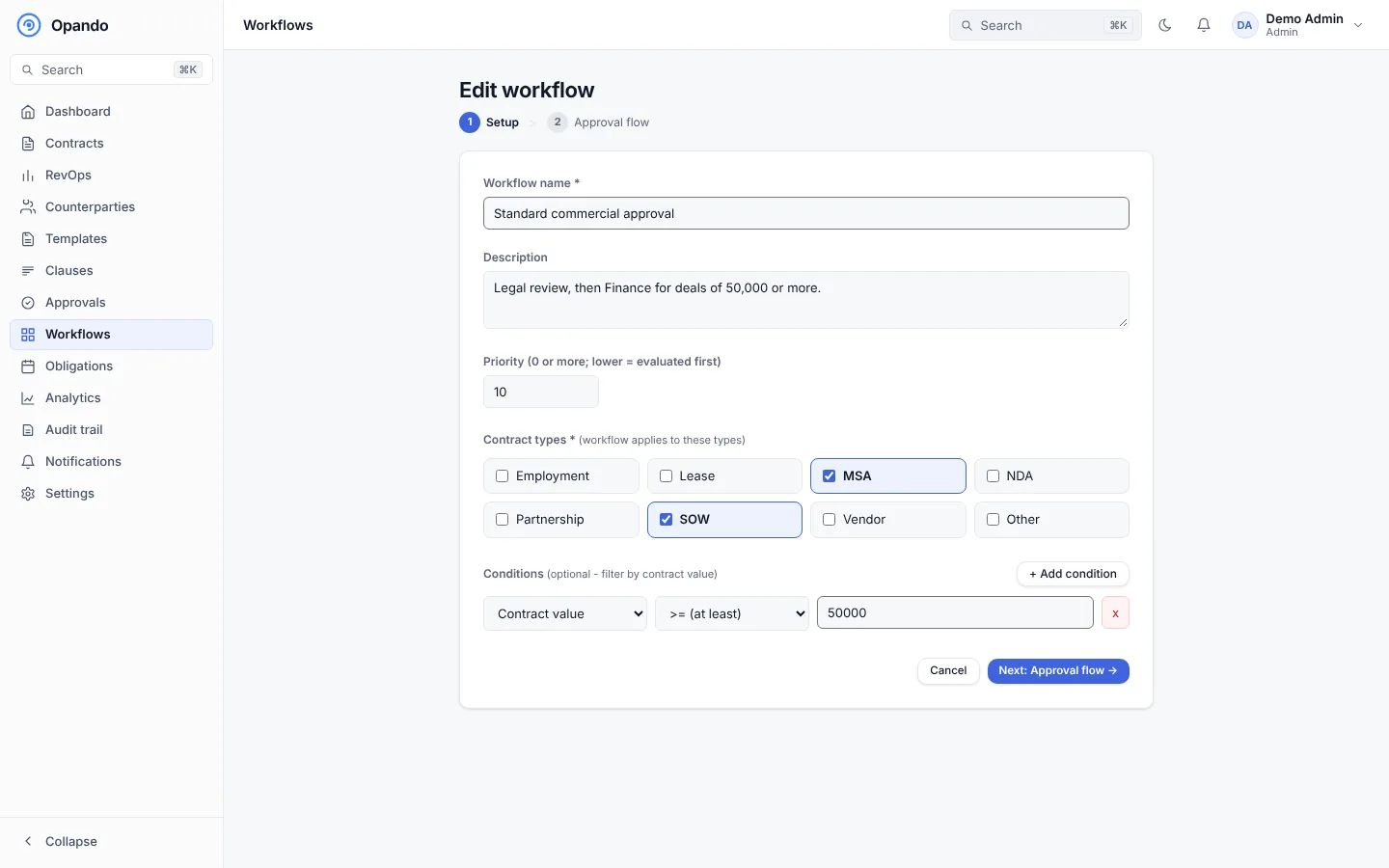
- Workflow name and an optional description.
- Priority: 0 or more. When several workflows match a contract, the one with the lowest number is used.
- Contract types the workflow applies to.
- Conditions (optional): filter by contract value, for example Contract value ≥ 50,000. With no conditions, the workflow matches every contract of the selected types.
Select Next: Approval flow →.
2. Approval flow
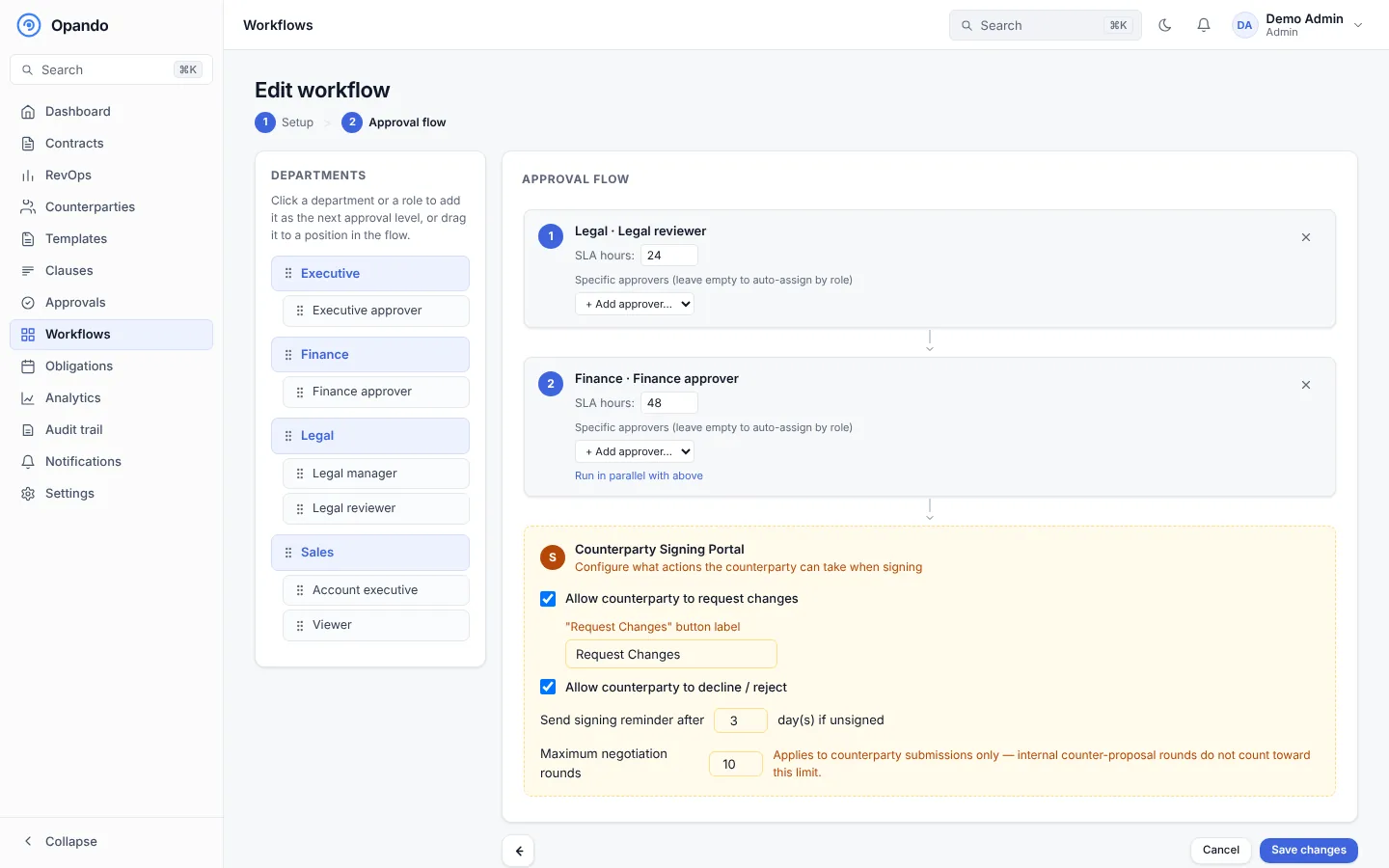
- Click a department or a role in the palette on the left to add it as the next approval level, or drag it into position.
- For each level, set the SLA hours (how long the approver has before the step is overdue).
- Optionally pin specific approvers. Leave it empty to assign the step automatically to someone with that role. When you pin several people, each of them must approve.
- Choose Run in parallel with above to let a level approve at the same time as the one before it.
- Remove a level with the ×.
Counterparty signing portal
The orange Counterparty Signing Portal card sets what the other party can do when they receive the contract:
- Allow counterparty to request changes, and the label of that button (for example "Request Changes").
- Allow counterparty to decline / reject.
- Send signing reminder after a number of days if they haven't signed.
- Maximum negotiation rounds. Only their submissions count, not your internal counter-proposal rounds.
Select Save changes.
How a workflow is chosen
When a contract is submitted, Opando looks at active workflows for its type, keeps those whose conditions match, and uses the one with the lowest priority number. The owner can also pick a workflow in the Approvals tab before submitting. If no workflow matches, the contract can't be submitted and the owner is asked to contact an admin.
A workflow that only applies to archived contract types is marked: "No new contracts will use it."
Changing approvers
When an approver leaves or changes role, an admin hands their pending approvals to someone else before they are removed. See Users.