Integrations and AI connector
CRM integrations
Settings → Integrations connects Opando to your CRM so contract and revenue data flows both ways.
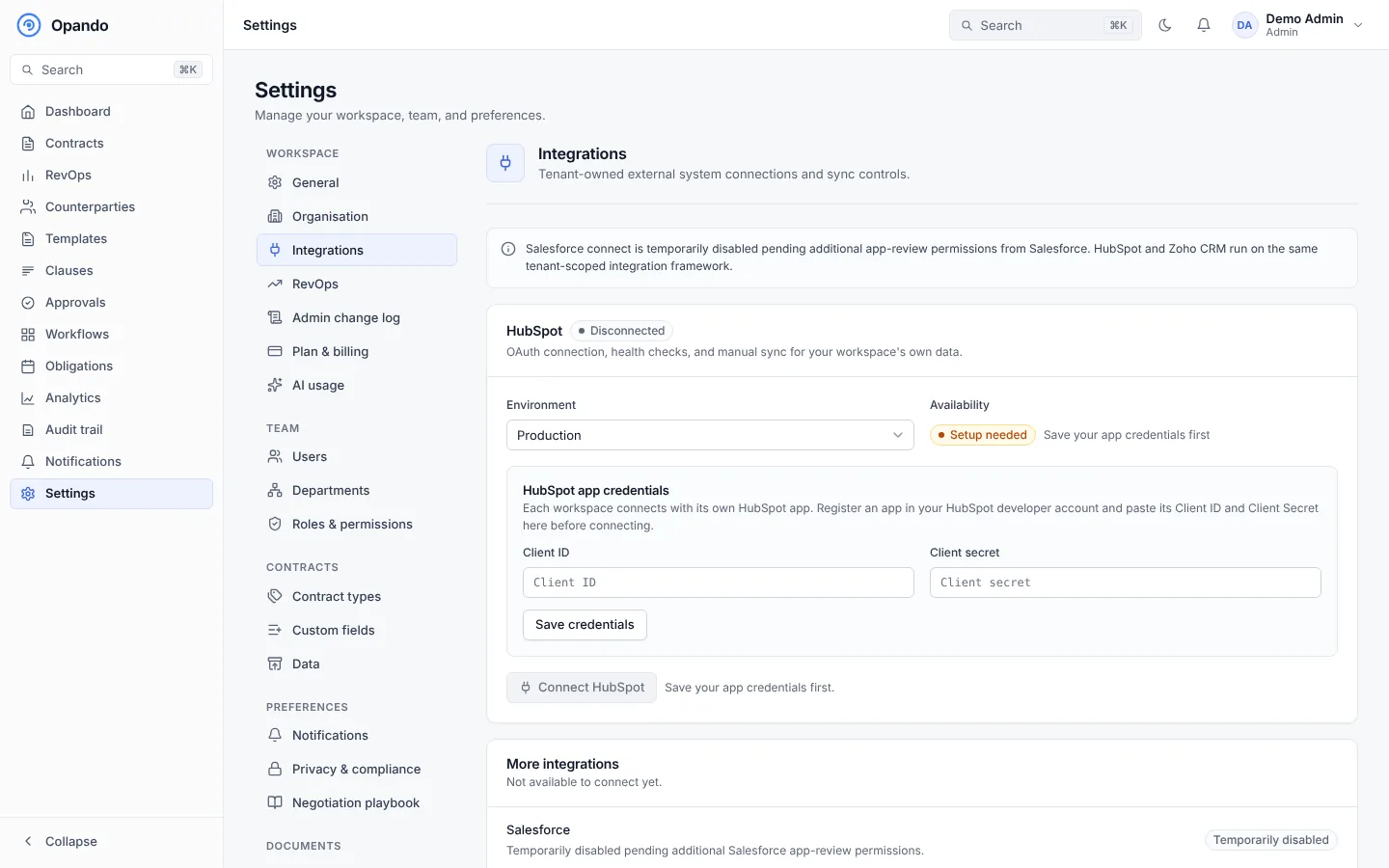
For each integration (Salesforce, HubSpot and Zoho CRM run on the same framework):
- Enter the Client ID and Client secret from your CRM app and select Connect. You sign in to the CRM to approve access (OAuth).
- Once connected, the card shows the instance URL, external organisation, last checked, last synced, webhook URL and any last error.
- Health check tests the connection. Sync now runs a sync straight away.
- Sync direction: Pull CRM changes and/or Push RevOps metrics.
- Field mappings: map each Opando field to an external field and save.
- Unmatched opportunities: link a CRM opportunity that Opando couldn't match to the right Opando record.
- Recent jobs and Recent events show what synced and when.
Select Disconnect to remove an integration.
Note
Salesforce connect may be temporarily disabled while Salesforce reviews additional app permissions. The card says so when it is.
Slack and webhooks
RevOps alerts can go to Slack and to your own systems through an outbound webhook. See RevOps settings.
AI connector (MCP)
The AI connector lets an AI assistant such as Claude work in your workspace through the Model Context Protocol (MCP): search and read contracts, create drafts, and answer questions about your portfolio, acting as the person who connected it and limited to what that person can do.
- It is part of the Pro and Enterprise plans, and an add-on on Starter (turn it on in Plan & billing).
- Each person connects their assistant from the assistant's side. Opando shows an MCP Access Request page with the client and the scope; approving it issues a token limited to your workspace. Unused approval codes expire after 10 minutes.
- Everyone can see and disconnect their connected assistants in My profile → Connected AI clients. See Your profile.
- Removing the add-on disconnects every assistant in the workspace.