Sign in and set up 2FA
Accept your invitation
When an admin invites you, Opando emails you a link to set your password. The link works once. If it has expired (after 14 days by default), ask your admin to send a new invite.
Your password needs at least 8 characters, one uppercase letter, one number and one special character.
If your admin shares an invite link with you directly (for example when the email didn't arrive), it works the same way.
Sign in
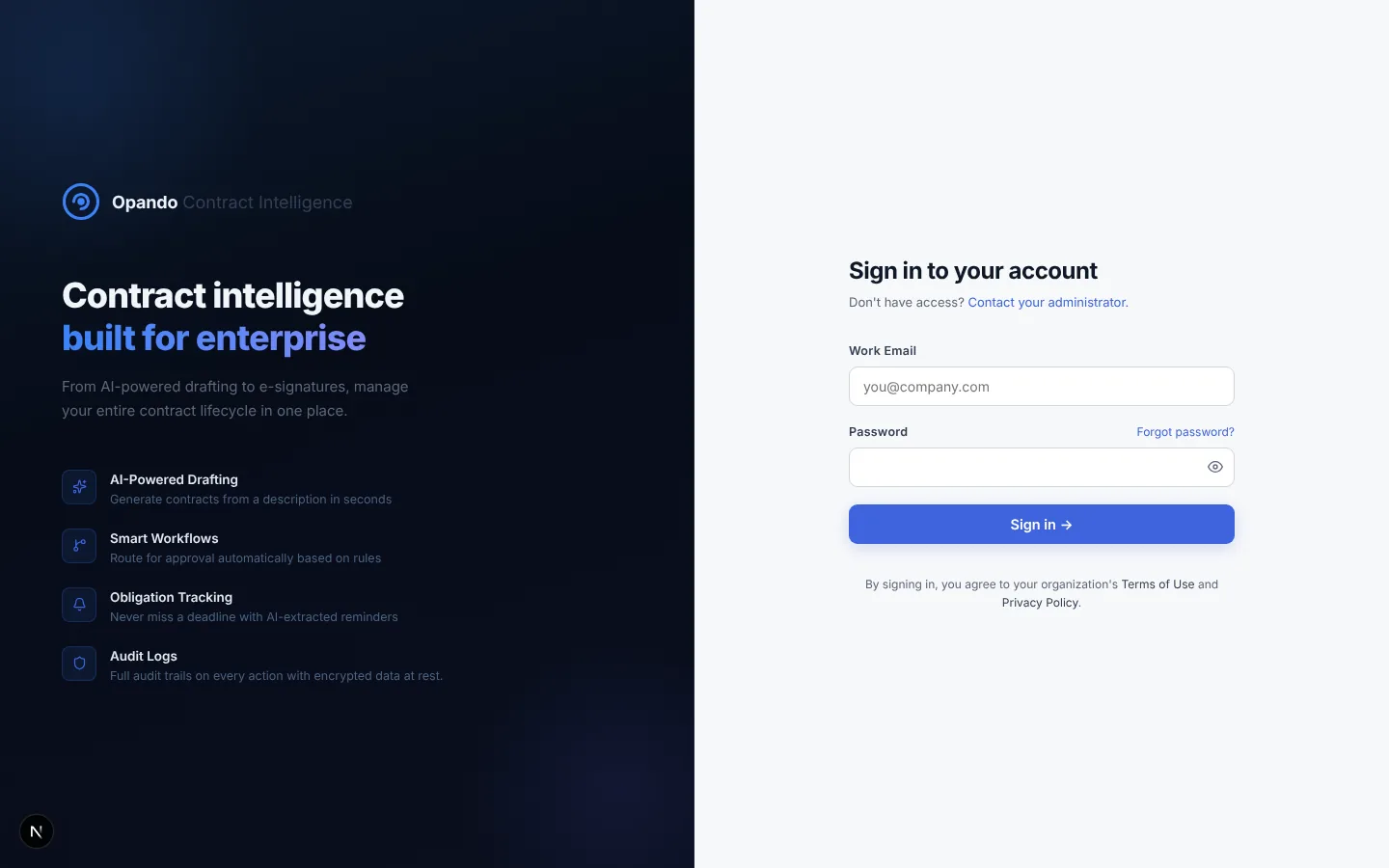
- Go to your workspace's Opando address and enter your work email and password.
- Select Sign in.
- If you belong to more than one workspace, Opando asks Which workspace would you like to access? Choose one.
- If two-factor authentication is on for your account, enter the 6-digit code from your authenticator app.
Lost your phone?
On the code screen, choose Lost your device? Use a backup code instead and enter one of the backup codes you saved during setup. Each backup code works once.
Verify your email
Some accounts are asked to verify their email address the first time they sign in. Opando sends a verification link; open it and you can sign in. If the link has been used or has expired, enter your email on the verification page to get a new one.
Temporary passwords
If you sign in with a temporary password, Opando asks you to choose a new one before you can continue.
Forgot your password
- On the sign-in page select Forgot password?
- Enter your email address. If an account exists, Opando sends a reset link (check your spam folder if it doesn't arrive within a few minutes).
- Open the link and choose a new password.
Set up two-factor authentication (2FA)
Your admin can require 2FA for everyone in the workspace (Settings → General → Two-factor authentication). When it is required, Opando walks you through setup the next time you sign in. It takes about two minutes. You can also turn it on yourself from My profile.
- Scan the QR code with an authenticator app such as Google Authenticator or Microsoft Authenticator (Add account → Scan a QR code). If you can't scan, type the setup key shown under the code.
- Save your backup codes. Download them as a
.txtfile or copy them to a password manager. Tick I've saved my backup codes in a safe place. - Verify by entering the current 6-digit code from your app.
When setup finishes, Opando signs you out so you can sign in again with your authenticator app.
Paused workspace
If your workspace has been paused, the sign-in page says so. Contact your admin; they can see the reason under Settings → Plan & billing.
Sign out after inactivity
For security, Opando signs you out after a period of inactivity that your admin chooses. A warning appears shortly before it happens so you can stay signed in.