Find your way around
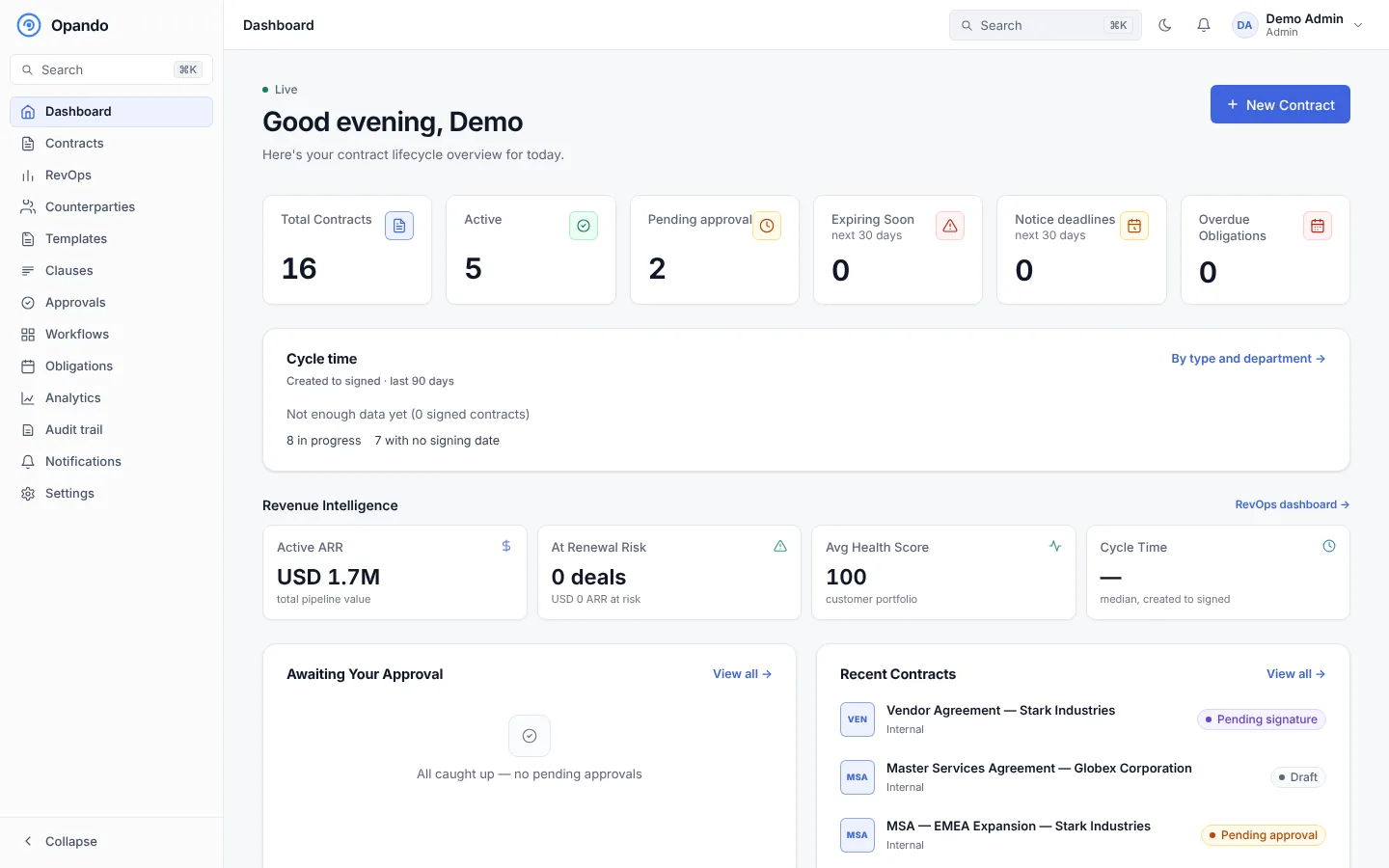
The sidebar
The sidebar on the left lists the pages you can use. You only see a page when your role allows it and your plan includes it.
| Page | What it's for |
|---|---|
| Dashboard | Your day at a glance: approvals waiting for you, contracts expiring soon, notice deadlines and overdue obligations. See Dashboard. |
| Contracts | Every contract you can open, with search and filters. See Contracts. |
| RevOps | Revenue, renewal risk and customer health from your signed contracts. See RevOps. |
| Counterparties | The companies you contract with and their contacts. See Counterparties. |
| Templates | Contract templates and email templates. See Templates. |
| Clauses | Your library of approved clause wording. See Clauses. |
| Approvals | Contracts waiting for your decision. See Approvals inbox. |
| Workflows | The approval chains contracts follow. See Workflows. |
| Obligations | Commitments from signed contracts, with due dates and owners. See Obligations. |
| Analytics | Contract volume, cycle time and negotiation trends. See Analytics. |
| Audit trail | Every action in the workspace, exportable. See Audit trail. |
| Notifications | Your notifications and, for admins, workspace broadcasts. See Notifications. |
| Settings | Workspace configuration. Most sections are for admins. See Administration. |
Select Collapse at the bottom of the sidebar to shrink it to icons. On a phone, open the sidebar with the menu button at the top left.
If your account has no role yet, the sidebar shows No role assigned — contact your admin.
Quick search
Press Ctrl+K (Cmd+K on a Mac), or select Search in the sidebar or top bar, to jump to any page by typing its name.
To search inside contracts, use the search box on the Contracts page.
The top bar
- Theme switch: change between the light and dark theme. Opando remembers your choice.
- Notification bell: approvals, SLA alerts and announcements. Select View all to open the Notifications page.
- Account menu: your name and avatar. Open My profile or sign out.
Plan banners
Admins and members may see a banner at the top of the page about the workspace plan, for example the days left in a trial or that a usage limit is close. See Plans and limits.
Phones and tablets
Opando works on phones and tablets. Lists turn into cards, filters fold into a Filters button, and dialogs fit the screen. Approvers can act on approvals from a phone.