Upload a signed contract
Use this when a contract was signed outside Opando: on paper, in another e-signature tool, or before you started using Opando. The contract is saved as a finished contract, with no approval or signing, and Opando tracks its renewal and notice deadlines like any other.
Who can do this
You need the Contracts: add signed contracts permission. Admins have it, and it comes with the Legal manager role. An admin can grant it to any role in Roles & permissions.
Upload the signed file
- Select New contract, then Upload a signed contract under Already signed?
-
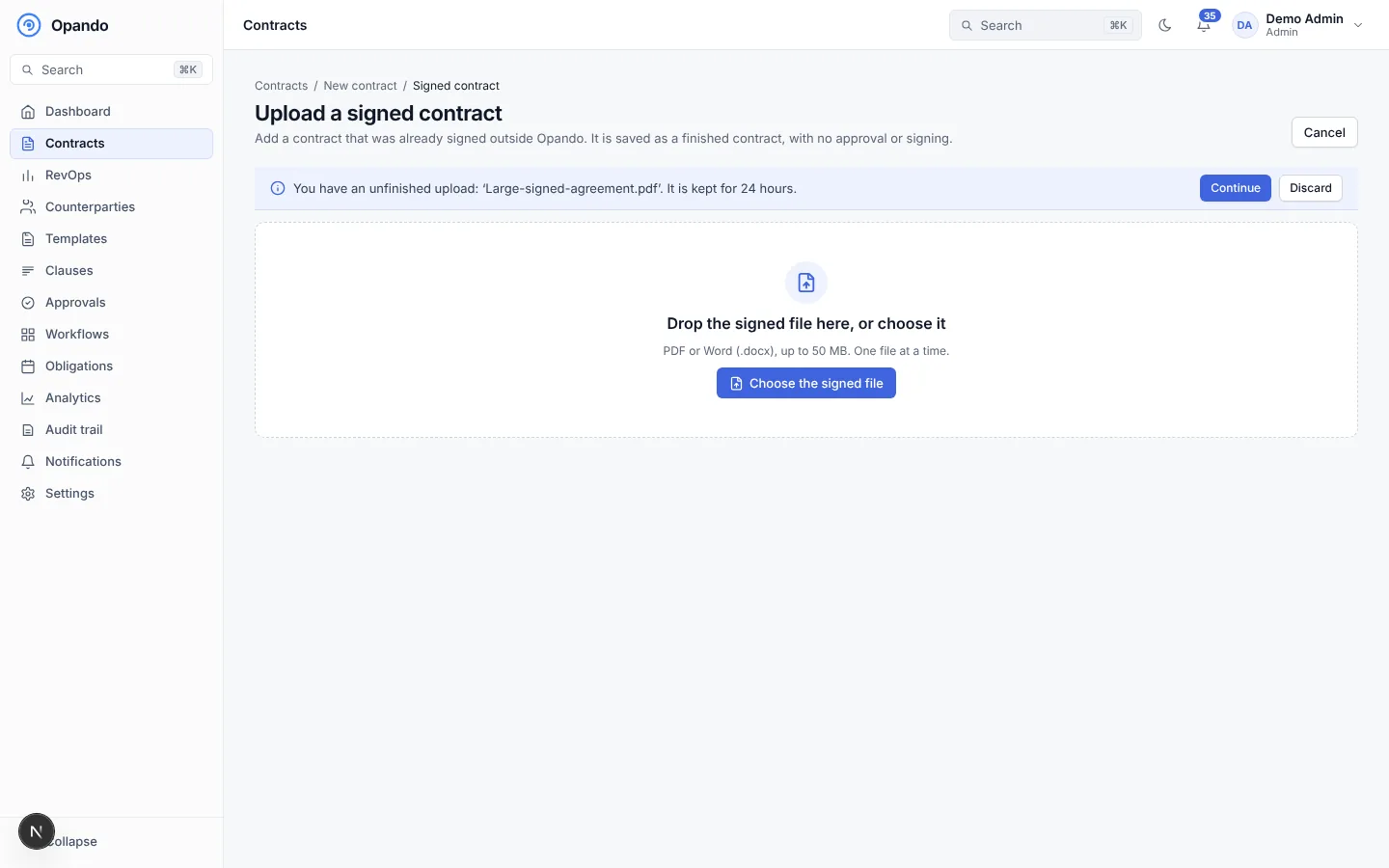
Drop the signed file onto the page, or select Choose the signed file. Use a PDF or Word (
.docx) file up to 50 MB, one file at a time.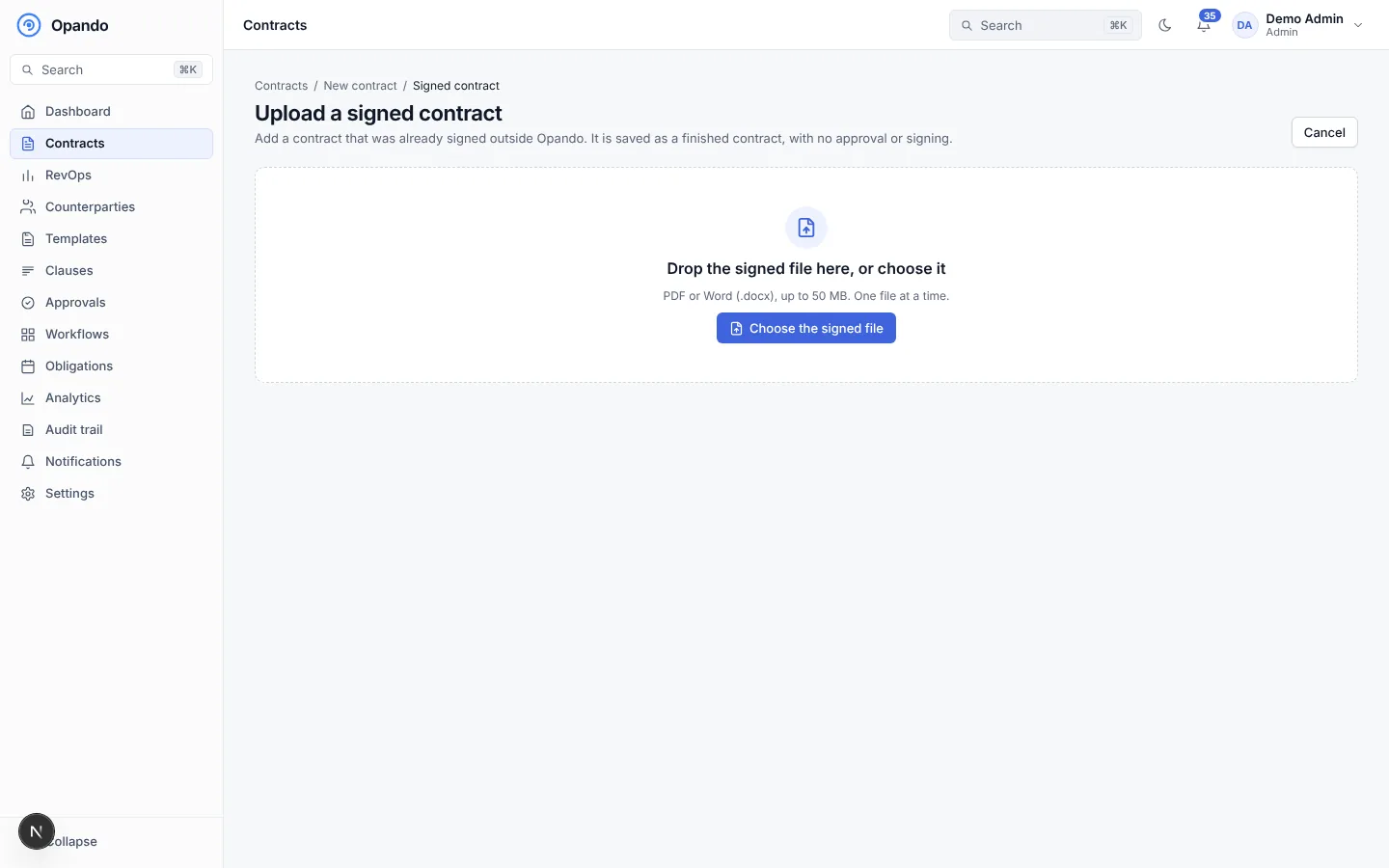
-
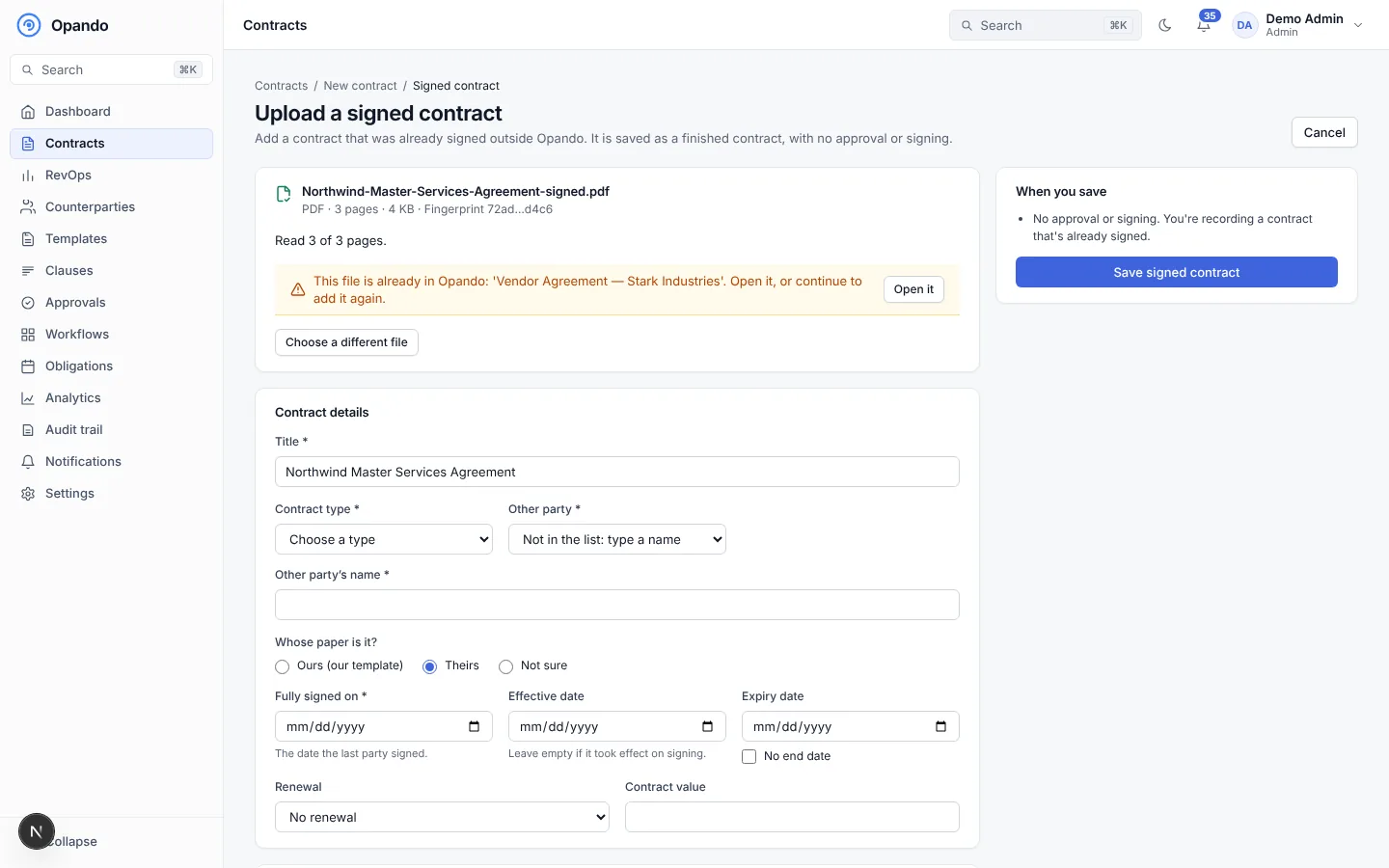
Opando checks the file, scans it for malware and reads its text. It shows how many pages it read. If the same file is already on a contract you can open, it says so, with a link to Open it.
PDF or Word?
A Word file can still be edited. If you have the signed PDF, upload that as the record.
If some pages are scanned images, Opando tells you which part of the text couldn't be read. Those pages won't be found by search.
Fill in the details
| Field | Notes |
|---|---|
| Title | Required. |
| Contract type | Required. |
| Other party | Choose a counterparty, or type a name if it isn't in the list. |
| Whose paper is it? | Ours (our template), Theirs, or Not sure. |
| Fully signed on | Required. The date the last party signed. |
| Effective date | Leave empty if it took effect on signing. |
| Expiry date or No end date | |
| Renewal, renewal term and notice period | Used to calculate the notice deadline and alerts. |
| Who signed | Optional. Up to 20 signatories, with name, job title, side and date. |
| Note | Optional. |
| Additional details | Your workspace's custom fields. Required ones must be filled in. |
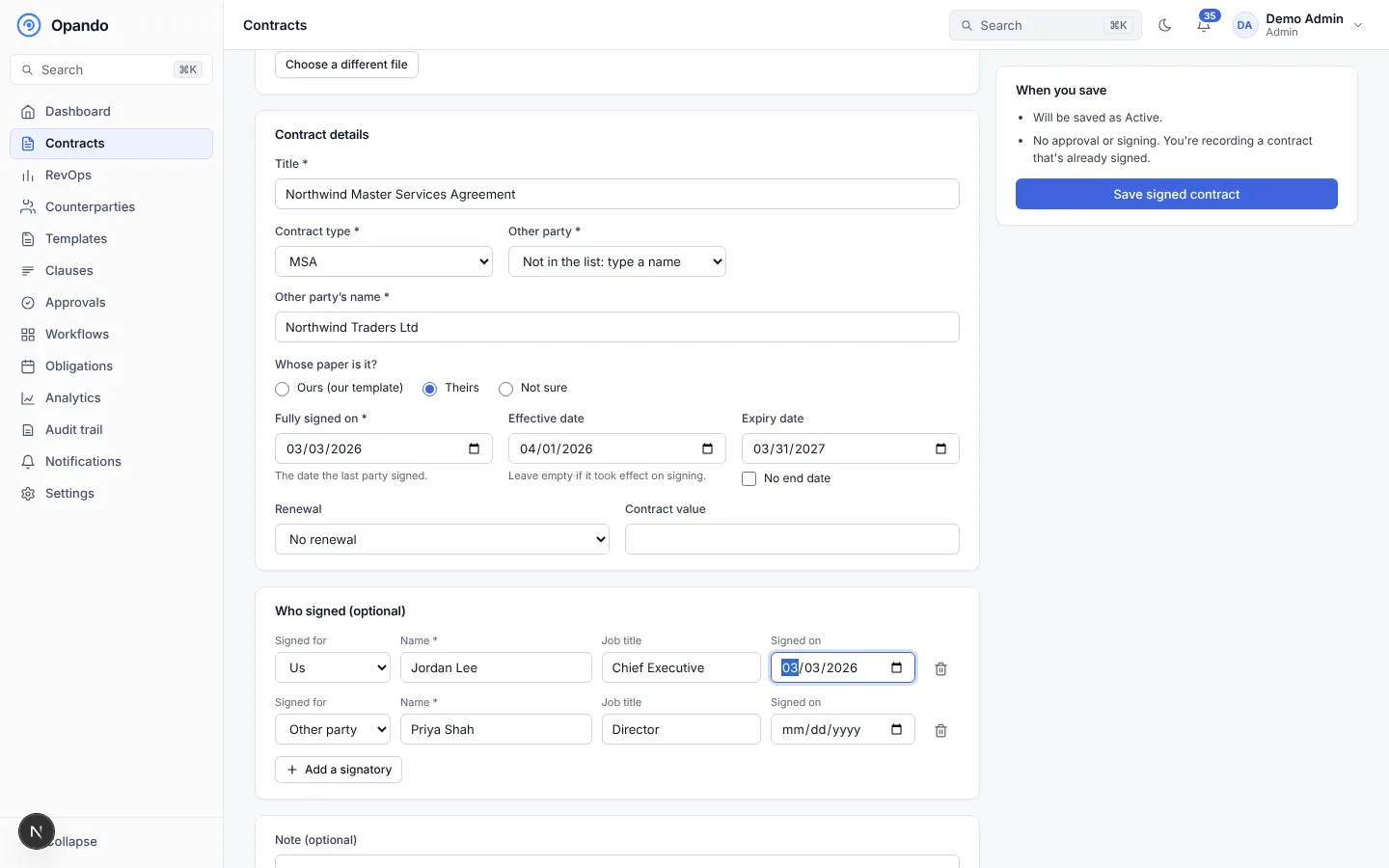
The When you save box previews the result: the status the contract will get and the alerts it will send. Opando works out the status from the dates:
- Signed if the effective date is in the future (it turns Active on that date),
- Active if it is in force,
- Expired if the expiry date has passed (unless it auto-renews, in which case the term rolls forward).
Select Save signed contract. If something is missing, Opando moves you to the first field that needs attention.
Unfinished uploads
If you leave before saving, Opando keeps the upload for 24 hours. A banner on the New contract page and the upload page lets you Continue where you left off.
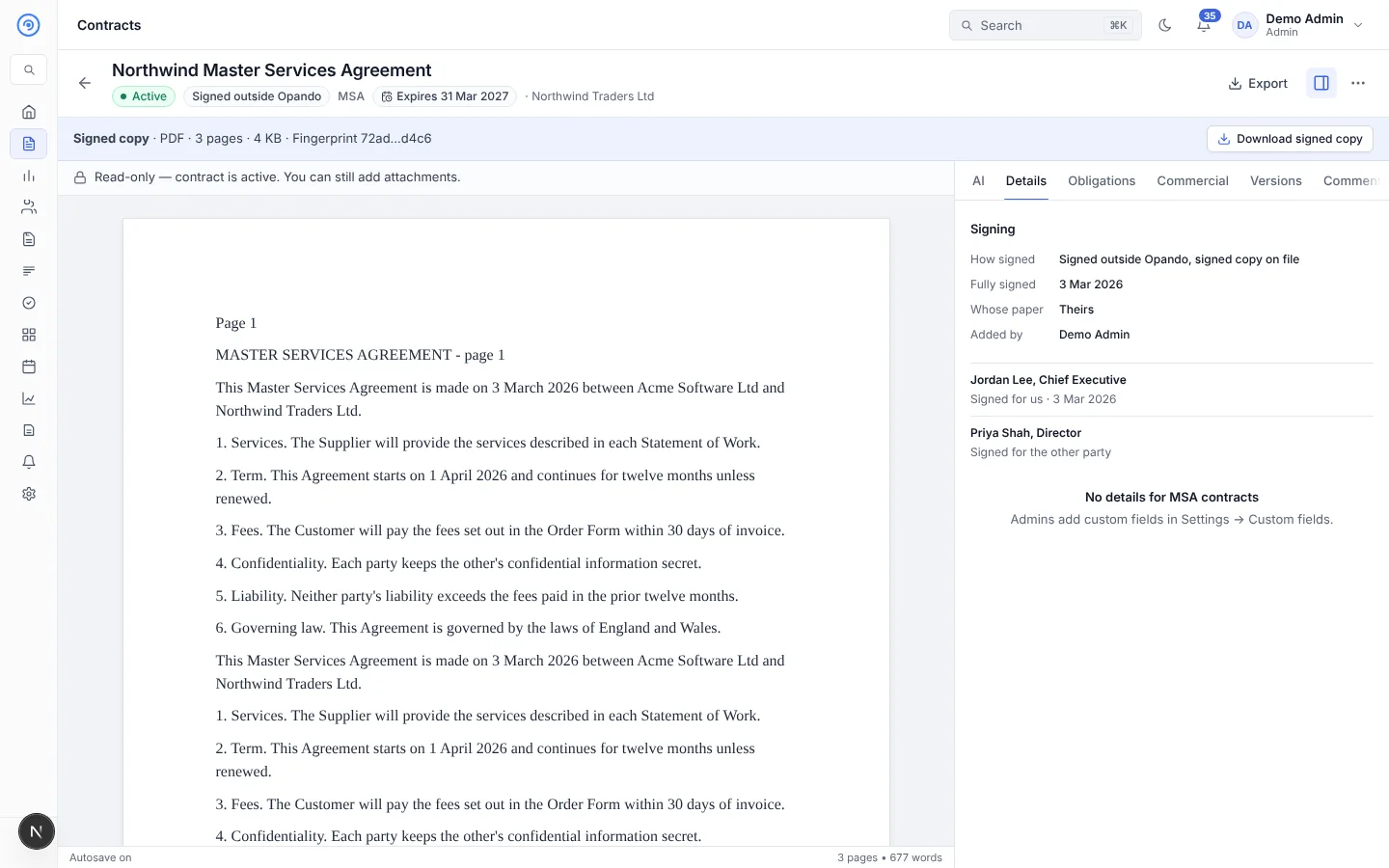
Signing details and the signed copy
Open the contract's Details to see the Signing section: how it was signed, whose paper it was, who added it, who signed for each side and when, and the file's SHA-256 fingerprint (it changes if the file is altered).
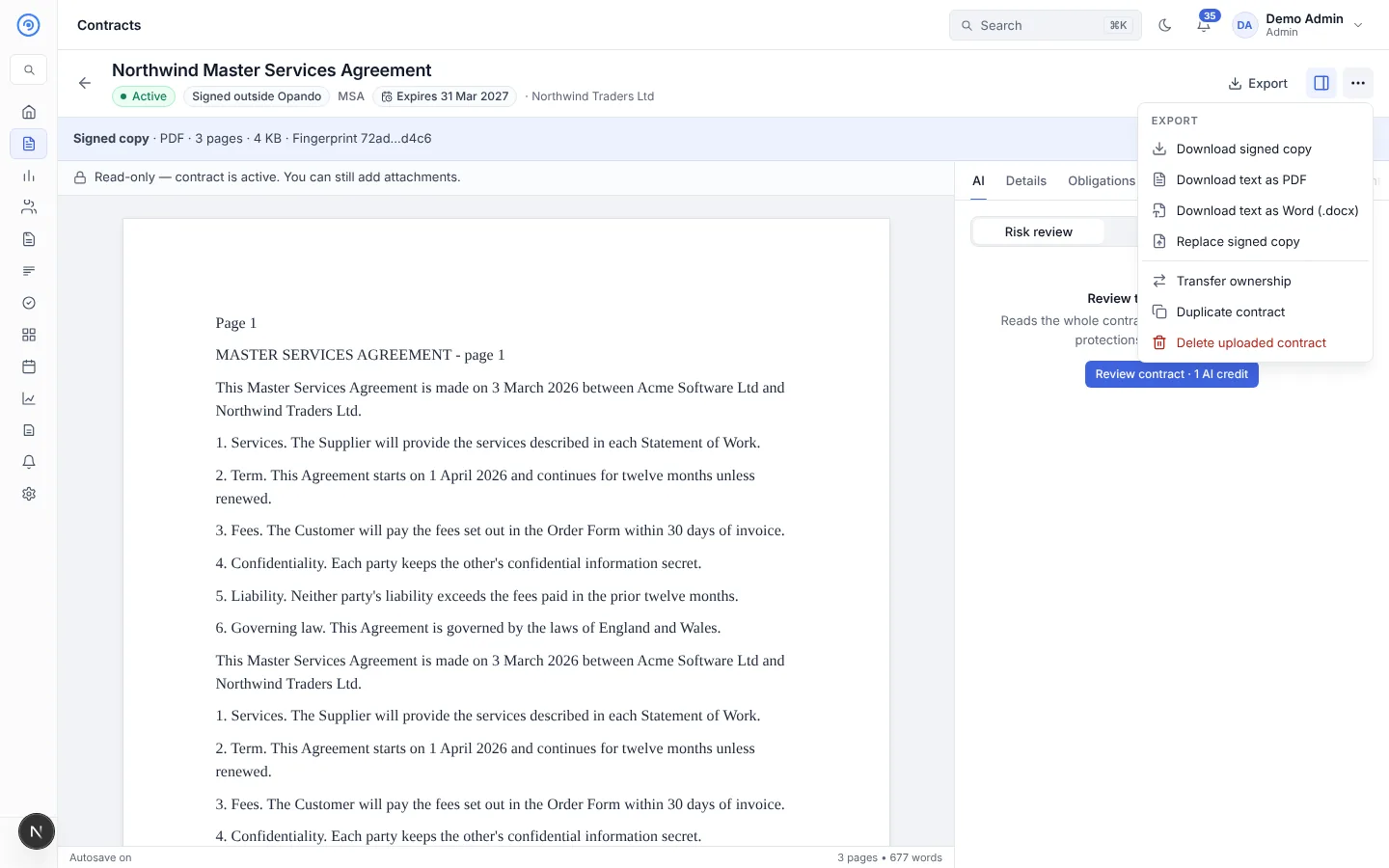
From More actions you can Download signed copy (the file you uploaded, byte for byte). Admins can also Replace signed copy and Delete uploaded contract.
Record a signed copy on an existing contract
If a contract was approved in Opando but signed on paper or in another tool, attach the signed copy to it instead of uploading a new contract.
-
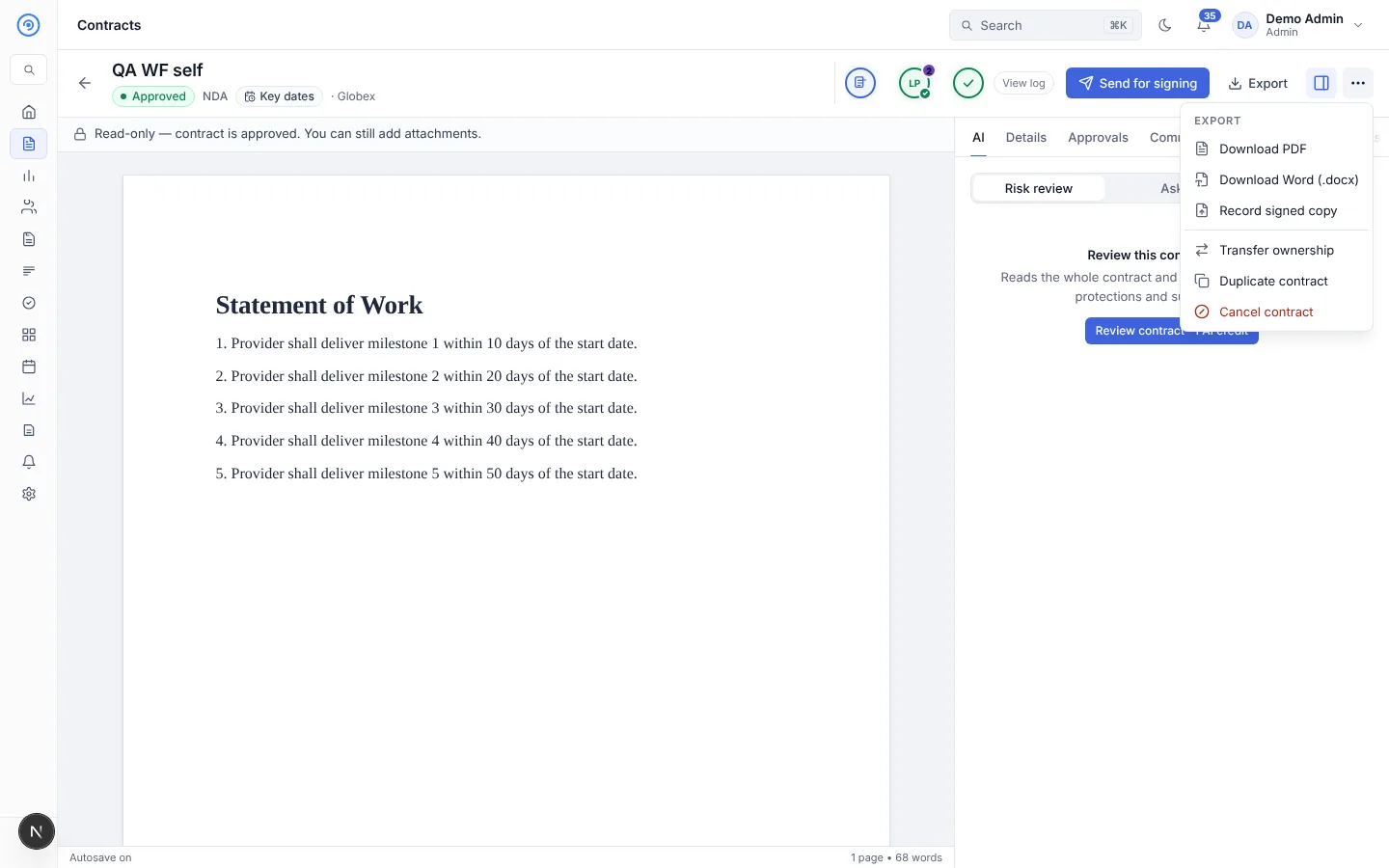
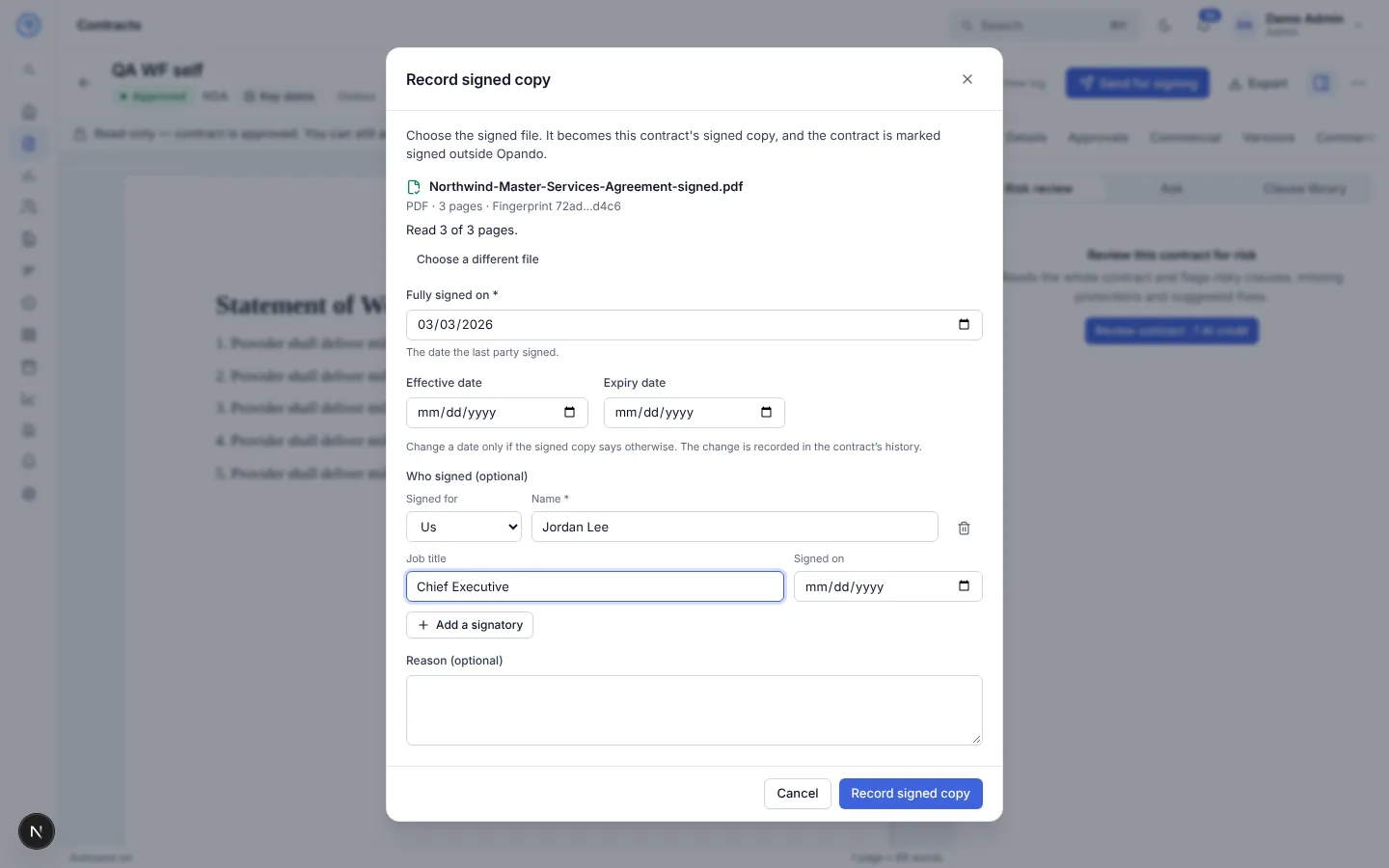
Open the approved contract and choose More actions → Record signed copy.
-
Choose the signed file. The dates are prefilled from the contract. Change a date only if the signed copy says otherwise; the change is recorded in the history. Add signatories if you like.
-
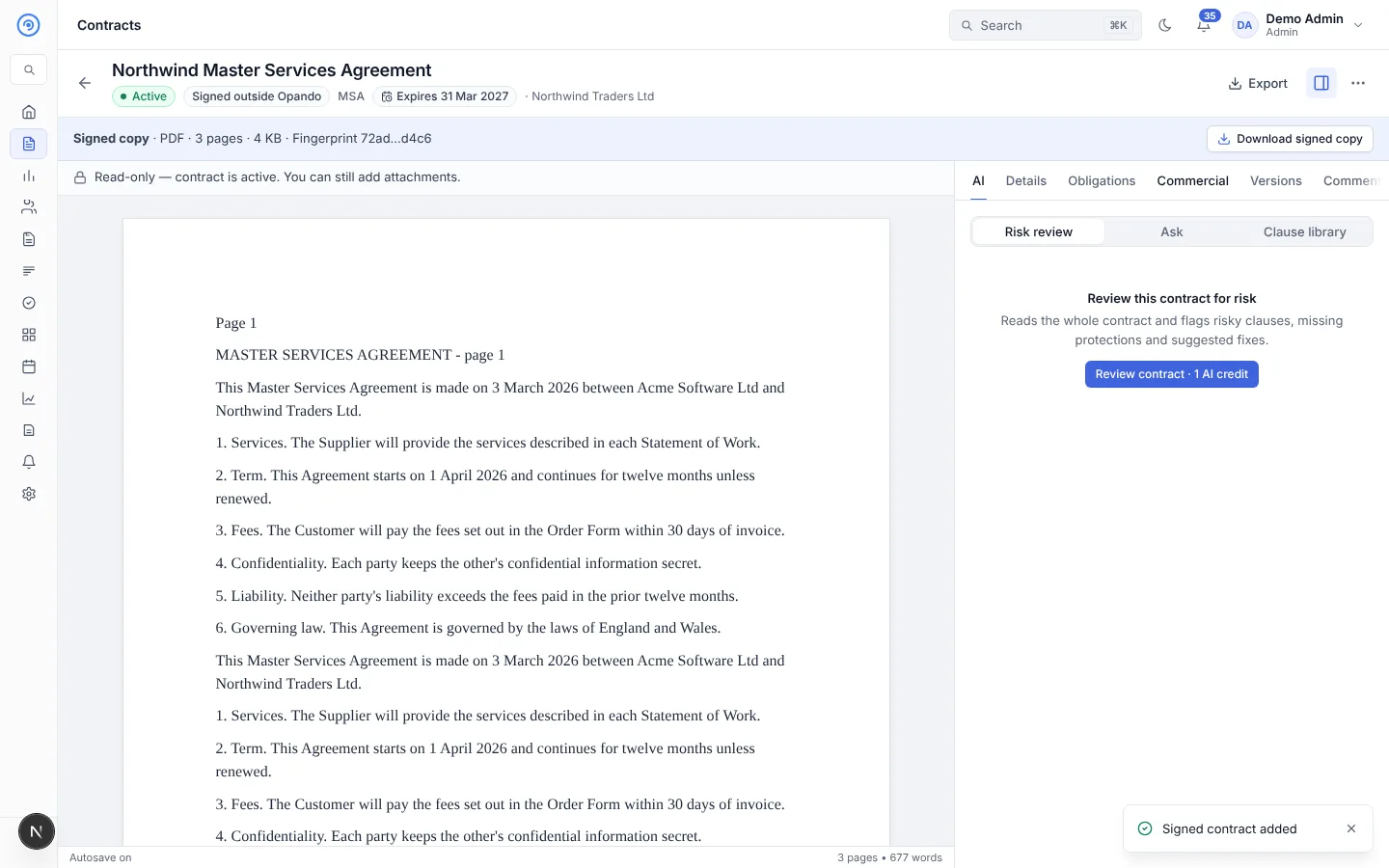
Select Save. The contract becomes Active (or Signed, if it starts later), marked Signed outside Opando.
If the contract hasn't finished approval, saving closes the approval and tells the pending approvers.
Replace a signed copy
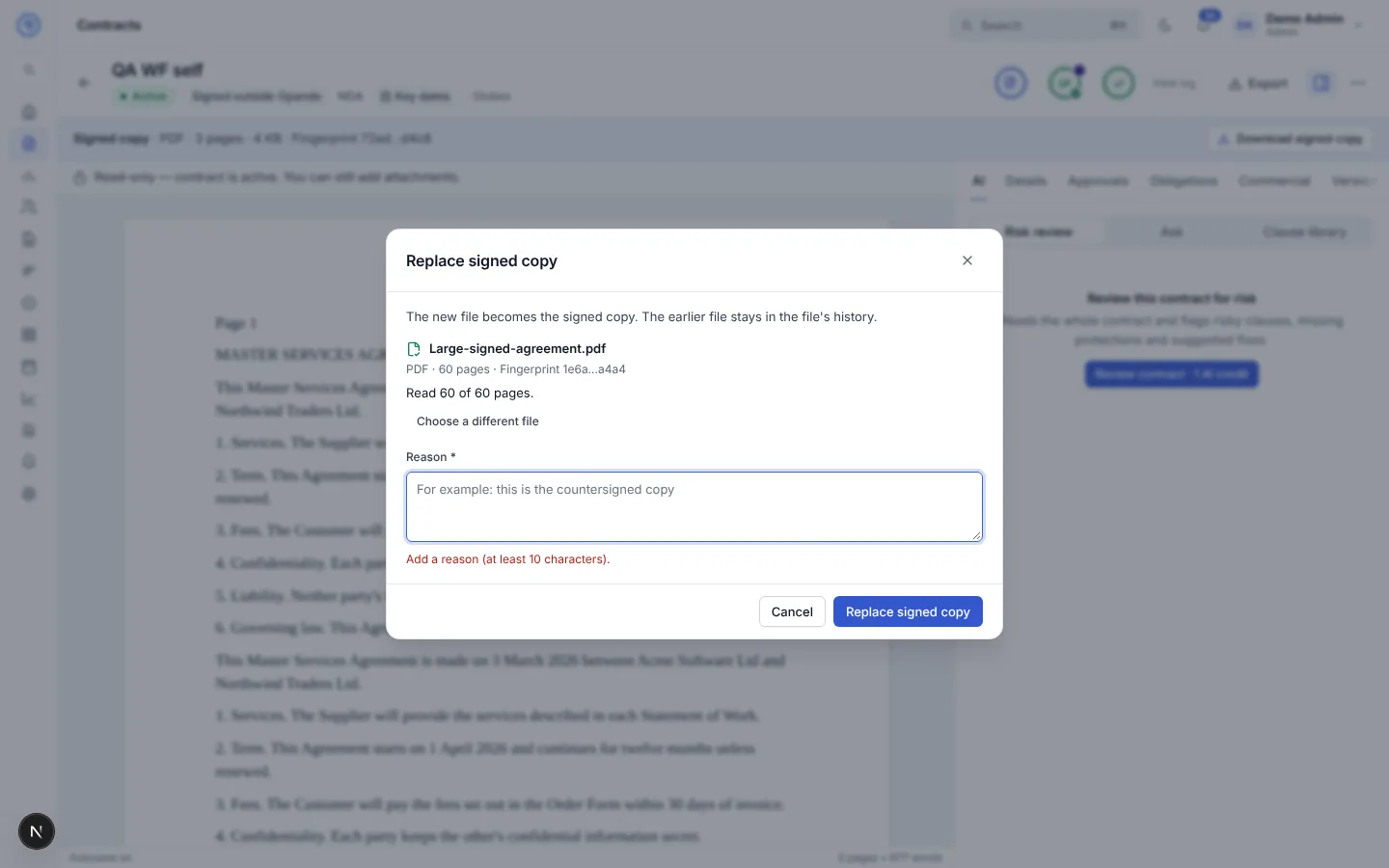
Admins can replace a wrong signed copy from More actions → Replace signed copy. A reason is required. The earlier copy stays downloadable from the contract's history.
Delete and restore an uploaded contract
Admins can delete an uploaded contract from More actions → Delete uploaded contract, with a reason. A contract on legal hold can't be deleted.
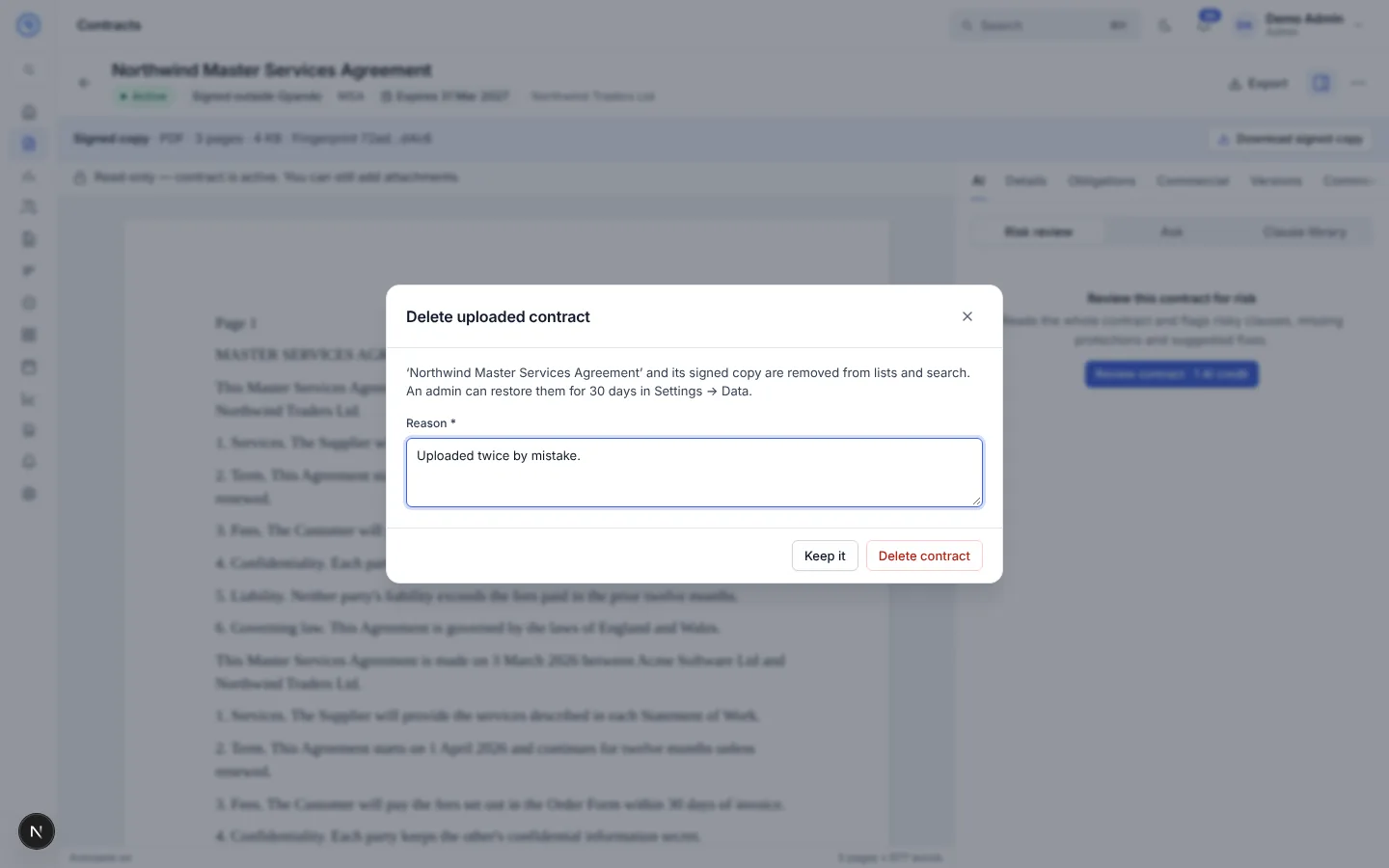
Deleted uploads can be restored for 30 days from Settings → Data → Deleted contracts.
Find contracts added this way
On the Contracts list, filter How signed → Signed outside Opando.