Signing
Once a contract is Approved, the owner sends it for e-signature from the Signing tab. Signers, inside or outside your company, sign in the Opando signing portal; they don't need an account.
Prepare the document
Add a signature field for each signer where they should sign, using Insert → Signature field or Insert → Signature block in the editor (see Editing). You can also add fill-in fields for things the signer types, such as their title or a PO number.
If the document has no signature fields, each party accepts it instead of signing, and the button reads Send for acceptance.
Signature fields are always required
A signer can't finish without completing their signature fields, and a signature only counts once that signer has signed in the current round.
Send for signing
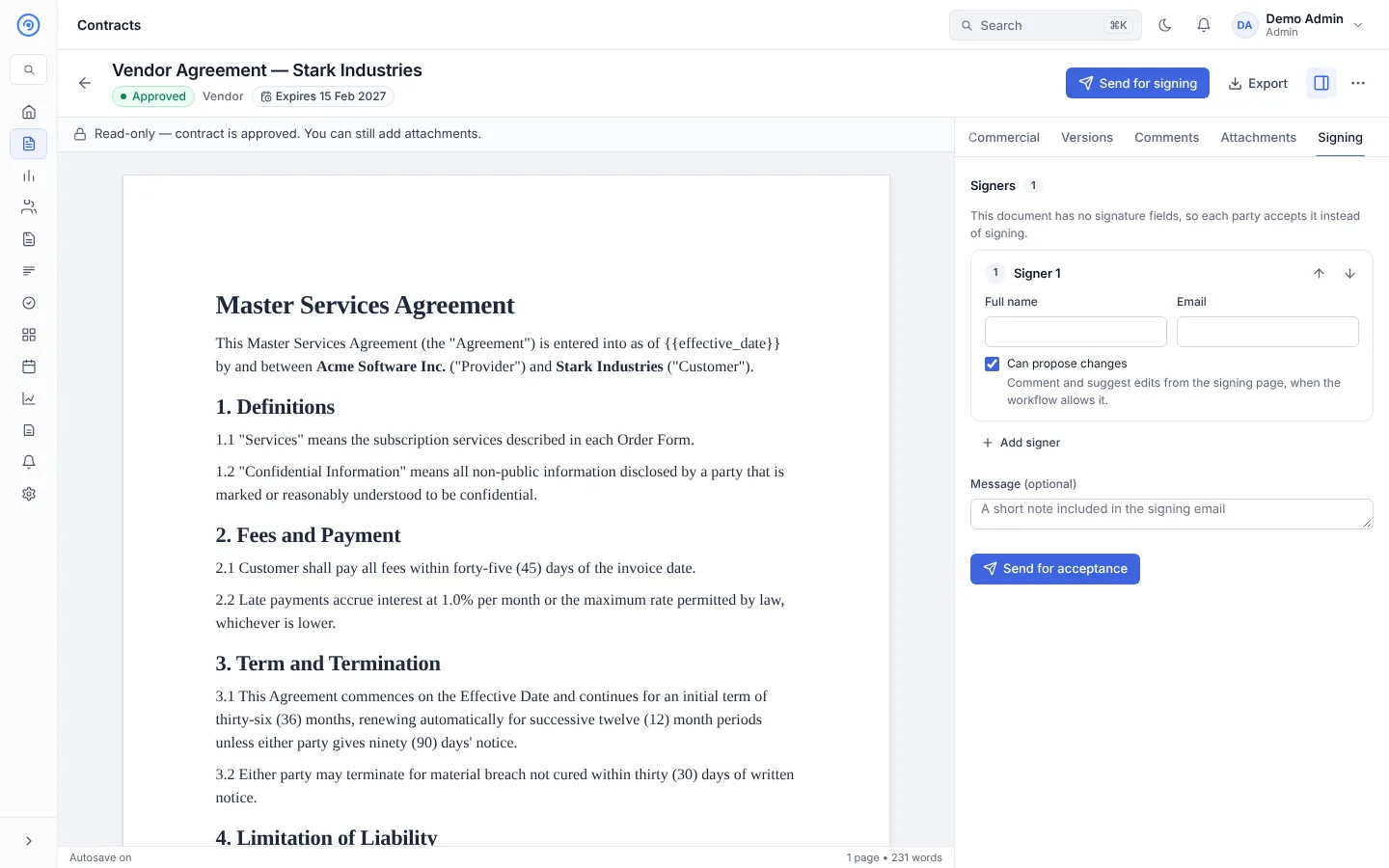
- Open the Signing tab.
- Add each signer with their full name and email. The counterparty contact you chose when creating the contract is signer 1. Select Add signer for more.
- Set the signing order with the up and down arrows. Signers sign one after another in this order.
- Untick Can propose changes for a signer who should only sign. When it's ticked (and the workflow allows it), they can comment and suggest edits from the signing page. See Negotiation.
- Add an optional message, included in the signing email.
- Select Send for signing (or Send for acceptance).
The contract becomes Pending signature. Each signer gets an email with a secure link when it is their turn. Only the contract owner can send it for signing; everyone else sees "Only the contract owner can send it for signing."
Track progress
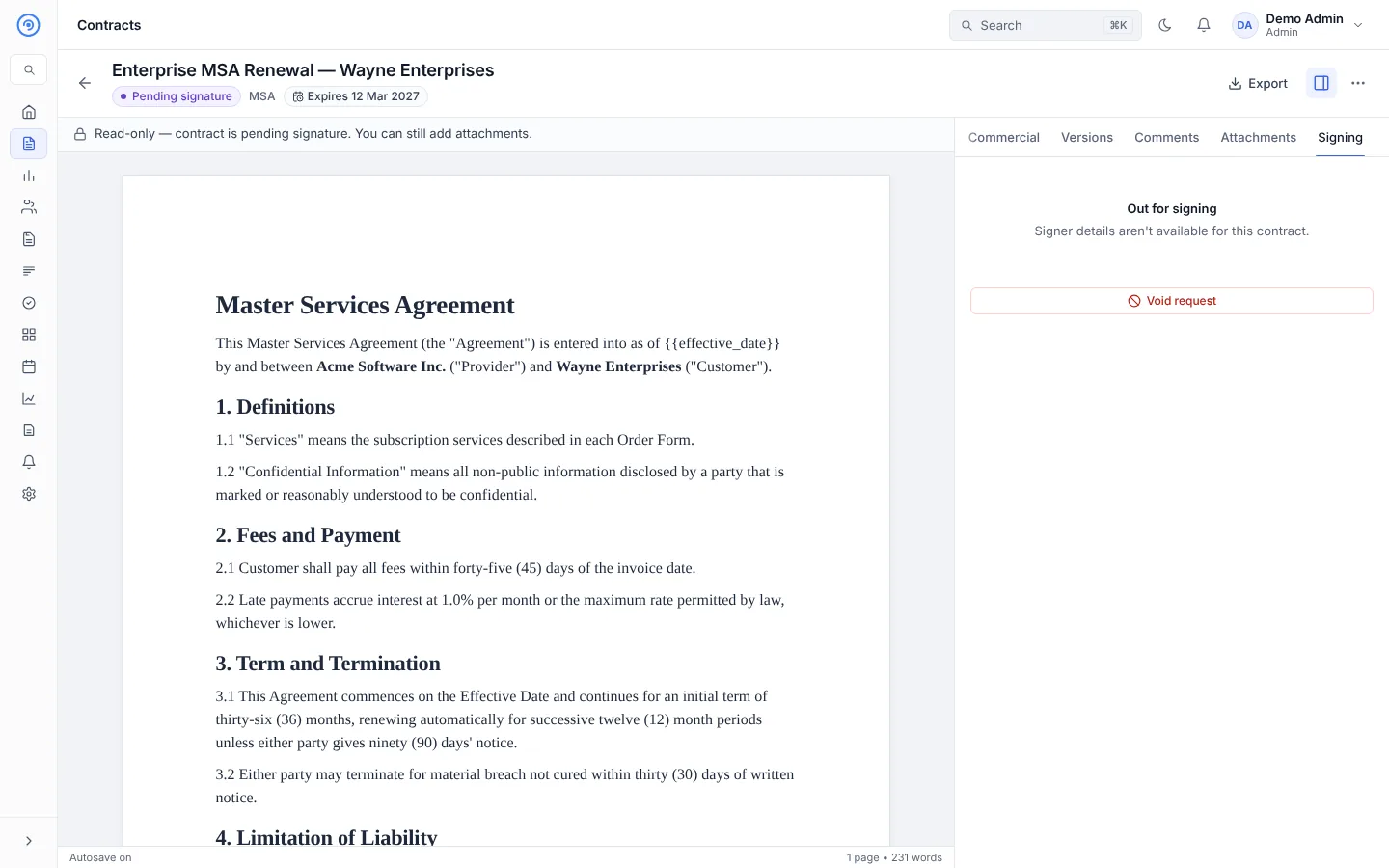
The Signing tab shows Signatures collected and each signer's state. While a contract is pending signature, the owner can, for each signer:
- Resend link: email a new link (a signing link is valid for 72 hours, and the old one stops working).
- Copy link: copy the link to send it yourself. It only works for that signer's email address, and they also need the one-time code Opando emails them.
When everyone has signed, the contract becomes Signed (or Active if its effective date has arrived). The owner is emailed, and the signed PDF and signing certificate can be downloaded from the Signing tab.
If the other party asks for changes
If a signer with Can propose changes sends comments, signing pauses: "The counterparty asked for changes. Signing continues once you close the negotiation round." See Negotiation.
If the other party declines
If a signer declines, the contract becomes Declined by counterparty. The signing round ends for everyone and every link is cancelled. Signatures given in that round are kept for the record but don't count.
The banner shows who declined, when and why, and offers:
- Revise and resend: take the editing lock, change the contract, and submit the revision for approval (changes need re-approval).
- Resend as is: start a new signing round without changes (only if nothing changed since the decline). Everyone signs again.
- Cancel contract. See Contract control actions.
Void a signature request
To stop a signing round, choose More actions → Void signature request, or Void request in the Signing tab. Give a reason and choose what happens next:
- Back to Approved (default): the text hasn't changed, so the approval stands. Everyone signs again on the next send.
- Back to Draft: to change the contract. It needs approval again.
Signers are always told, and you can add a message to them. Signatures already collected are kept and marked void.
Signed outside Opando
If the contract was signed on paper or in another tool, use More actions → Record signed copy instead. See Upload a signed contract.
What the signer sees
See the Signing guide for counterparties.