Opando Help Centre
Opando is a contract lifecycle management (CLM) workspace. Legal, sales and finance teams use it to draft contracts, route them for approval, negotiate with the other party, collect e-signatures, and then keep track of renewals, obligations and revenue once a contract is signed.
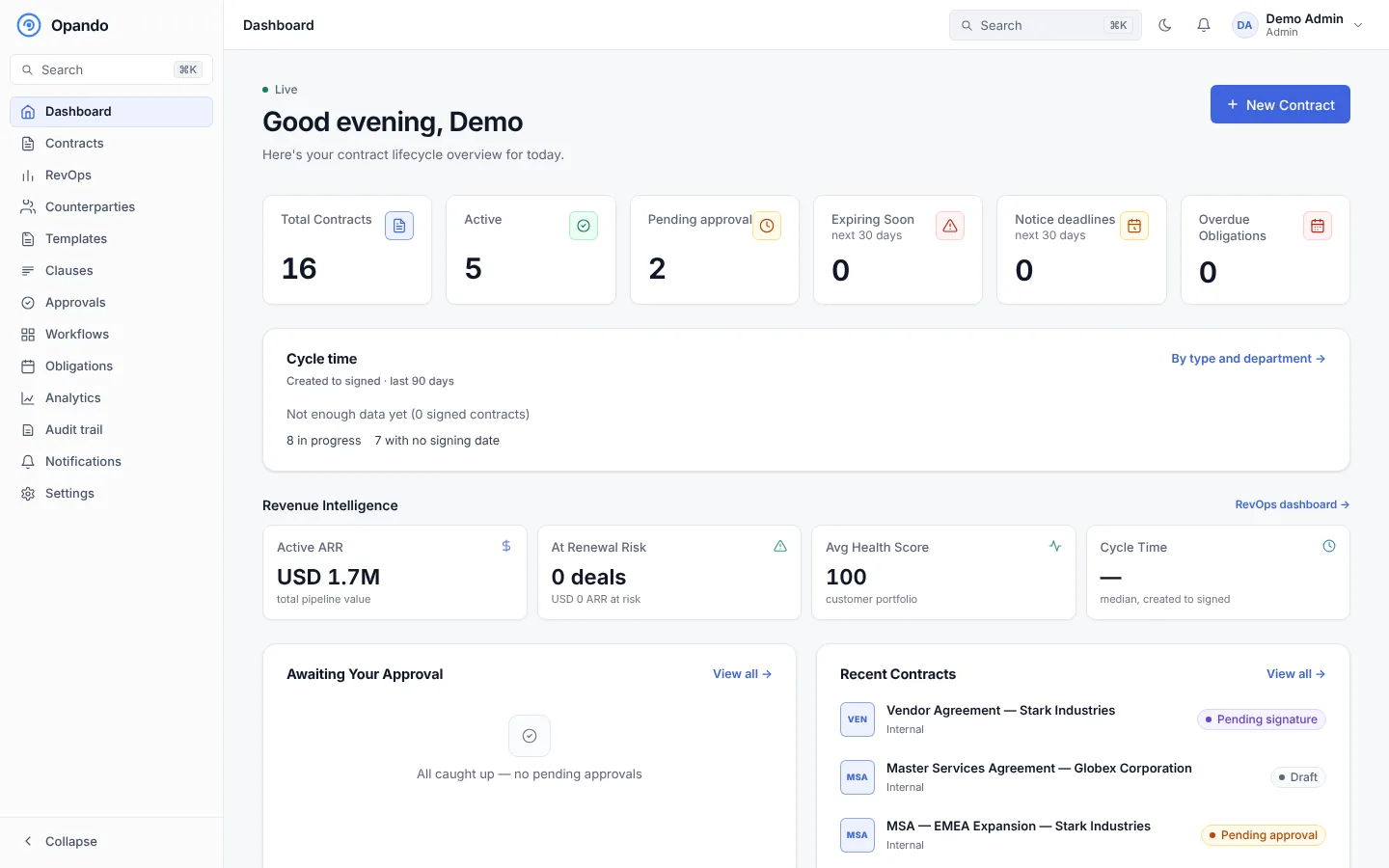
This help centre explains every page and feature in the app, with screenshots taken from a demo workspace.
Start here
-
Accept your invite, choose a password, and secure your account with an authenticator app.
-
The sidebar, quick search (Ctrl+K), notifications, light and dark themes, and your profile.
-
Draft, approval, negotiation, signing and after signing, and what each status means.
-
From a template, from a Word file, drafted with AI, blank, or already signed.
By task
| I want to… | Read |
|---|---|
| Find a contract, filter by notice deadline or search the text | Contracts list and search |
| Draft and edit a contract | Editing a contract |
| Get a contract approved | Approvals on a contract and the Approvals inbox |
| Negotiate changes with the other party | Negotiation |
| Send a contract for e-signature | Signing |
| Add a contract that was signed somewhere else | Upload a signed contract |
| Track renewals, notice deadlines and obligations | After signing and Obligations |
| Cancel, void, transfer or delete a contract | Contract control actions |
| Set up approval chains | Workflows |
| Invite people and set what they can do | Users and Departments and roles |
| Sign a contract someone sent me | Signing guide for counterparties |
Who this is for
- Everyone in the workspace: the Getting started and Contracts sections.
- Approvers: Approvals inbox and Approvals on a contract.
- Revenue and finance teams: RevOps.
- Workspace admins: Administration.
- People outside your company who receive a contract to sign: Signing guide.
What you see depends on your role and plan
Opando only shows the pages and buttons your role allows, and some modules come with particular plans. If a page in this guide is missing from your sidebar, your admin can change your role, or the module may not be part of your plan. See Roles and permissions and Plans and limits.