After signing
Once a contract is signed, Opando keeps watching it: the notice deadline for renewals, obligations each side must meet, and its commercial terms.
Renewal terms and notice deadline
Select the key-dates chip in the contract header (for example Expires 26 May 2027) to open Renewal and key dates.
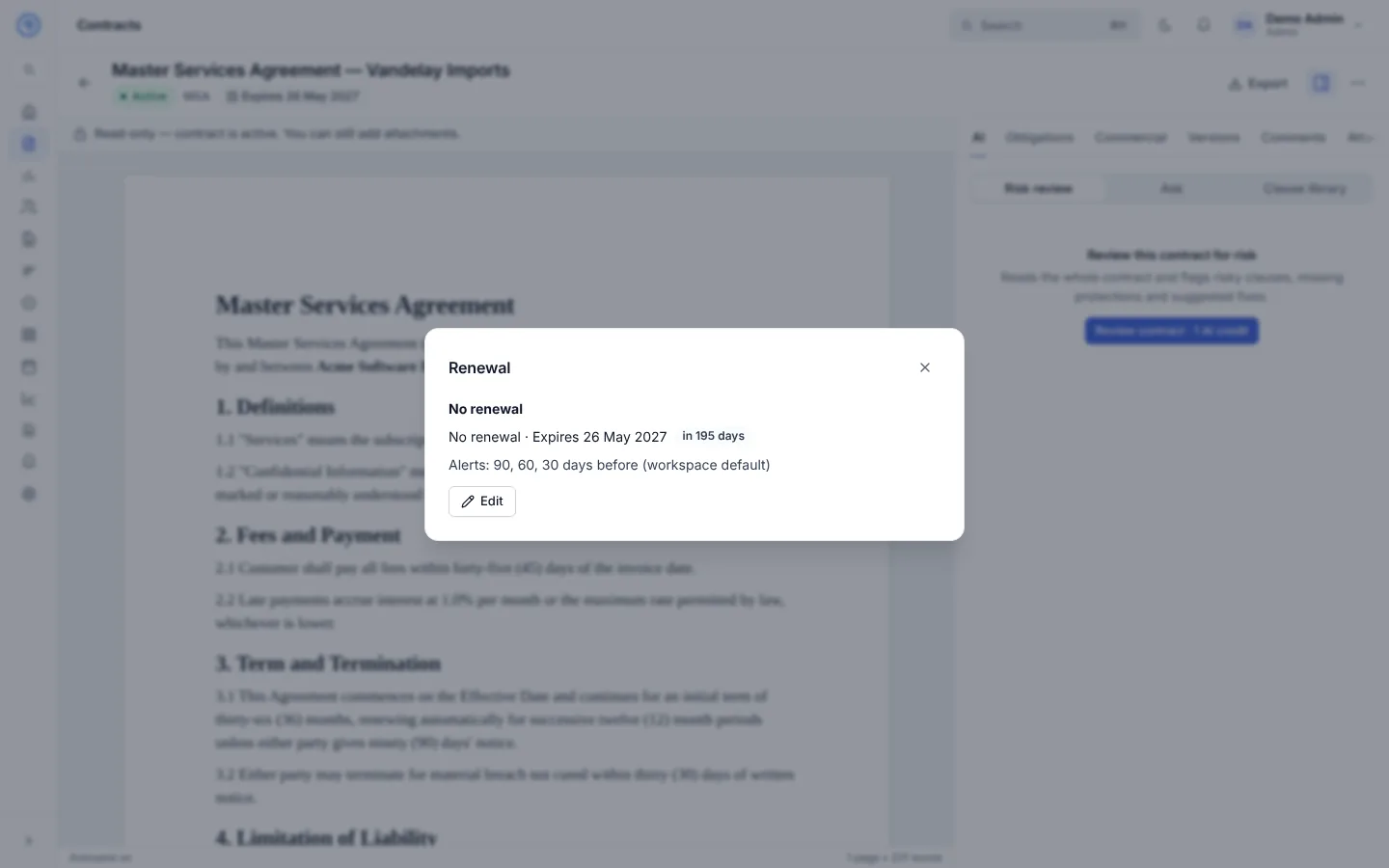
Every contract records:
| Field | Values |
|---|---|
| Renewal | No renewal · Auto-renews (evergreen) · Optional renewal |
| Renewal term | In months, for renewing contracts |
| Notice period | Days or months before the expiry date |
| Expiry date | The last day in force |
From these Opando calculates the notice deadline: the last day to tell the other party you won't renew. For an auto-renewing contract this is the date that matters, not the expiry date. If the notice period isn't recorded, Opando says "Notice period not recorded. Add it to get notice-deadline alerts."
Alerts
The contract owner gets an email and an in-app notification before the notice deadline: by default 90, 60 and 30 days before (the workspace default, set in Settings → Notifications). For one contract you can set a Custom alert schedule of up to five alerts, or go Back to workspace default.
A contract with no renewal gets an alert before it expires. If the owner has been deactivated, alerts go to the workspace admins instead.
Your workspace can also choose to tell the counterparty before an auto-renewal (off by default, set by an admin).
Correct the terms after signing
If the recorded terms don't match the signed contract, the owner or an admin can Edit them. A reason of at least 10 characters is required. The signed document doesn't change; the correction and its reason are kept in the contract's history and the Admin change log.
Auto-renewal
When an auto-renewing contract reaches its expiry date, Opando rolls the expiry forward by the renewal term, recalculates the notice deadline and records the renewal in the history. A contract that doesn't renew becomes Expired on its expiry date.
Find upcoming deadlines
- The dashboard shows Notice deadlines and Expiring soon in the next 30 days.
- The Contracts list filters by notice deadline (next 30, 60 or 90 days, passed, not set) and expiry date.
- RevOps → Renewals ranks contracts by renewal risk.
Obligations
Obligations are commitments a party must meet under the contract, such as "Send renewal notice", "Deliver quarterly report" or "Return data on termination". They appear from Signed onwards.
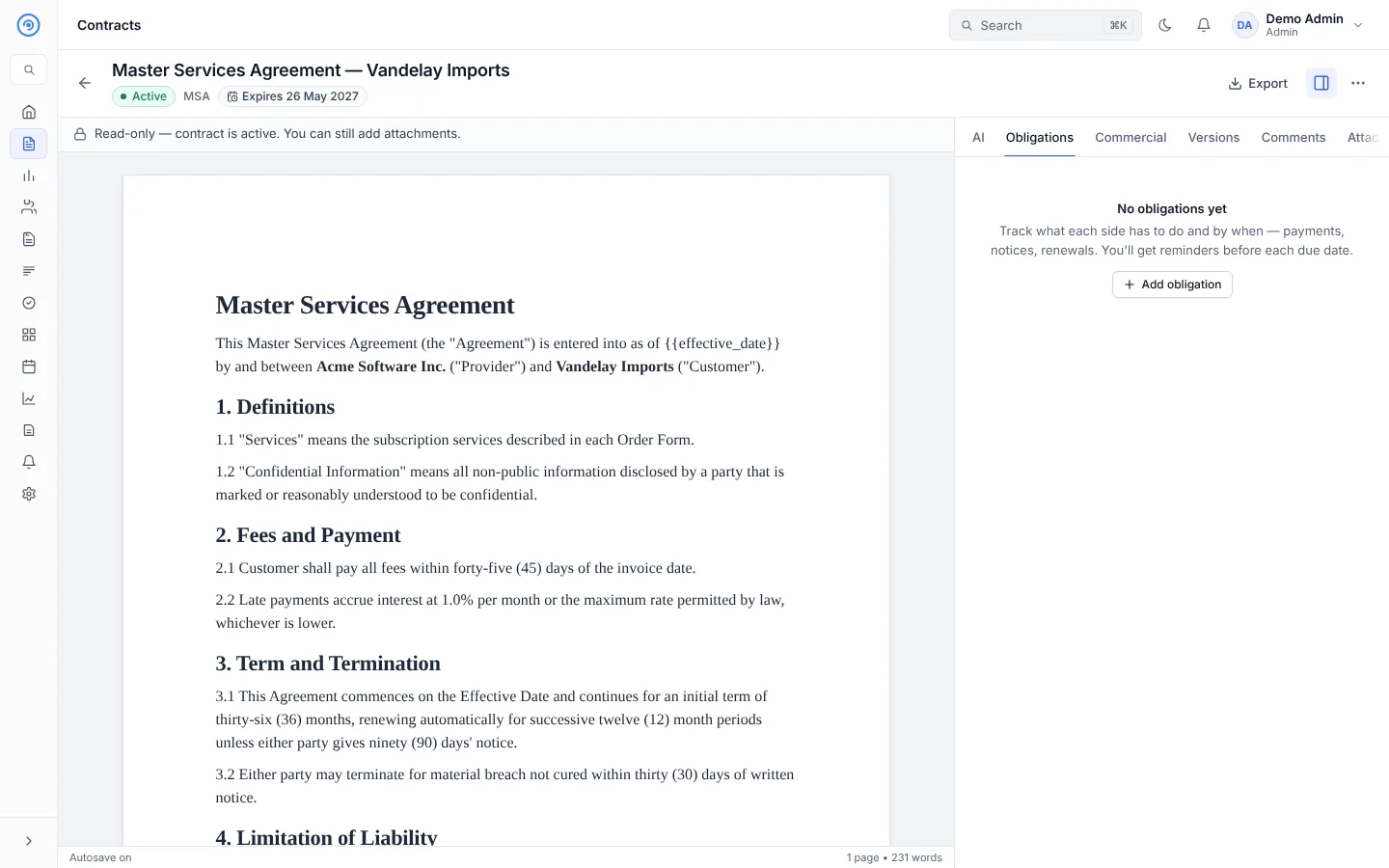
- Add obligation: describe what needs to happen, the due date, who owes it (us or them) and who is responsible.
- Mark done when it's complete, with evidence if needed.
- AI candidates: after signing, Opando reads the contract and suggests obligations it found, with how sure it is. "Found in the signed contract. Accept to start tracking, or dismiss."
- After a contract expires or is terminated, you can still complete obligations that survive it, such as confidentiality.
All obligations across your contracts are on the Obligations page, which can sync to your calendar. Owners are emailed when an obligation is due soon or overdue.
Commercial terms
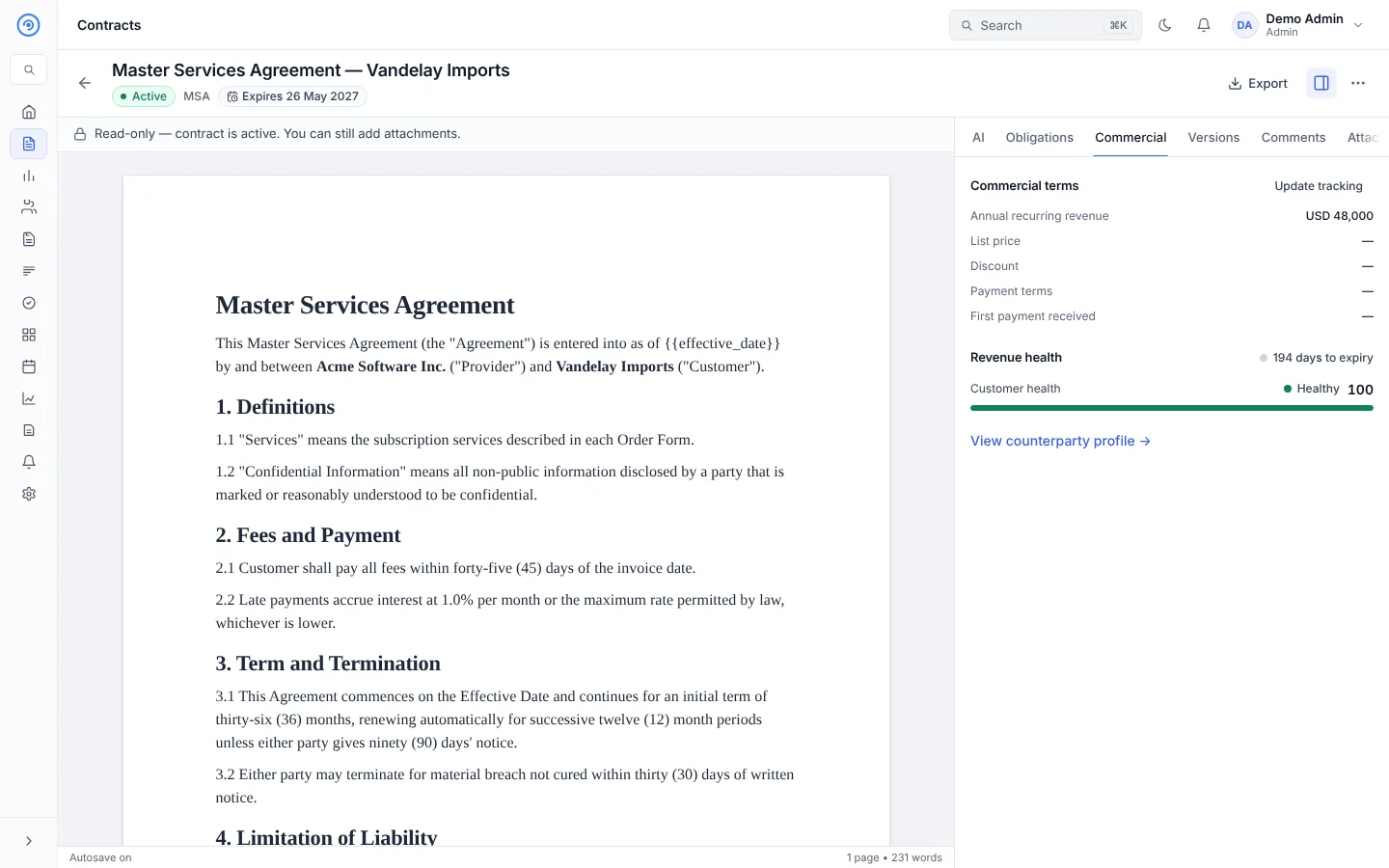
The Commercial tab records the money side of the contract and feeds RevOps.
| Field | Notes |
|---|---|
| Contract value and currency | Total value. Read-only once in approval or signed; change it through an amendment. |
| Annual recurring revenue | Used in revenue and renewal reporting. |
| List price | Add it to track discounts. |
| Payment terms | Net 30, Net 60, Net 90, milestone-based (payment triggered by deliverables) or custom terms, with an optional payment schedule. |
| First payment received | Optional, for finance tracking. Stays editable after signing for people with RevOps financial access. |
If the discount is higher than usual for your workspace, a Discount is higher than usual banner appears; a discount above the approved limit needs an exception approval (Request approval).
Revenue health shows the contract's renewal likelihood and the counterparty's customer health once the contract has revenue and a linked counterparty.
Download the signed copy
From the Signing tab (or More actions → Download signed copy for contracts signed outside Opando), download the signed PDF and the signing certificate.