Negotiation
When the workflow allows it, the other party can review the contract in the signing portal, comment on the text and propose changes. Each submission from them opens a negotiation round, and the contract becomes Negotiating.
Plan
Negotiation is part of the Pro and Enterprise plans.
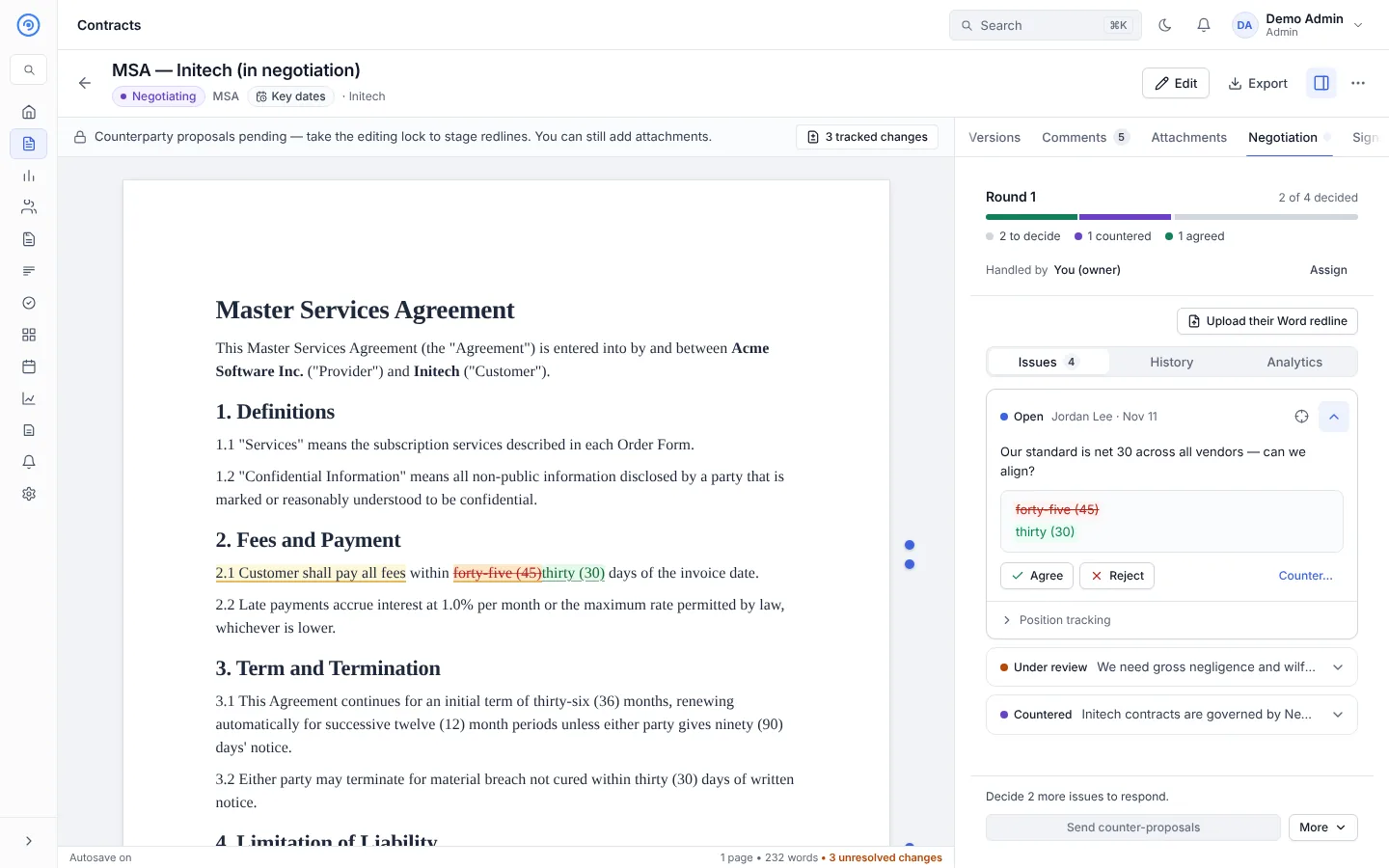
How a round works
- The other party selects text in the portal, comments on it, suggests new wording and sends their comments to you. See the signing guide.
- Opando turns each proposed change into an issue in the Negotiation tab, next to the clause it is about. Their file, if they uploaded one, can be downloaded from the round.
- For each issue, choose:
- Just agree: accept their wording.
- Counter…: write a counter-proposal they will see. Take the editing lock to add your counter to the document as a tracked redline.
- Reject: decline the change, with an optional reason shared with them.
- Add an internal note that only your team sees, or park the issue as seen-but-unanswered. A parked issue still blocks sending the round back.
- Open Review changes to accept or reject each tracked change and resolve each Word comment in the Changes panel.
- Finish the round:
- Send your counters back, which opens a new round. The other party can accept or decline each counter.
- Accept & re-approve internally: accept the agreed changes. The contract goes back through internal approval before signing.
- Accept & start signing now, when the changes don't need re-approval.
Use Compare (the side-by-side view) to see the current clause, their proposal and your counter together, and move between issues with the arrow keys. If your workspace has a negotiation playbook, each issue shows your standard position and the fallback you can accept.
Who handles the negotiation
Handled by shows who is responsible. The owner handles it unless they assign a Negotiation assignee, for example someone in Legal. The assignee can Return to owner with a note.
Their Word redline
If the other party emails a marked-up Word file instead of using the portal, use More actions → Upload their Word redline. Opando places their changes as tracked changes and opens a round. See Editing.
Limits
The workflow can limit the number of negotiation rounds the other party can submit. Your own internal counter-proposal rounds don't count toward this limit.
Negotiation analytics
The Analytics view of the Negotiation tab, and the Analytics and RevOps → Negotiation pages, show rounds per contract, days to close and the most disputed clauses.