Approvals on a contract
Before a contract can be sent for signature, it goes through an approval workflow: a chain of approval levels such as Legal, then Finance. Admins set workflows up in Workflows.
Submit a contract for approval
- Open the draft and check that every placeholder has a value. Approval can't start until every placeholder is filled (see Variables), and required custom fields must be filled in.
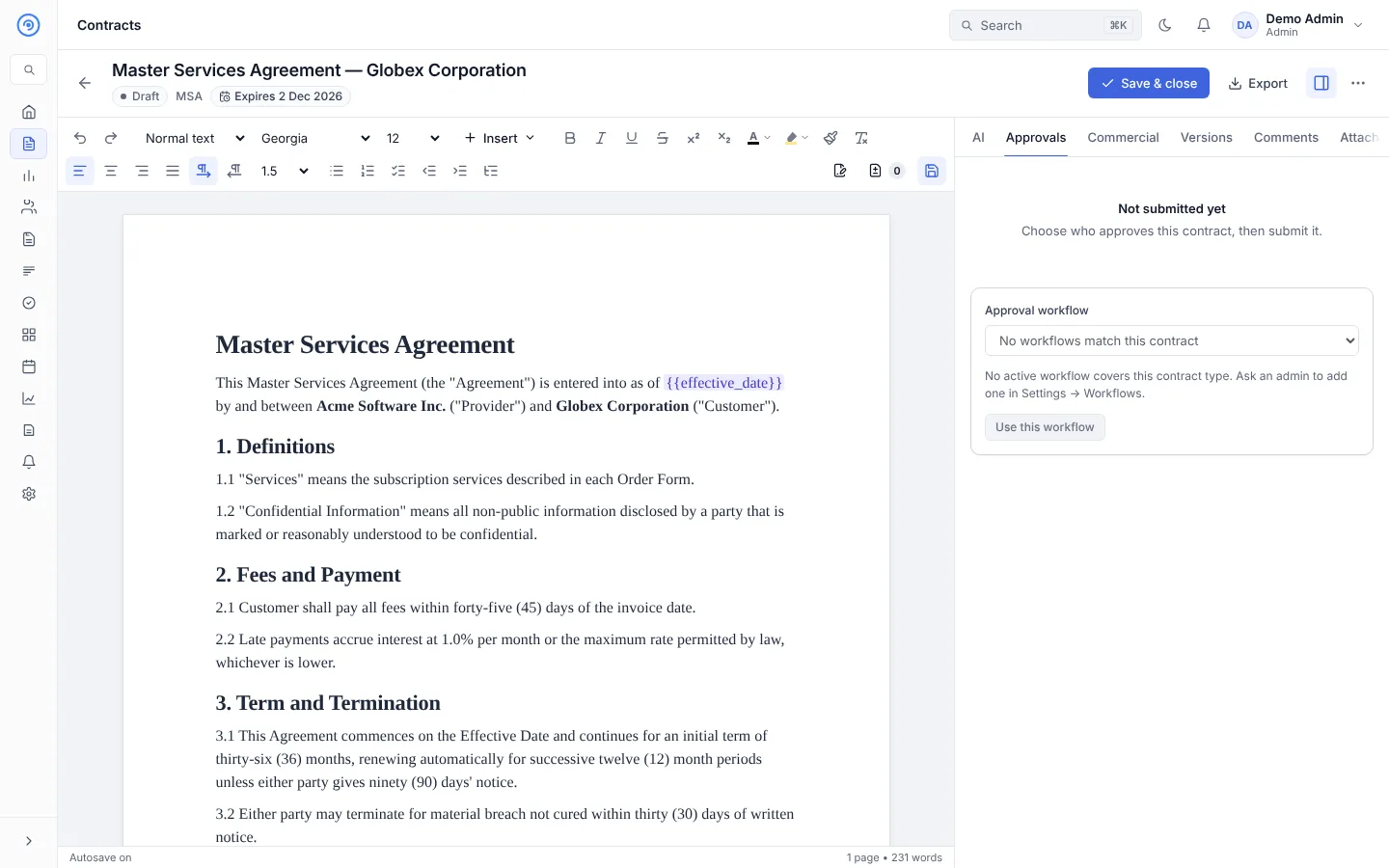
- Open the Approvals tab. Opando picks the workflow that matches the contract's type, value and other conditions, or you choose one. It shows the route, for example This will route to: Legal → Finance.
- Select Submit for approval in the header.
The contract becomes Pending approval and is locked for editing. The first approver is emailed and sees the contract in their Approvals inbox.
No workflow
If no active workflow covers the contract type, the Approvals tab says so: "No active workflow covers this contract type. Ask an admin to add one."
Follow progress
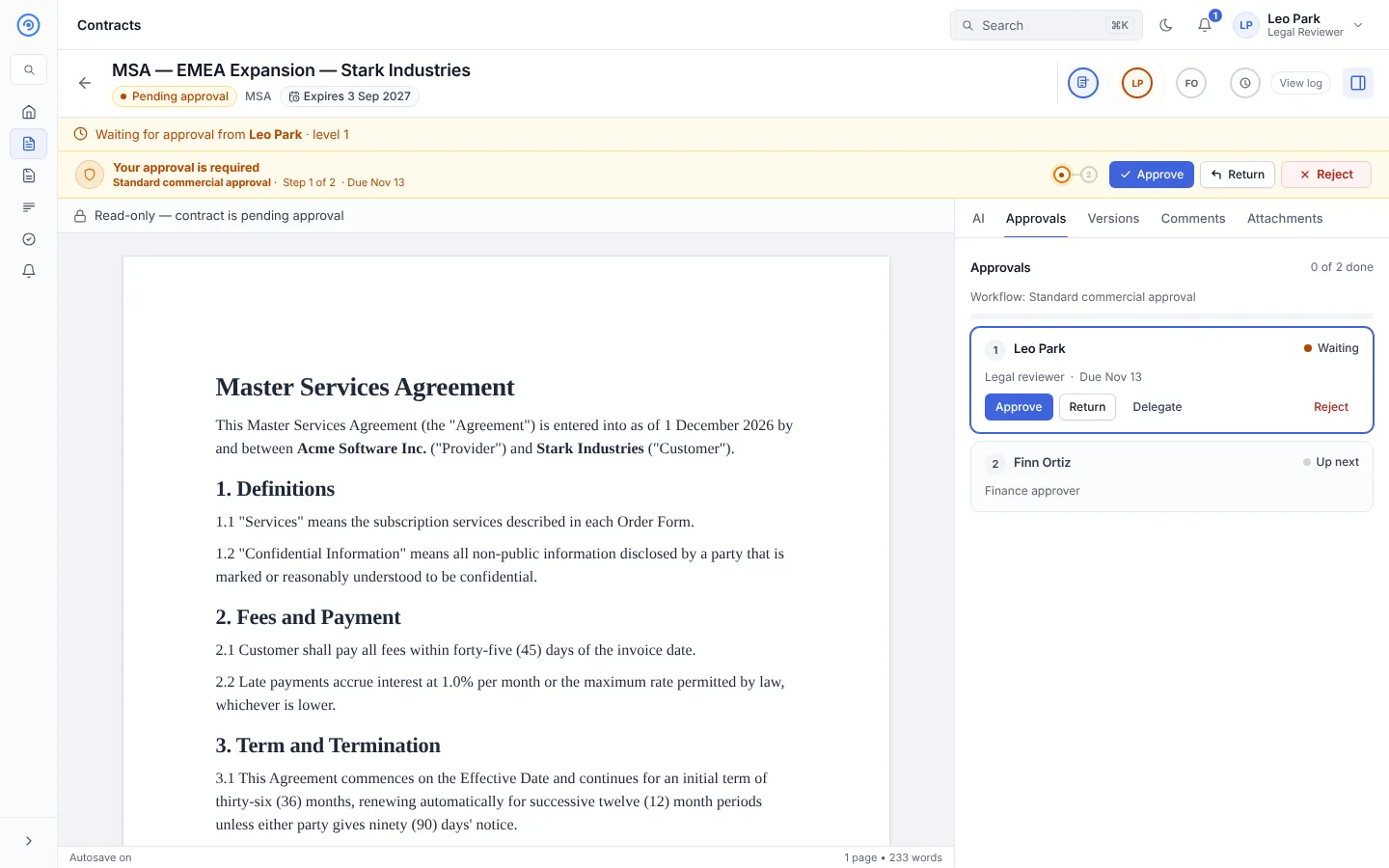
The Approvals tab shows each level, who approves it, its due date (from the step's SLA) and its state: Waiting, Up next, Approved, Returned or Rejected. The header shows Waiting for approval from … and avatars for each approver; select View log for the full history.
Act as an approver
When it's your turn, a banner says Your approval is required, with the workflow name, the step and the due date.
| Action | What happens |
|---|---|
| Approve | Moves the contract to the next approver, or to Approved after the last level. You can add an optional note for the owner. |
| Return | Sends it back one step for changes: to the previous level, or to Draft from level 1. A reason is required; the owner sees it. |
| Reject | Ends the request. A reason is required. The contract is locked: no edits, resubmission or signing. |
| Delegate | Hands your step to a colleague, for example when you are away. |
If you own the contract, you can't approve it yourself: delegate the step to a colleague instead. If someone is editing the contract, you can act once they finish.
Admins can also reassign a step to someone else, with a reason, and can withdraw a contract from approval when nobody else can approve it.
After a return
The owner sees a Returned banner with the reason: "Make the changes, then submit it for approval again." The new submission starts the workflow again.
After a rejection
A rejection is final for that request. Two ways forward:
- Re-open for rework: someone with the re-open permission (Legal manager or an admin) gives a reason, which the owner and the audit trail see. The contract goes back to Draft and a new approval starts when it is resubmitted.
- Clone as new contract: the owner starts again from a copy.
People who approved earlier keep read-only access to the contract.
Approval reminders and SLAs
Each workflow step has an SLA in hours. Approvers get reminder emails as the due time approaches, and admins are told when a step goes past its SLA (if those notifications are on in Settings → Notifications).