The contract page
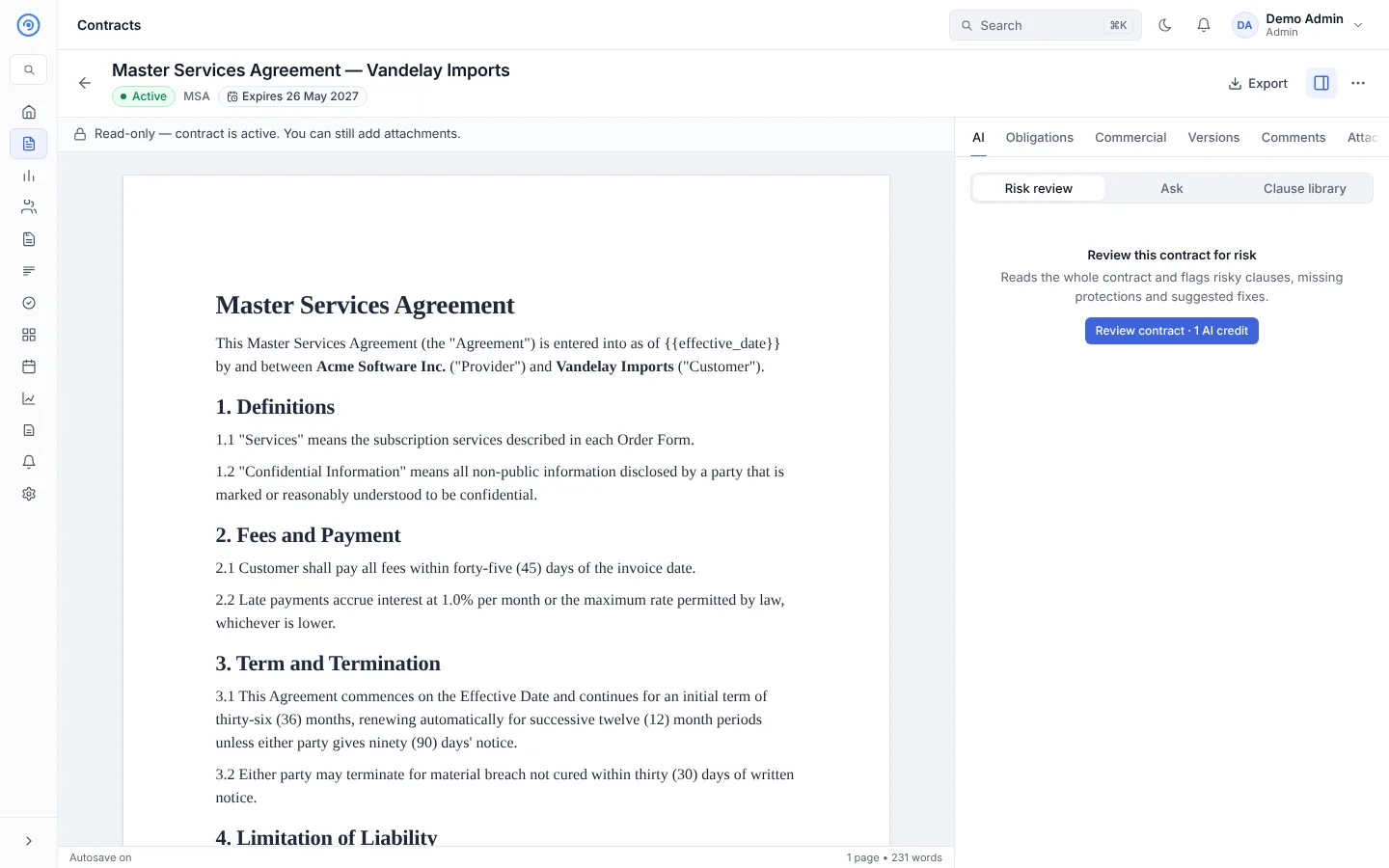
Open any contract from the Contracts list to see its page: the document in the middle and a side panel of tabs on the right.
The header
- Title, status badge and type.
- Key dates chip, for example Expires 26 May 2027 or Notice by 1 Nov 2026. Select it to see and correct the renewal terms. See After signing.
- The main action for the status, for example Edit, Submit for approval, Send for signing or Save & close.
- Export: download the contract as a PDF or a Word (
.docx) file. - Show / hide side panel (the panel icon).
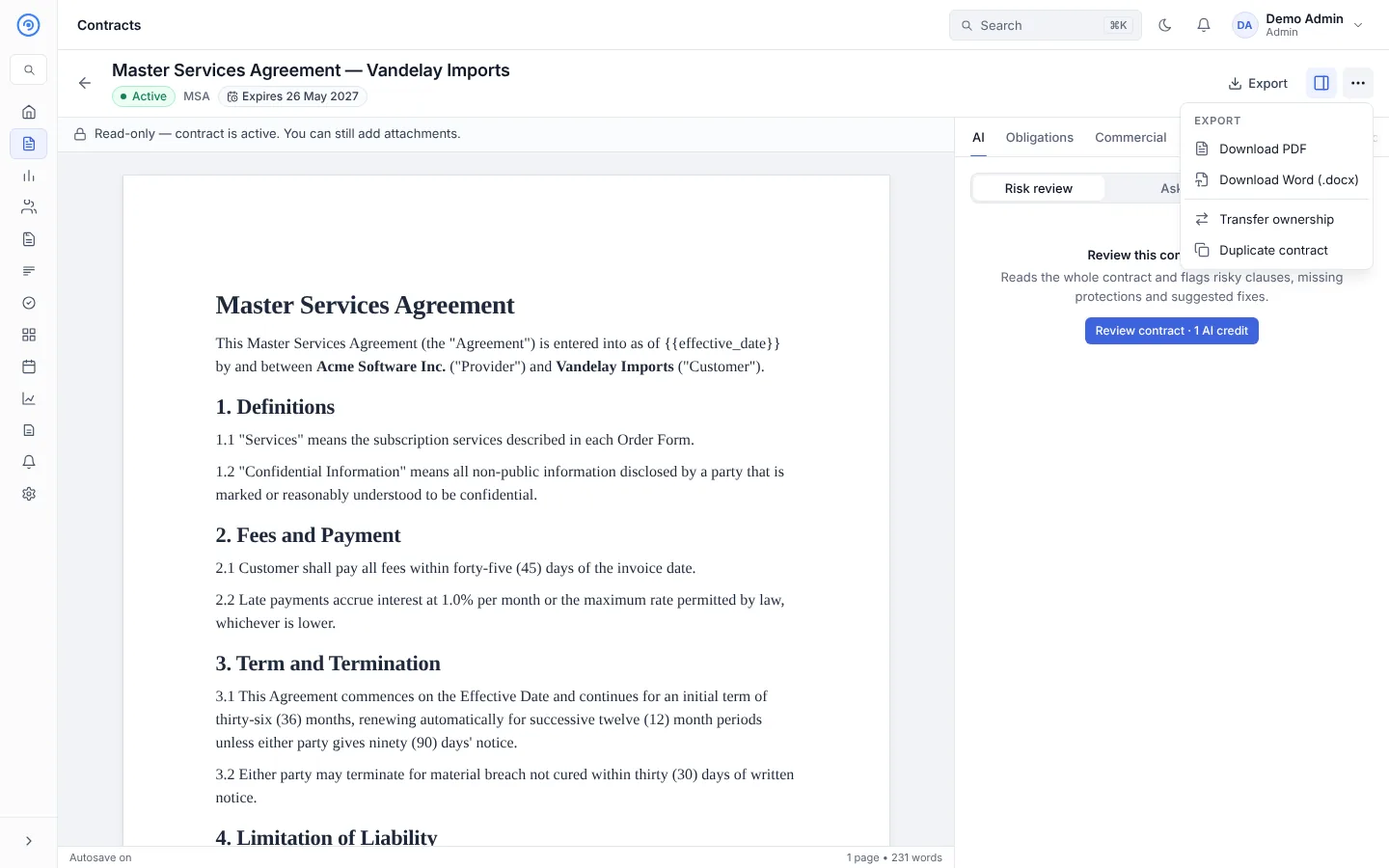
- More actions (
…): duplicate, transfer ownership, cancel, void a signature request, record or replace a signed copy, upload the other side's Word redline, delete a draft. Only the actions that apply to the status and your role are listed. See Contract control actions.
Banners
A banner under the header explains anything that needs attention:
- View only — take the editing lock to make changes. Someone needs to select Edit before the text can change. See Editing.
- Your approval is required, with Approve, Return and Reject, when you are the current approver.
- Returned: "Make the changes, then submit it for approval again."
- Rejected, Cancelled or Declined by counterparty, with who did it, when, the reason, and what you can do next.
- Read-only — contract is active. You can still add attachments.
Side-panel tabs
| Tab | What it's for |
|---|---|
| AI | Risk review, questions about the contract, and clause suggestions. See AI assistant. |
| Details | Custom fields, signing details for uploaded contracts, and the contract's details. |
| Approvals | Choose the workflow, see the route, and approve, return or reject. See Approvals on a contract. |
| Obligations | Commitments to track after signing. See After signing. |
| Commercial | Contract value, ARR, list price, discount and payment terms. See After signing. |
| Versions | Saved versions; compare any two. See Comments, versions and attachments. |
| Comments | Discuss the text with your team. See Comments, versions and attachments. |
| Attachments | Supporting files such as schedules, emails and certificates. See Comments, versions and attachments. |
| Negotiation | Rounds and issues raised by the other party. See Negotiation. |
| Variables | Values used throughout the document. See Editing. |
| Clauses | Insert approved clauses from your library. See Editing. |
| Signing | Signers, signing order, progress and reminders. See Signing. |
Tabs by status
Opando shows the tabs that make sense for where the contract is:
- Editing tabs (Variables, Clauses, and editing in Commercial) only appear while the contract can be edited and you hold the editing lock: in Draft, In review, Negotiating and while revising after a decline.
- History stays readable. Approvals, Negotiation, Signing and Versions become read-only once their stage is over.
- Obligations appear from Signed onwards.
- Your role and your plan still apply on top. For example, you won't see Approvals without approval permissions, or Obligations if your plan doesn't include them.
Contract history
Every change is recorded: who created, edited, submitted, approved, sent, signed or changed the contract, and when. Open it from Journey log on the Contracts list, or from the contract's history.
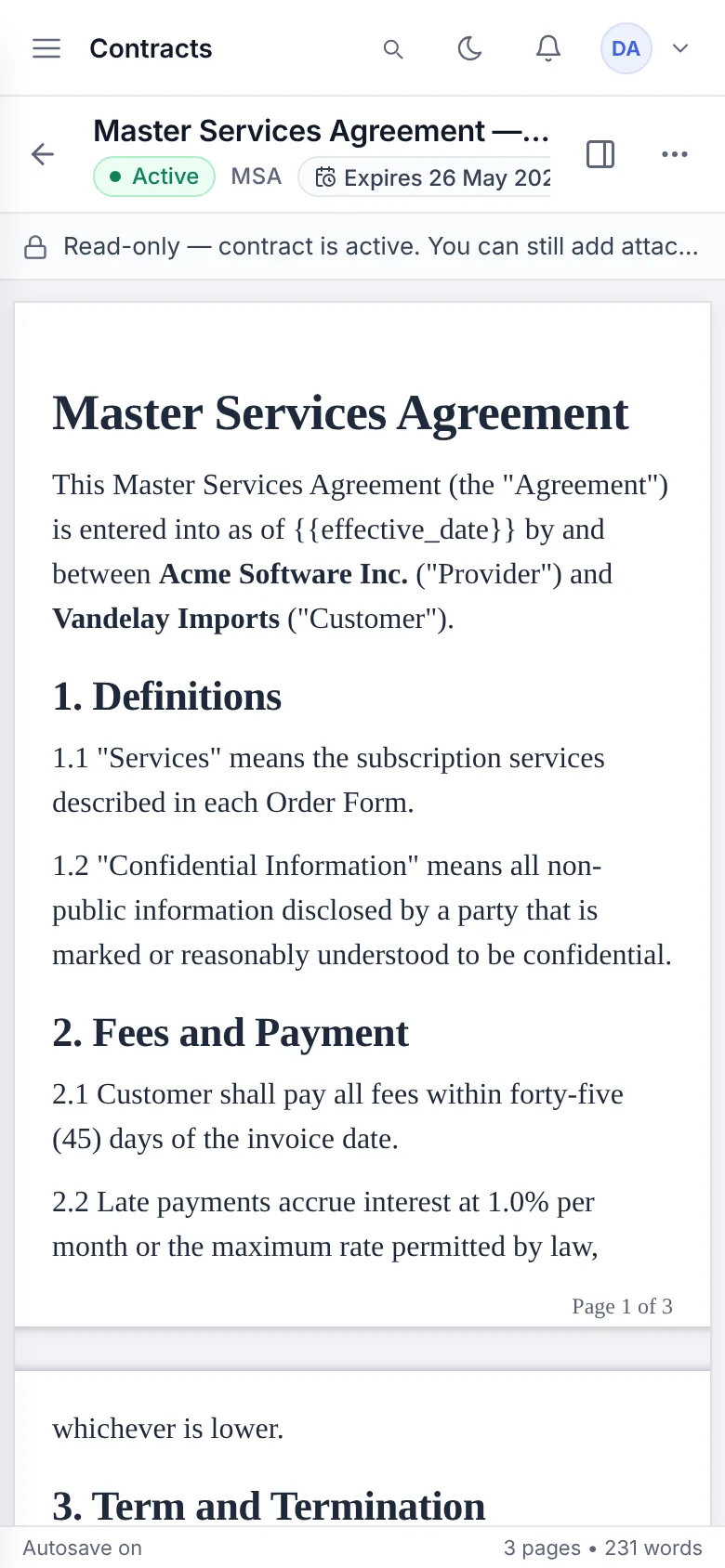
Phones
On a phone the document fills the screen and the side panel opens over it.