Your profile, password and sessions
Open My profile from the account menu at the top right.
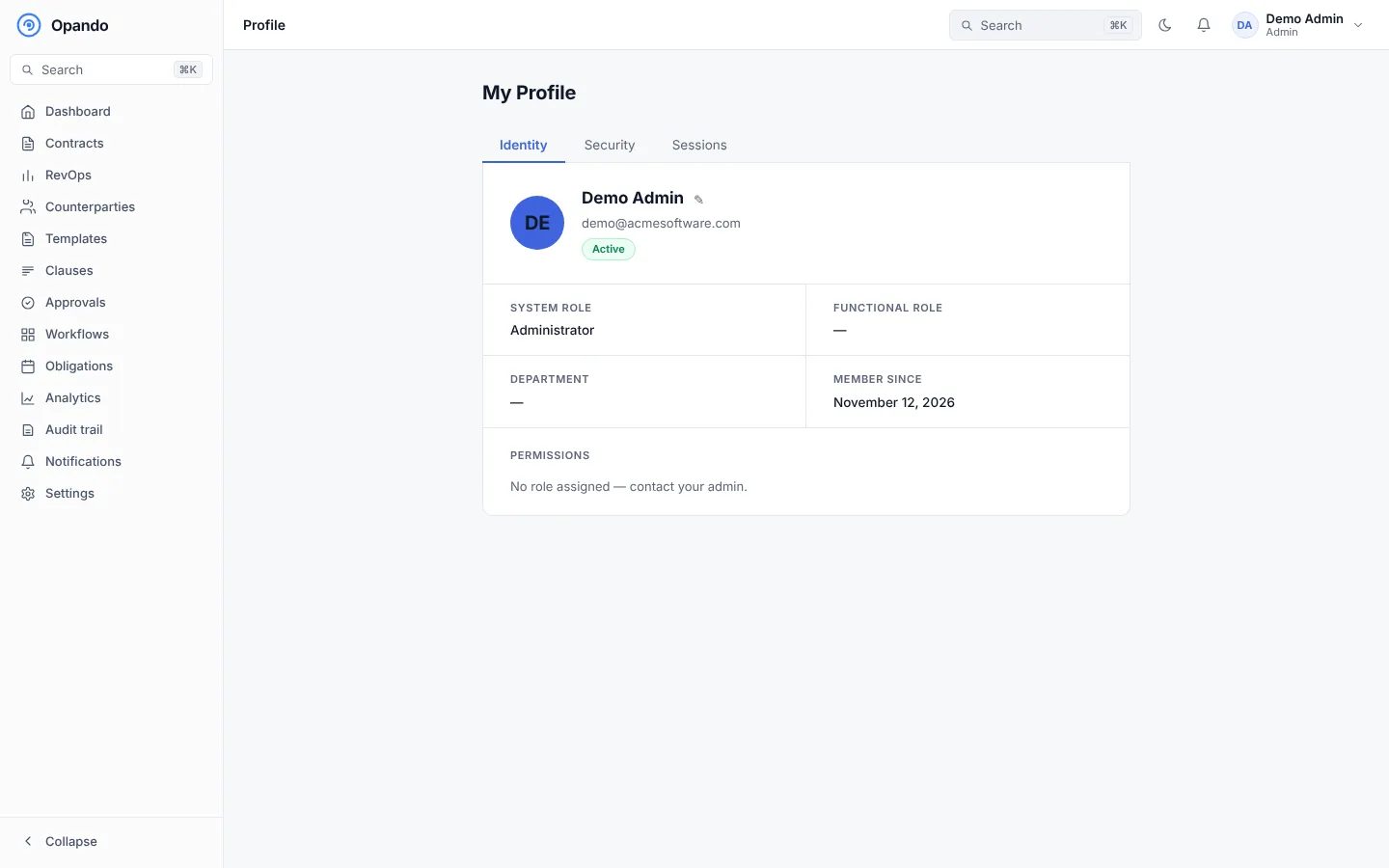
Your details
The profile shows your name, email, System role (for example Admin or Member), Functional role (your role in your department) and the date you joined. Select Edit name to change how your name appears. Your admin manages your role and department.
Change your password
Under Change Password, enter your current password and the new one twice. The new password needs at least 8 characters with an uppercase letter, a number and a special character.
Two-factor authentication
Turn on an authenticator app for your account, or see that it is already on. The steps are in Sign in and set up 2FA.
Where you're signed in
Where you're signed in lists every browser and device with an active session, with an approximate location. The current one is marked This device.
- Sign out ends one session.
- Sign out everywhere else ends every session except the one you are using.
If you don't recognise a session, sign it out and change your password.
Connected AI clients
If you have connected an AI assistant such as Claude to Opando (through the MCP connector), it appears under Connected AI clients. It acts as you until you disconnect it. Select Disconnect to remove its access. See Integrations and AI connector.