Contracts list and search
The Contracts page lists every contract you can open. You see a contract when you own it, approve it, handle its negotiation, or your role lets you see all contracts.
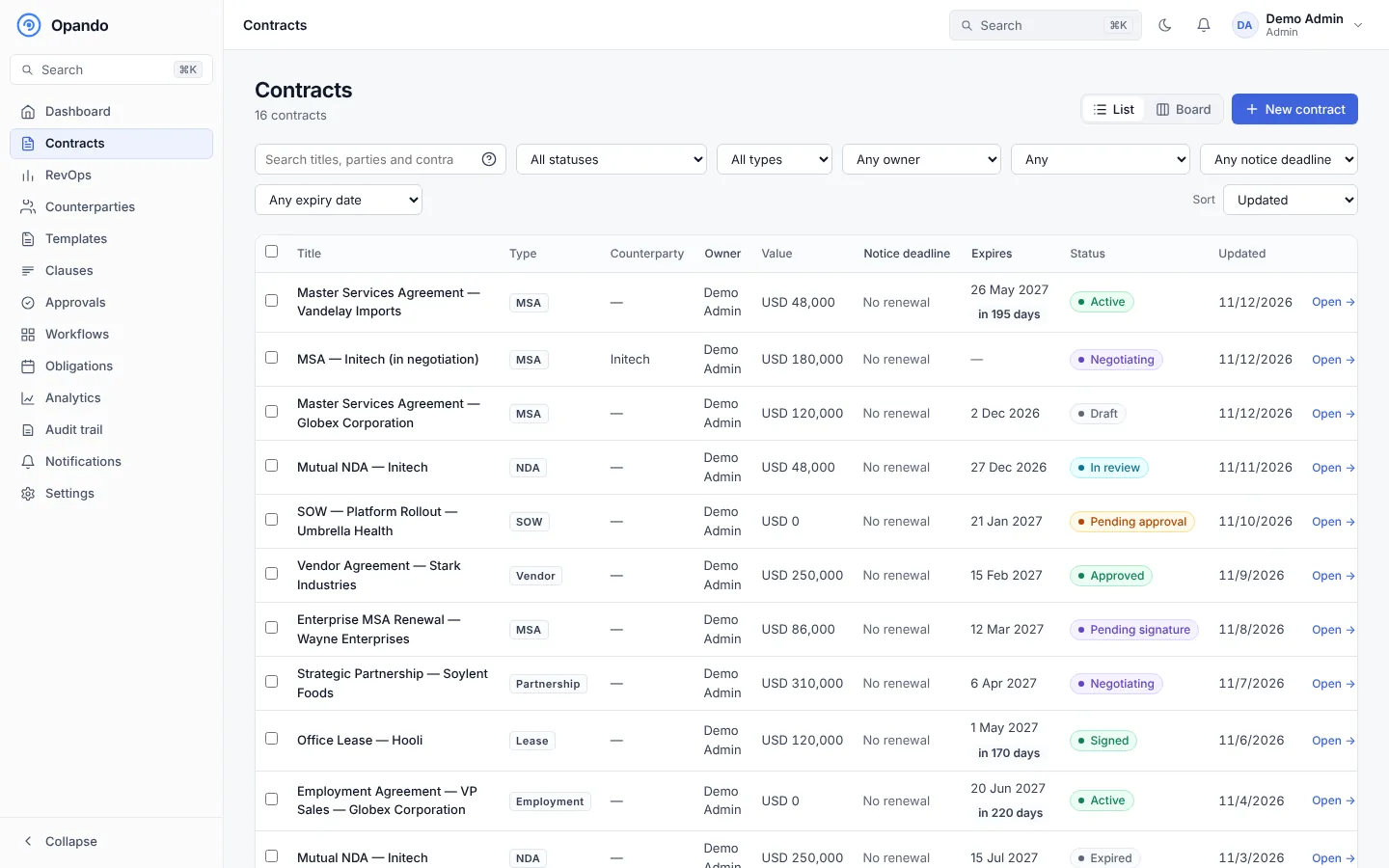
Columns
Each row shows the title, type, counterparty, owner, value, Notice / Expires (the notice deadline or expiry date with the days left), Renewal health, status and when it was last updated. Select a row, or Open →, to open the contract.
Select Journey log on a row to see the contract's history without opening it.
Search
Type in Search titles, parties and contract text. Opando searches titles, counterparty names and the full text of every contract you can open, including the text of signed copies you uploaded.
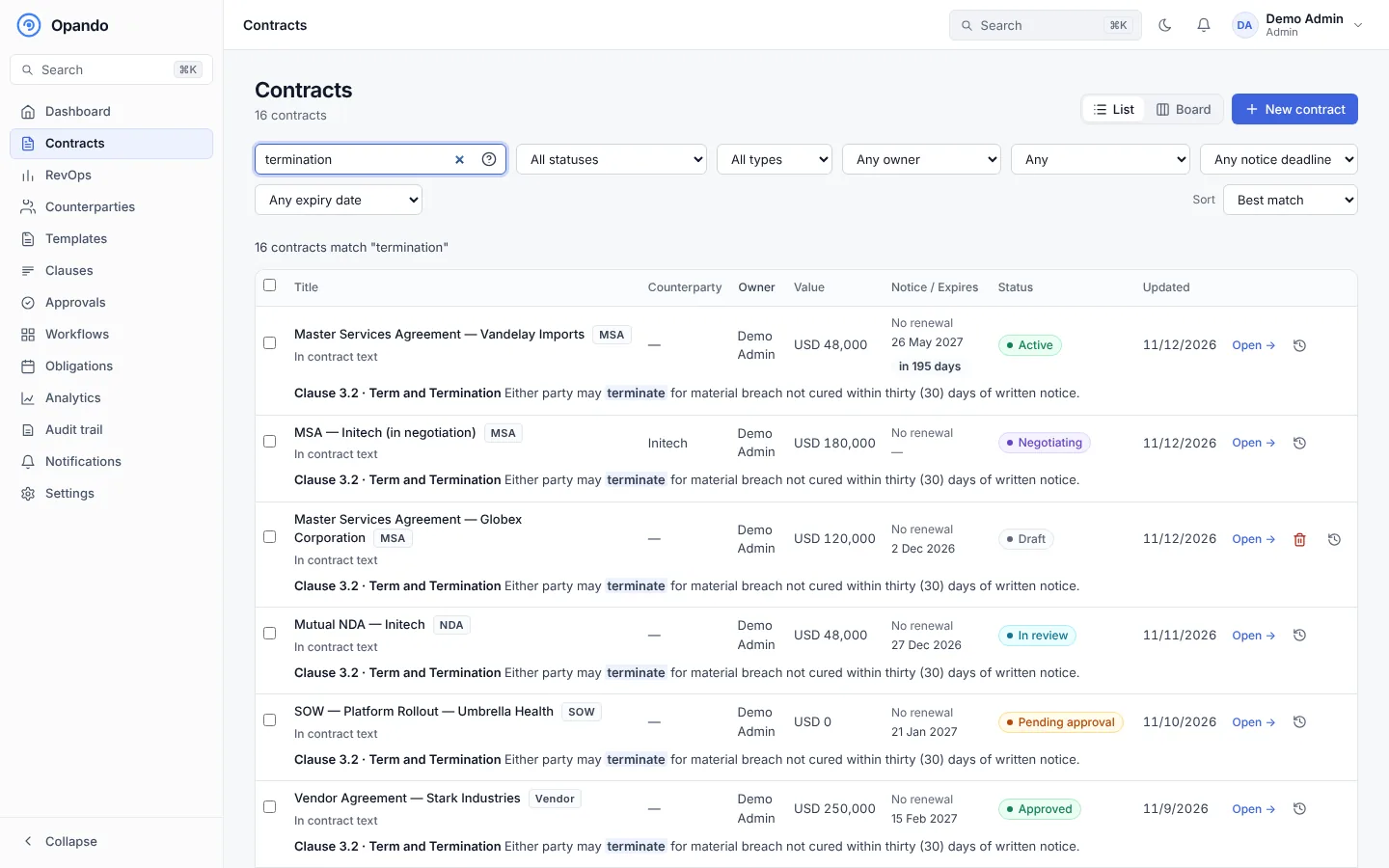
- A match in the text shows a snippet under the title, labelled In contract text, with the page number where it was found.
- Title match means the words were found in the title.
- Use
ORin capitals to match either word, for exampleindemnity OR liability. - Search uses up to 12 words. Very common words like "the" aren't searched on their own.
- If a signed copy has scanned pages that couldn't be read, the result says Some pages couldn't be read.
- Select Search tips (the ? button) for these rules in the app.
Search only covers what you can open
You can only search contracts you own, approve or have been given access to. Contract text is stored in a scrambled search index, so no readable contract words are stored for search.
Filters
| Filter | Options |
|---|---|
| Status | Any status, for example Draft, Pending approval or Active. |
| Type | Any contract type in your workspace. |
| Owner | Any owner, or Deactivated owners to find contracts that need a new owner. |
| How signed | Signed in Opando, Signed outside Opando, Not signed yet. |
| Notice deadline | Next 30, 60 or 90 days, Passed (still active), Not set. |
| Expiry date | Expires in the next 30, 60 or 90 days. |
Active filters appear as chips above the list. Select the × on a chip to remove that filter, or Clear all.
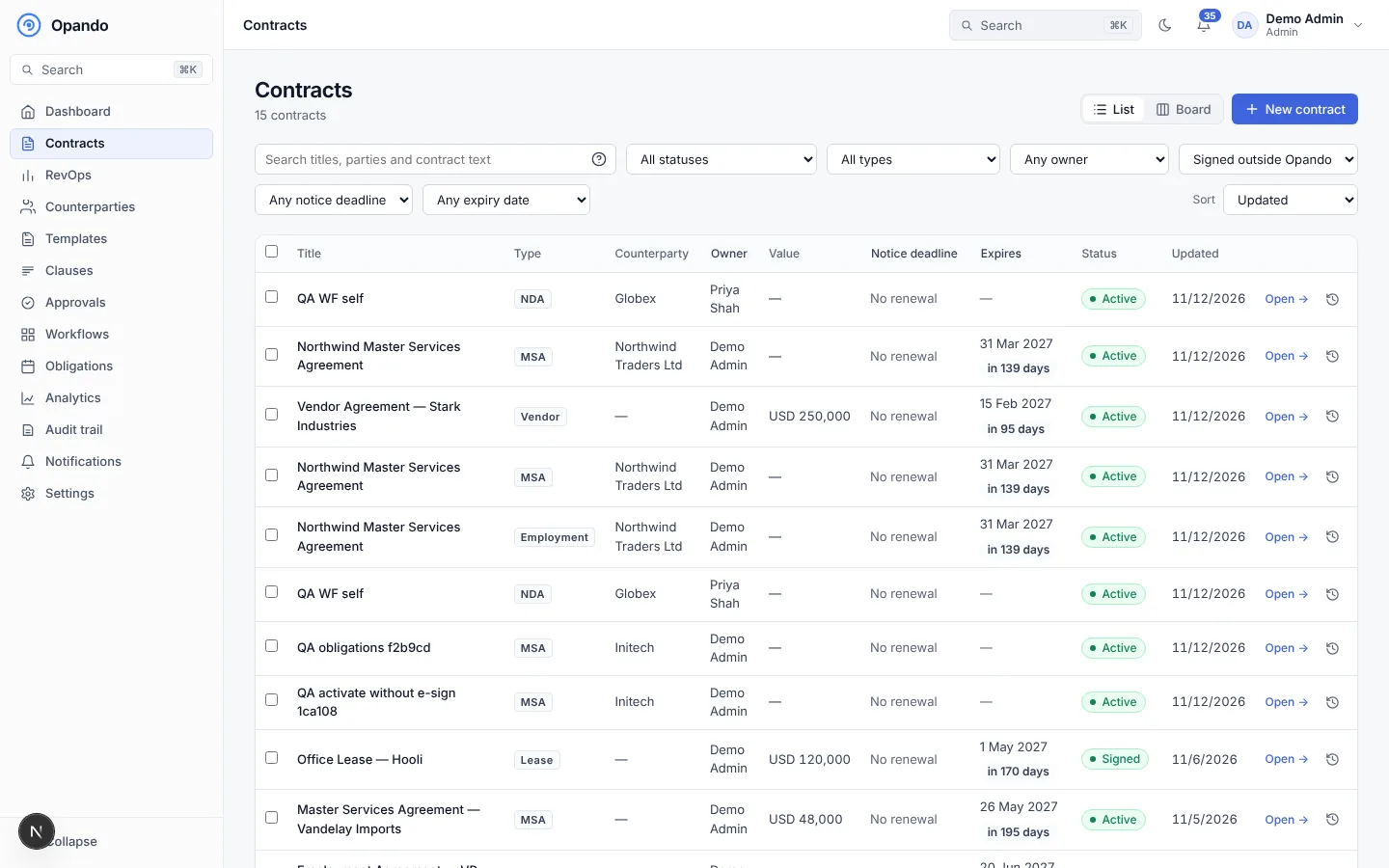
On a phone, filters fold into a Filters button that shows how many are active.
List and board views
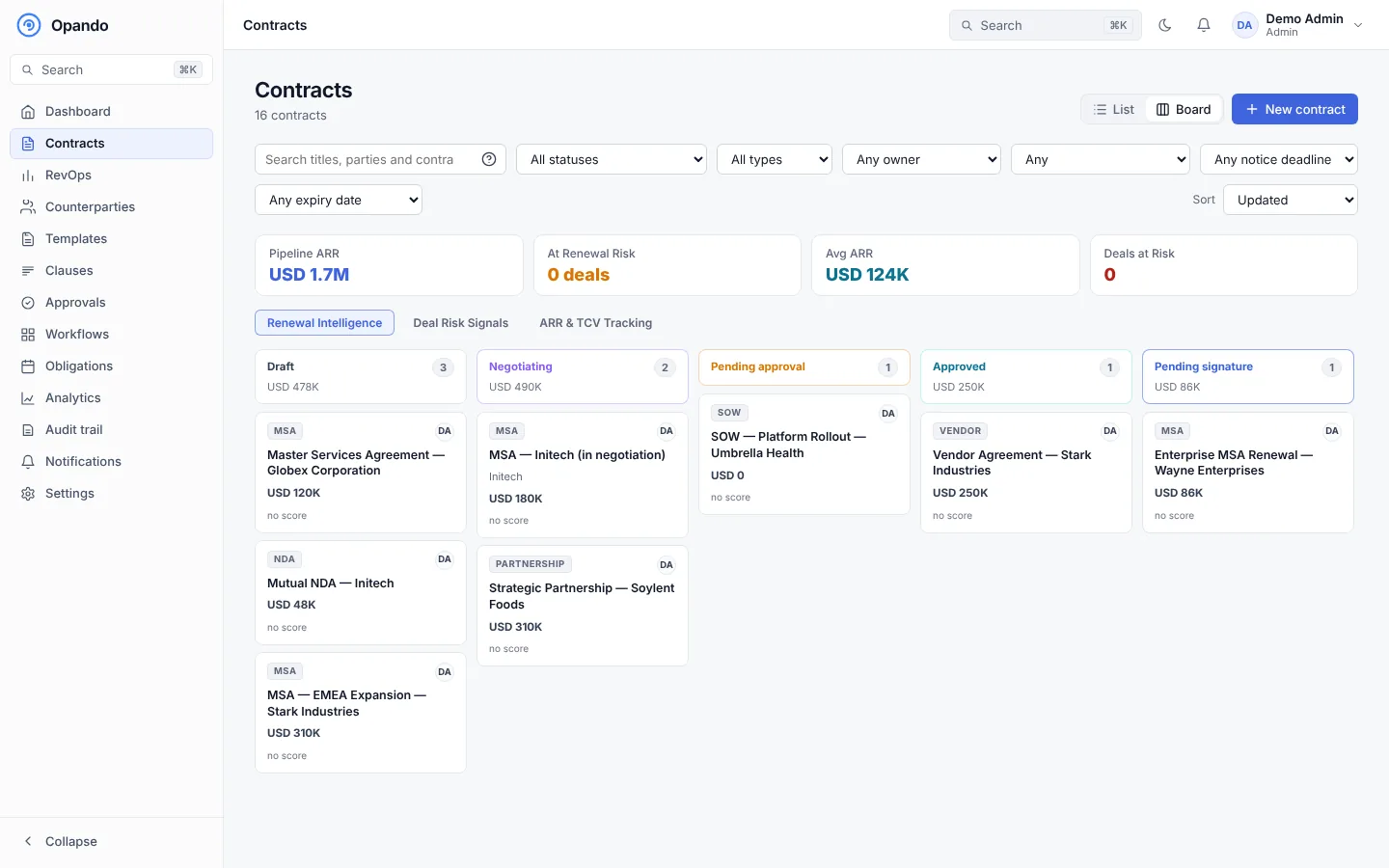
Switch between List and Board at the top of the page. The board groups contracts by stage (Draft, Pending approval, Pending signature, Signed / Active and so on), with pipeline ARR and at-risk totals above the columns.
Transfer ownership in bulk
Admins (and people with the transfer contracts permission) can tick up to 100 contracts (or Select all on this page) and choose Transfer ownership to give them to a new owner. You must give a reason; it is shown in each contract's history and in the Admin change log. See Contract control actions.
Discard a draft
A draft that was never submitted shows a Discard button in its row. Discarding deletes the draft. An admin can restore it within 30 days.
Create a contract
Select New contract at the top right. See Create a contract.