Create a contract
Select New contract on the Contracts page or the dashboard.
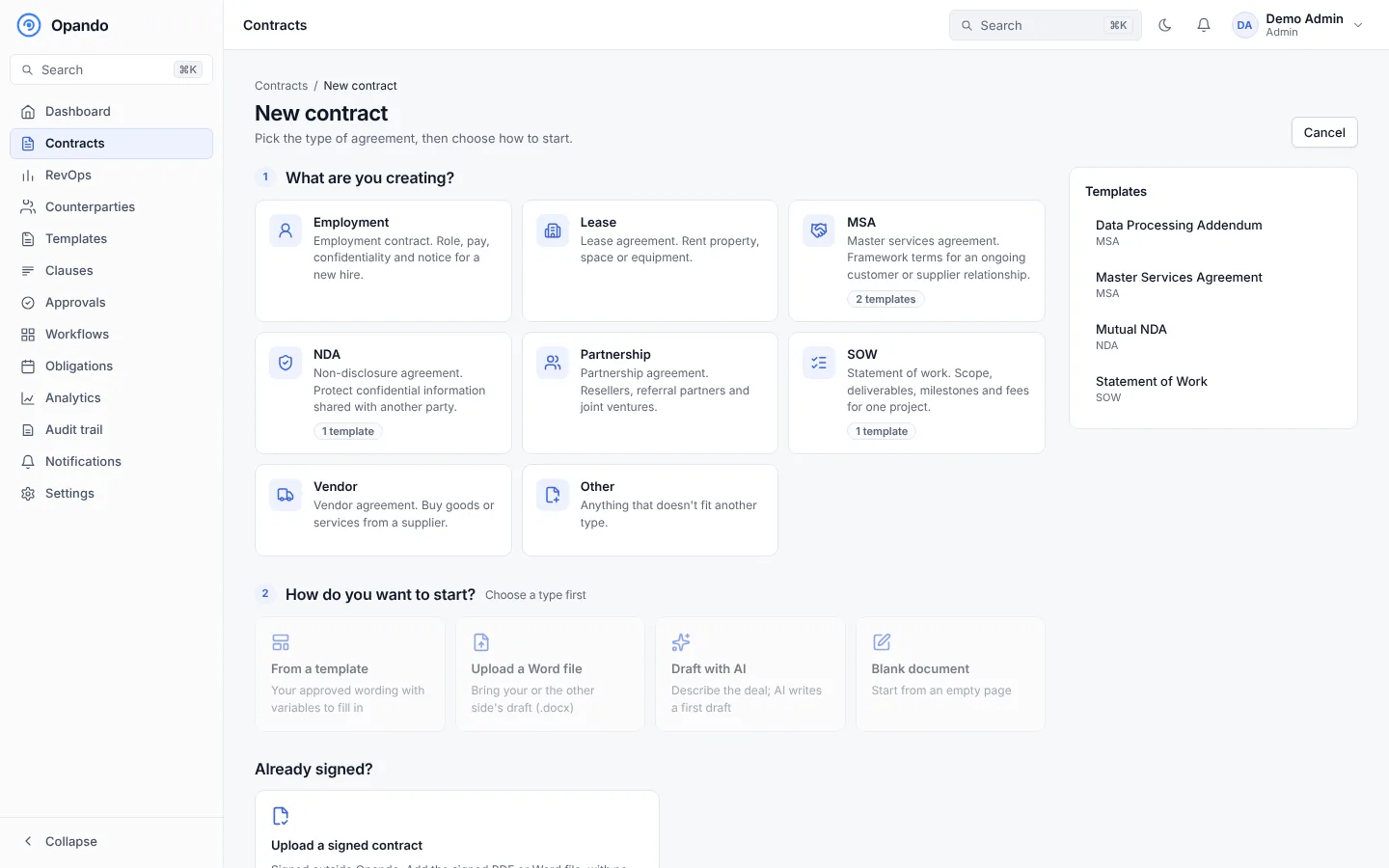
1. Choose what you are creating
Under What are you creating?, choose a contract type such as NDA, MSA, SOW, Employment, Lease, Partnership or Vendor. The type decides which templates, clauses, workflows and custom fields apply. If the type you need is missing, ask an admin to add it in Settings → Contract types.
Already have a signed contract? Use Upload a signed contract under Already signed? instead. You don't need to choose a type first. See Upload a signed contract.
2. Choose how to start
| Option | What happens |
|---|---|
| From a template | Pick one of your workspace's templates for the type. The text and variables come from the template. |
| Upload a Word file | Upload a .docx file. Opando converts it into an editable contract, keeping headings, numbering, tables and tracked changes. An import report lists anything that couldn't be converted and is kept in the contract's history as "Word import report". |
| Draft with AI | Describe what you need (for example "A mutual NDA with a software vendor, 2-year term"), your company name, any key terms and an optional value. Opando drafts the contract in about 10 to 20 seconds. It uses AI credits. |
| Blank document | Start with an empty document. |
Select Change how to start to go back.
3. Fill in the details
| Field | Notes |
|---|---|
| Contract title | Defaults to the type and counterparty if you leave it empty. |
| Counterparty organisation and contact | Choose from your Counterparties. The contact becomes signer 1 for the other side. |
| Effective from | A custom date, or On signed date (the start date is set automatically when the contract is signed). |
| End date (duration) | 30, 45, 60, 90 or 180 days, 1 year, a custom number of days, or a specific end date. |
| Renewal | No renewal, Auto-renews (evergreen) or Optional renewal. For a renewing contract add the renewal term in months and the notice period (days or months). Opando calculates the notice deadline from these. |
| Include header & footer | Shows the header and footer set in Settings → Header & footer. |
| Approval workflow | The workflow this contract follows when you submit it. Only workflows for this type are offered. |
| Additional signing parties | Add more signers for the other side if several people must sign, and set the signing order. |
| Additional details | Custom fields your admin added for this type. Fields marked * are required. |
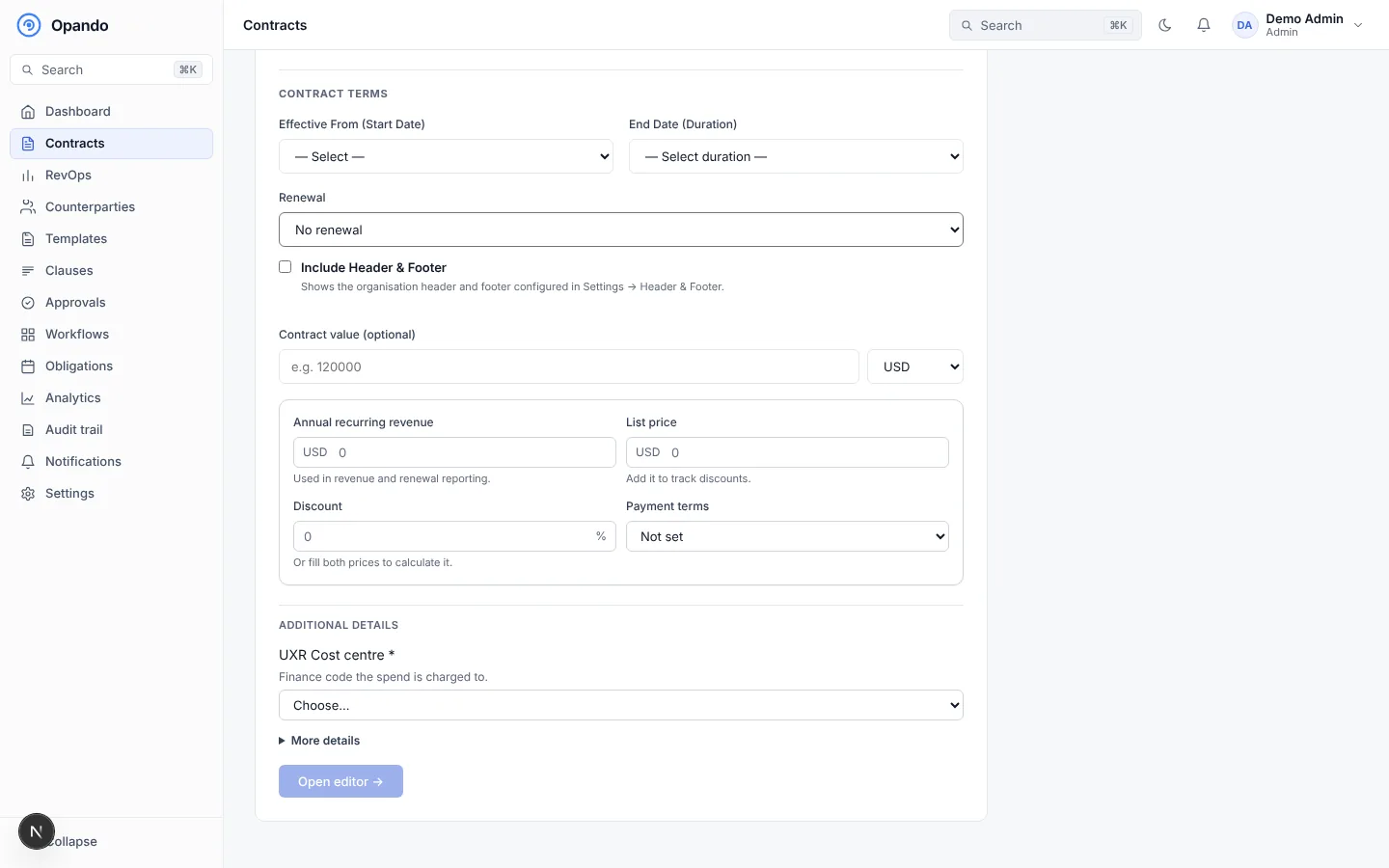
Finish with the button at the bottom of the form: Create from template → for a template, Generate with AI → for an AI draft, or the create button for a Word file or blank document. Opando creates the contract as a Draft and opens it in the editor.
Usage limits
On a trial, the number of contracts you can create is limited. When the limit is reached, New contracts are paused and the page explains how to upgrade. Paid plans never stop you creating contracts. See Plans and limits.
Other ways to create a contract
- Duplicate contract from the More actions menu on any contract copies it as a new draft.
- Clone as new contract on a cancelled or rejected contract starts again from its text.
- Admins and connected AI assistants can create contracts through the AI connector.