Editing a contract
Opando has a full document editor, so you can draft and redline contracts without leaving the app.
The editing lock
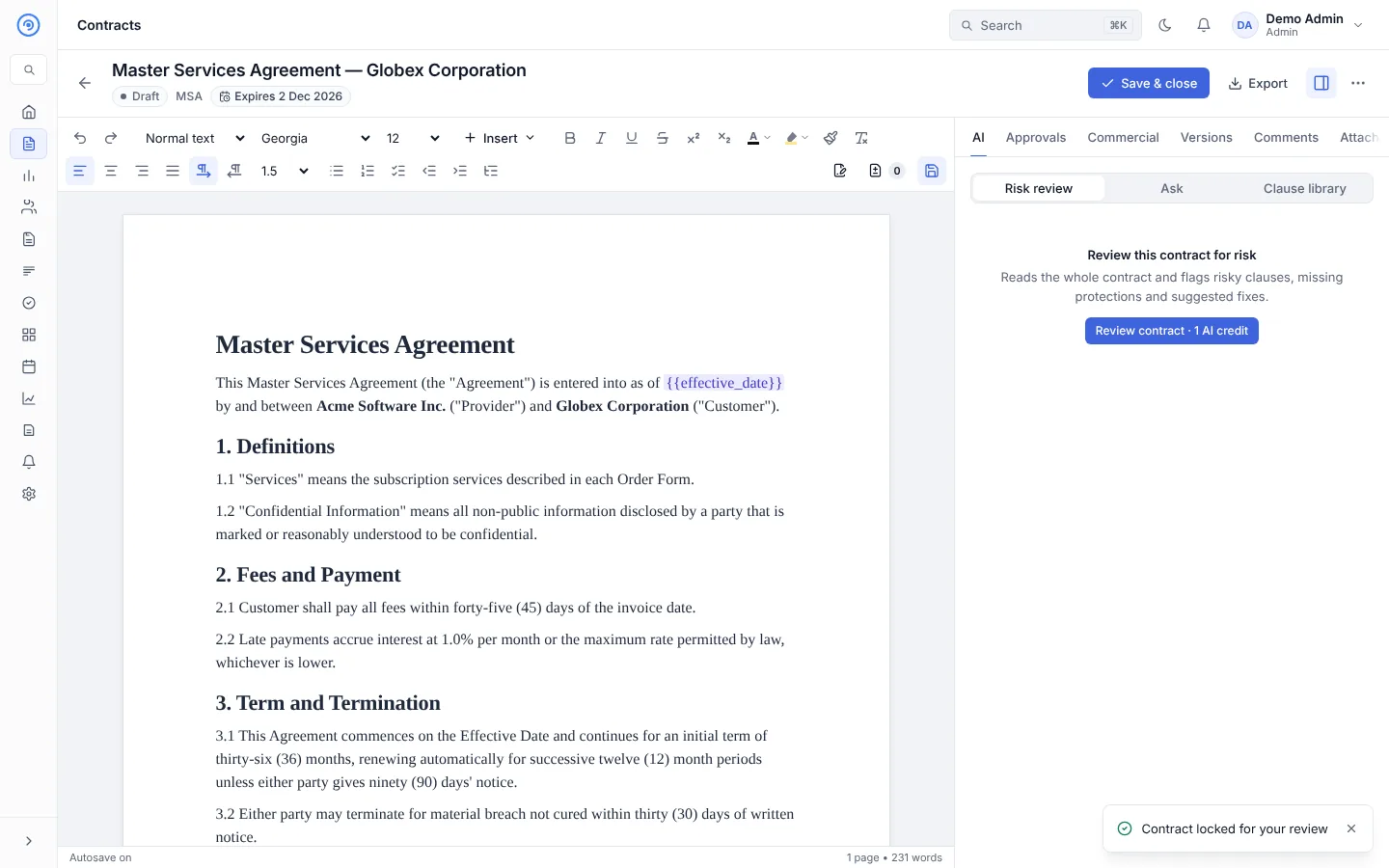
Only one person edits a contract at a time. When you open a contract that can be edited, it is View only until you select Edit, which takes the editing lock. Others then see that you are editing (for example "Mia Chen is editing") and can still read, comment and add attachments.
When you finish, select Save & close to release the lock. Changes are autosaved as you type; the status bar shows Autosave on, the page count and word count.
If you leave without saving a version, Opando asks whether to Save version & leave so you can restore this state later.
The toolbar
| Group | Tools |
|---|---|
| History | Undo (Ctrl+Z), Redo (Ctrl+Y) |
| Text | Paragraph style (Normal text, Heading 1–3), font, font size, bold, italic, underline, strikethrough, superscript, subscript, text colour, highlight, format painter, clear formatting (Ctrl+\) |
| Paragraph | Align left, centre, right, justify; left-to-right and right-to-left text; line spacing |
| Lists | Bulleted, numbered and checklist; numbering style (1., A, B, C, I, II, III); indent and outdent |
| Review | Track changes, review tracked changes, find and replace |
| Insert | See below |
The Insert menu
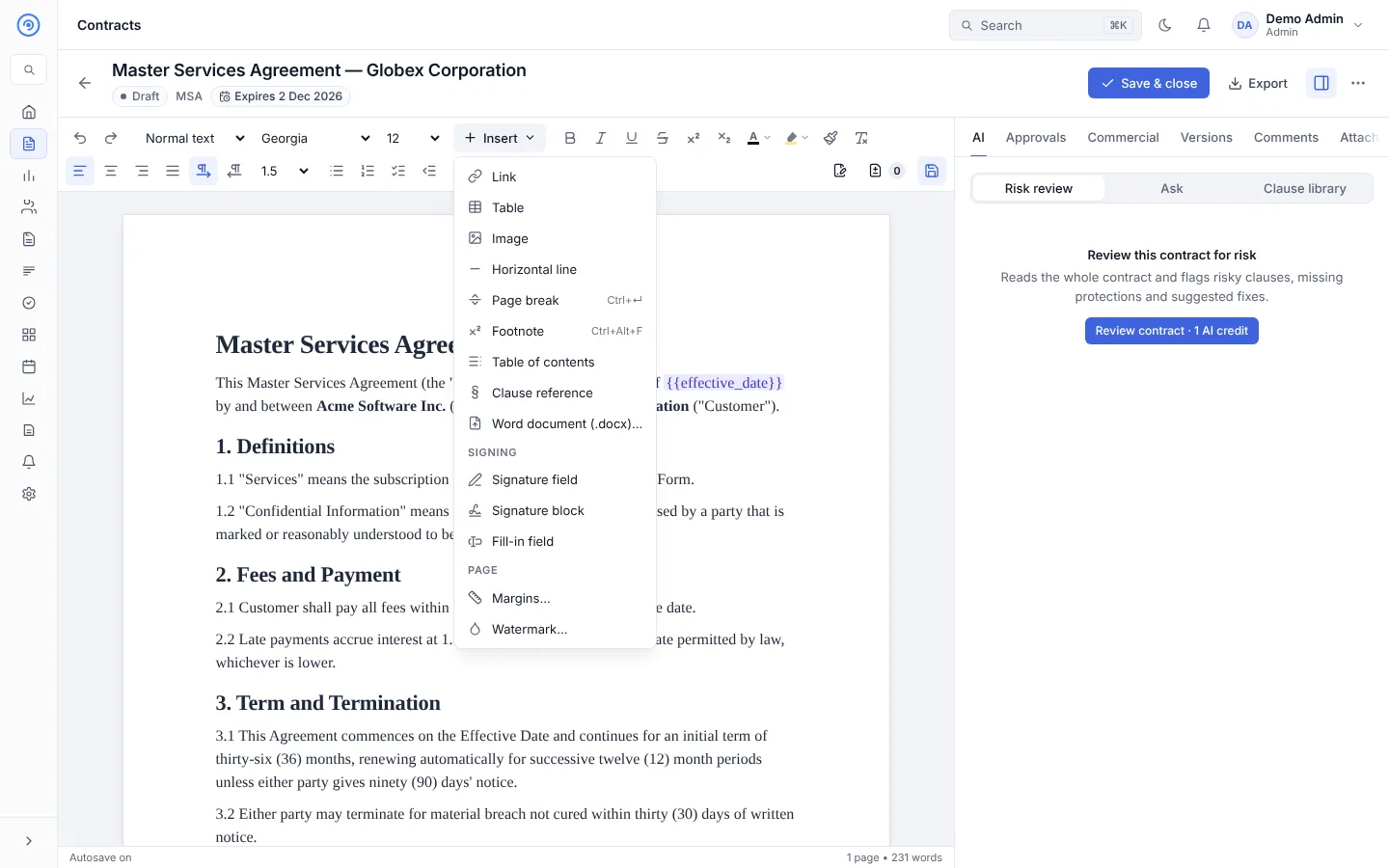
- Link, Table, Image, Horizontal line, Page break (Ctrl+Enter), Footnote (Ctrl+Alt+F)
- Table of contents and Clause reference (a cross-reference to a numbered clause; turn on clause numbering first)
- Word document (.docx)…: bring in the text of a Word file at the cursor
- Signing: Signature field, Signature block (a signature line with Name and Date fields for each signer, side by side if you like) and Fill-in field (a field the signer fills in, with a label, size and optional maximum length)
- Page: Margins… (applies to the editor, PDF and Word downloads) and Watermark… (for example DRAFT or CONFIDENTIAL)
Tables
Click inside a table to show the table bar: insert rows and columns, merge and split cells, shade cells, make the first row a header row, or delete rows, columns or the table.
Track changes
Turn on Track changes to redline. Insertions are underlined, deletions struck through, and moved text is shown in both places. Open Review tracked changes to step through them, and Accept all or Reject all, or accept and reject one at a time.
Find and replace
Open Find and replace to search the document, with options to Match case and Match diacritics (é ≠ e). Use Replace or Replace all.
Variables
Variables are values used across the document, such as the counterparty name or the effective date. They appear in the text as {{variable_name}}. Change a value once in the Variables tab and every place it appears updates.
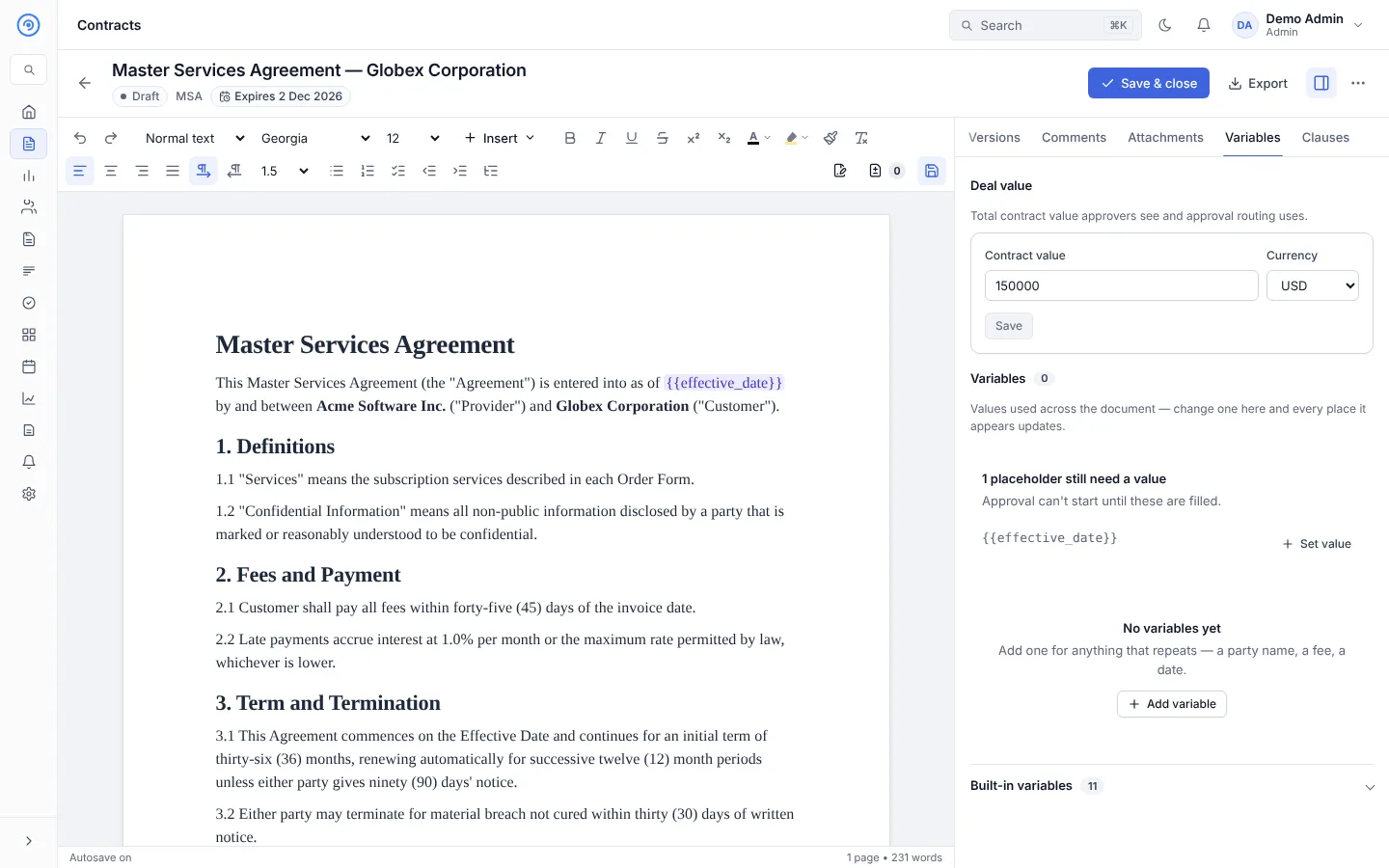
- Deal value: the total contract value approvers see and approval routing uses.
- Built-in variables are filled in automatically from the contract and counterparty records.
- Set value fills a placeholder that is still empty. Approval can't start until every placeholder is filled.
- Add variable creates your own, and Insert at cursor puts it in the text.
Insert a clause
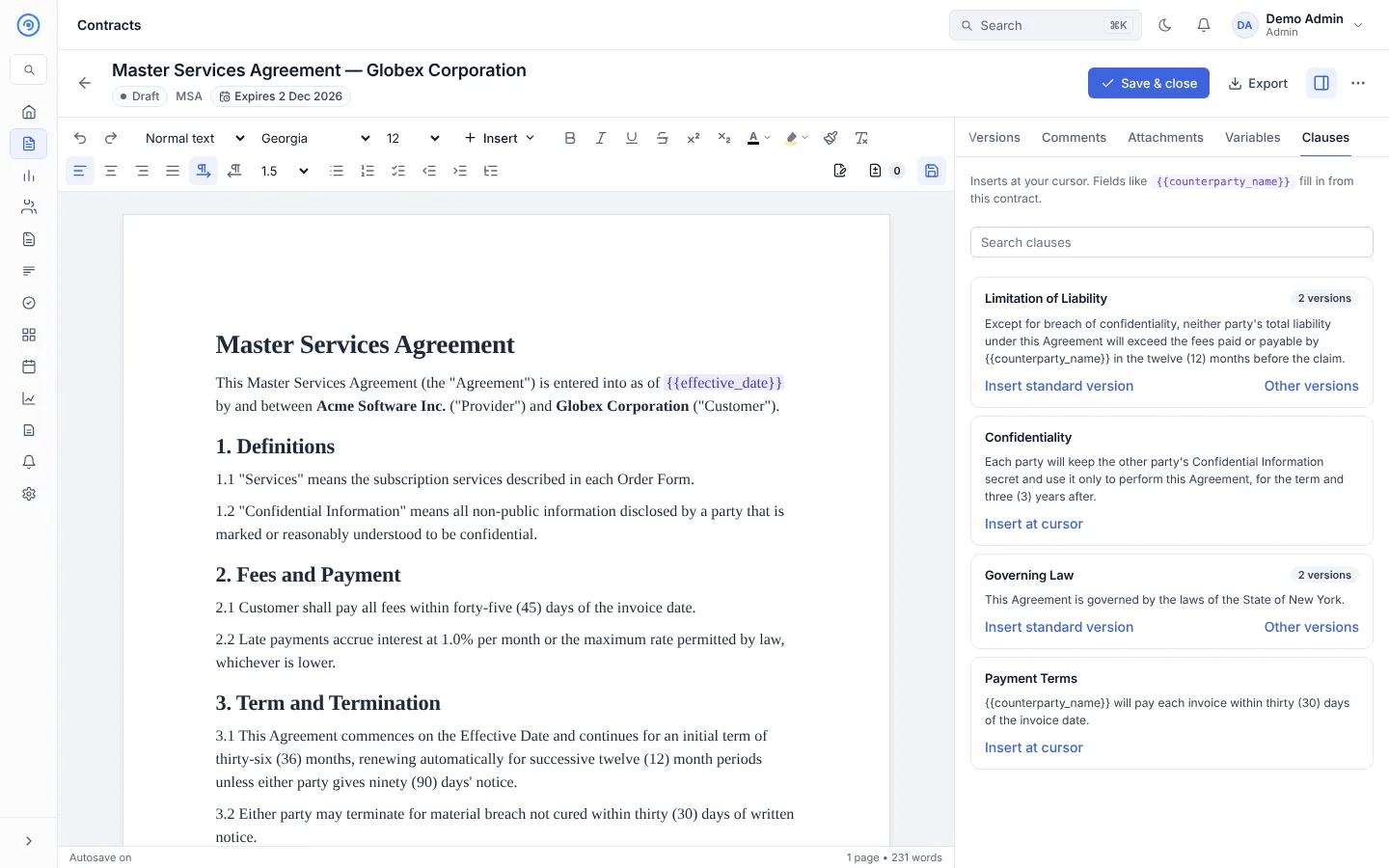
The Clauses tab lists the approved wording from your clause library for this contract type. Search for a clause, then Insert this version to place it at your cursor. Fields in the clause, such as the counterparty name, fill in automatically.
Upload the other side's Word redline
When the other party sends back a marked-up Word file, choose More actions → Upload their Word redline. Opando reads their file, places their changes in the contract as tracked changes and their comments as comments, and opens a negotiation round. You then accept or reject each change. If the file doesn't match the version you sent, Opando warns you and lists any untracked differences.
Download
Use Export → Download PDF or Download Word (.docx). Downloads include your header, footer, margins and watermark.