Comments, versions and attachments
Comments
Comments let your team discuss the contract without changing it. They are internal: the other party never sees them unless the author or an admin shares one.
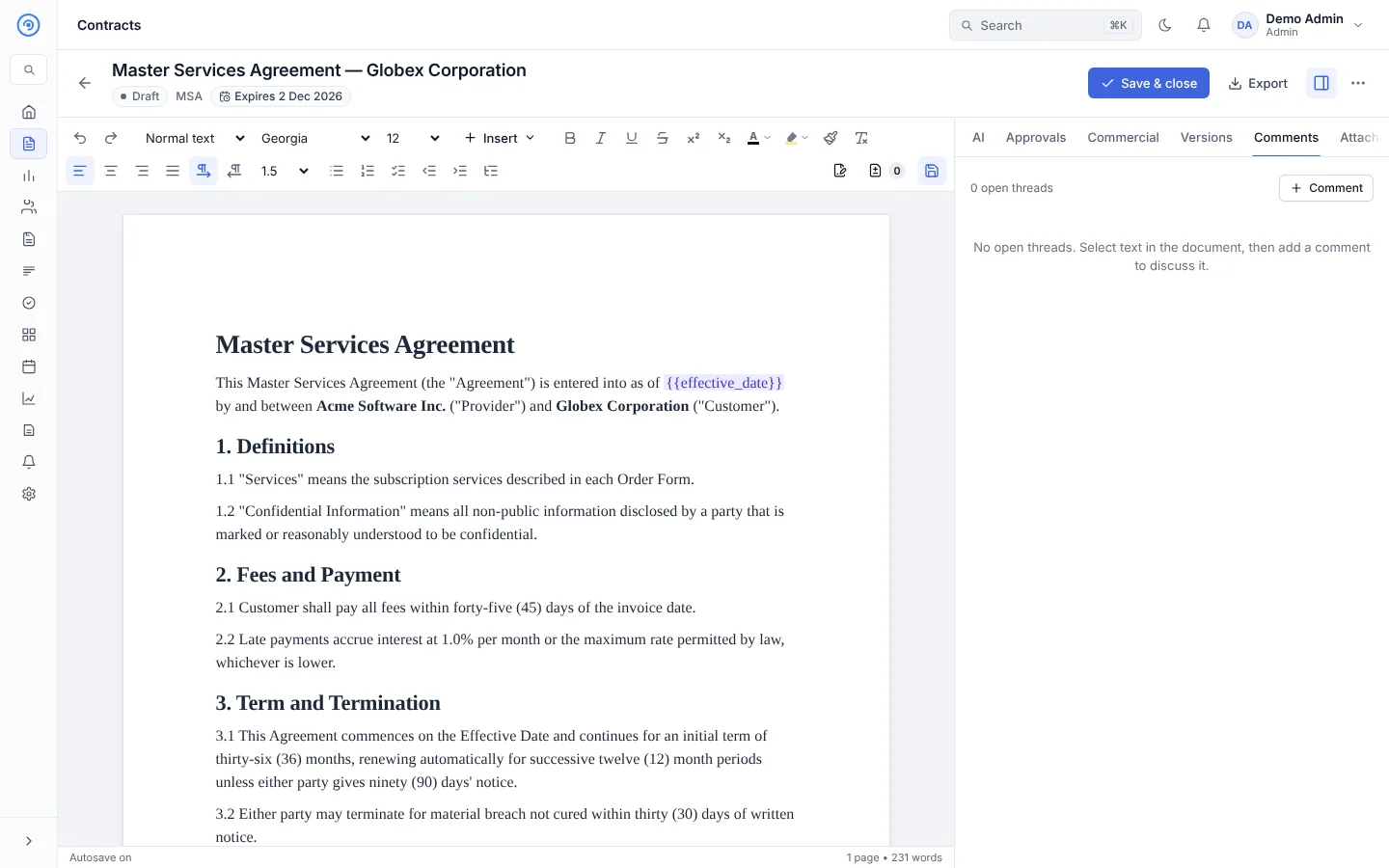
- Comment on text: select text in the document and choose Comment on selected text. The comment is anchored to that passage; Show in document takes you back to it.
- New comment: select Comment in the Comments tab. You can quote a passage and Suggest replacement text.
- Reply to a thread, edit your own comments, and resolve a thread when it's done. Post with Ctrl+Enter.
- Apply suggestion replaces the quoted text with the suggested wording (only while the contract can be edited).
- Turn on Comments in margin to see comments beside the text.
Comments stay open in most statuses. They become read-only on expired, terminated and cancelled contracts.
Versions
A version is saved each time the contract is submitted, sent for signing or signed, and whenever you save one yourself (for example from the prompt when you leave the editor).
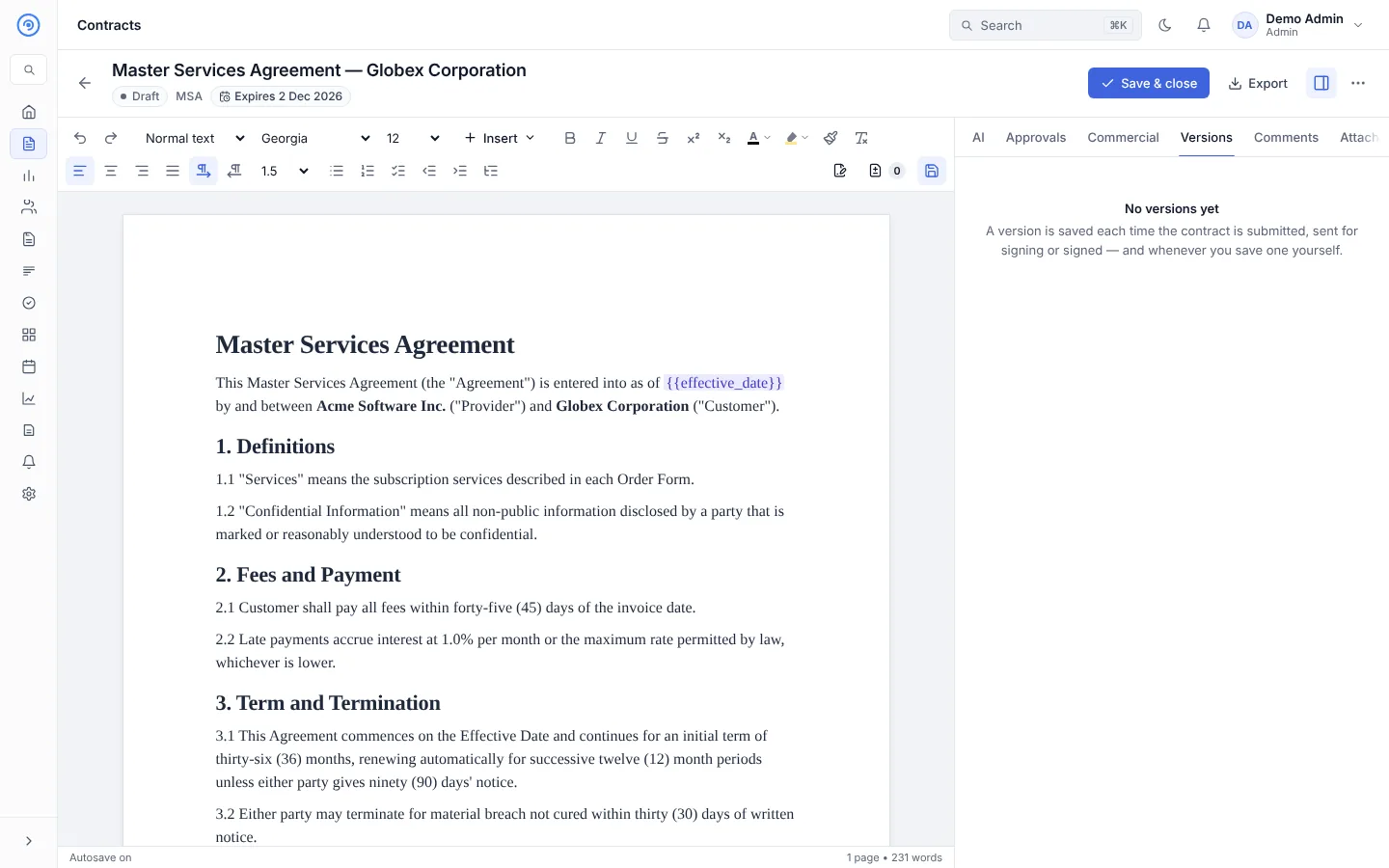
- Open any version to read it.
- Compare two versions as a document redline or side by side, with word-level changes highlighted.
- Restore an earlier version while the contract is a Draft or In review. Versions themselves are never edited.
Attachments
Attach supporting files to a contract: schedules, emails, certificates of insurance, purchase orders and so on.
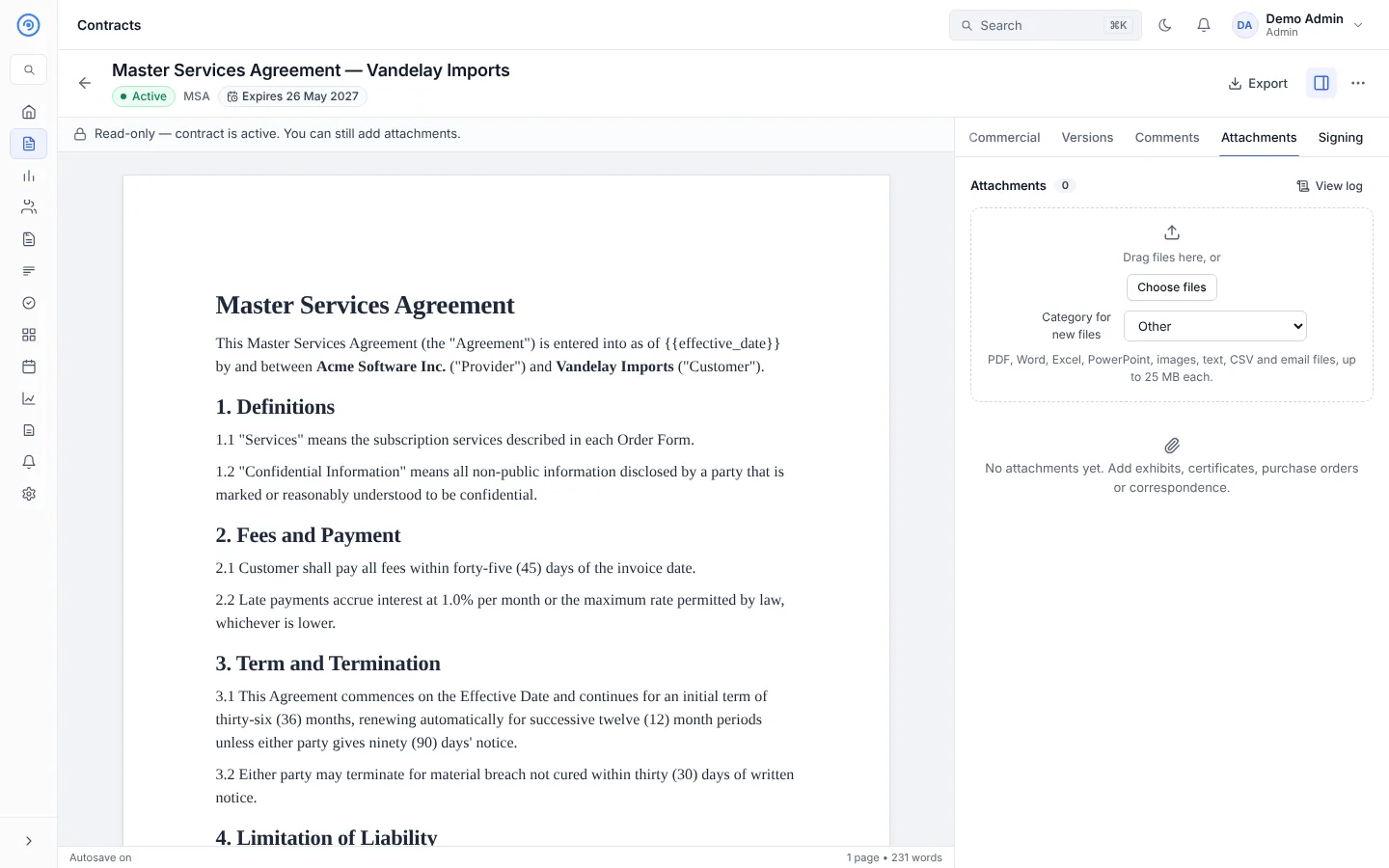
- Drag files onto the tab, or select Choose files. PDF, Word, Excel, PowerPoint, images, text, CSV and email files are accepted, up to 25 MB each.
- Choose a category for new files.
- Each file can be downloaded, given a New version, renamed or recategorised with Edit details, or deleted.
- You can add attachments even when the contract is read-only, for example after it is signed.
- Files are checked for malware. Until a scanner is running in your environment, files are labelled Not checked for malware.
- The contract log at the bottom of the tab lists every file added, changed or removed.
Deleted attachments can be restored for 30 days from Settings → Data. On a trial, attachment storage is limited; Settings → Data shows how much is used.
The contract owner can be emailed when colleagues add files (uploads within 5 minutes are grouped into one email). See Notifications settings.