Obligations
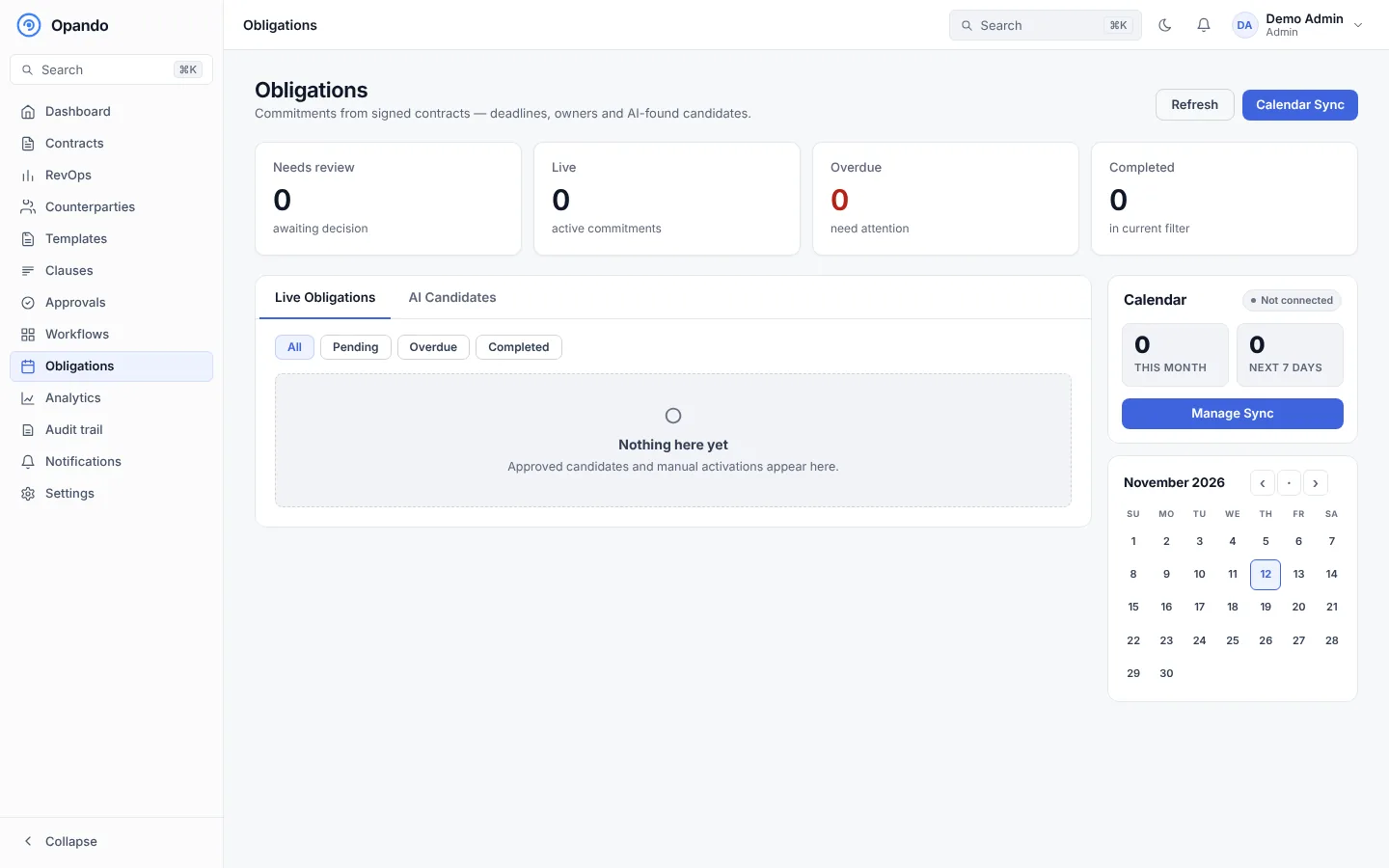
The Obligations page lists commitments from all your signed contracts: deadlines, owners and the obligations AI found.
Plan
Obligations tracking is part of the Pro and Enterprise plans.
Summary
Four cards show obligations that Need review (AI candidates awaiting a decision), Live, Overdue and Completed.
Live obligations
Filter by All, Pending, Overdue and Completed. Each obligation shows what needs to happen, its contract, who owes it, who is responsible and the due date. Select Open contract → to go to it, or mark it done from the contract's Obligations tab.
AI candidates
After a contract is signed, Opando reads it and suggests obligations it found. They wait under AI candidates until someone accepts (activates) or rejects them. Reviewing candidates needs admin or contract-owner access.
Calendar
The calendar shows due dates by month, with counts for this month and the next 7 days.
Sync to your calendar
Select Calendar Sync (or Manage Sync) to create a private calendar link. Paste it into Add calendar from URL in Outlook, Apple Calendar or Google Calendar to see your pending and overdue obligations there. Copy Link copies it again; revoke the link to stop syncing.
Reminders
Owners are emailed when an obligation is due soon or overdue, if Obligation due is on in Settings → Notifications.