Notifications
Opando tells you about work that needs you in two ways: in the app (the bell and the Notifications page) and by email.
The bell
The bell in the top bar shows how many unread notifications you have: approval requests, SLA alerts, renewal and obligation alerts, and announcements. Open it to read them, mark them read, or select View all.
The Notifications page
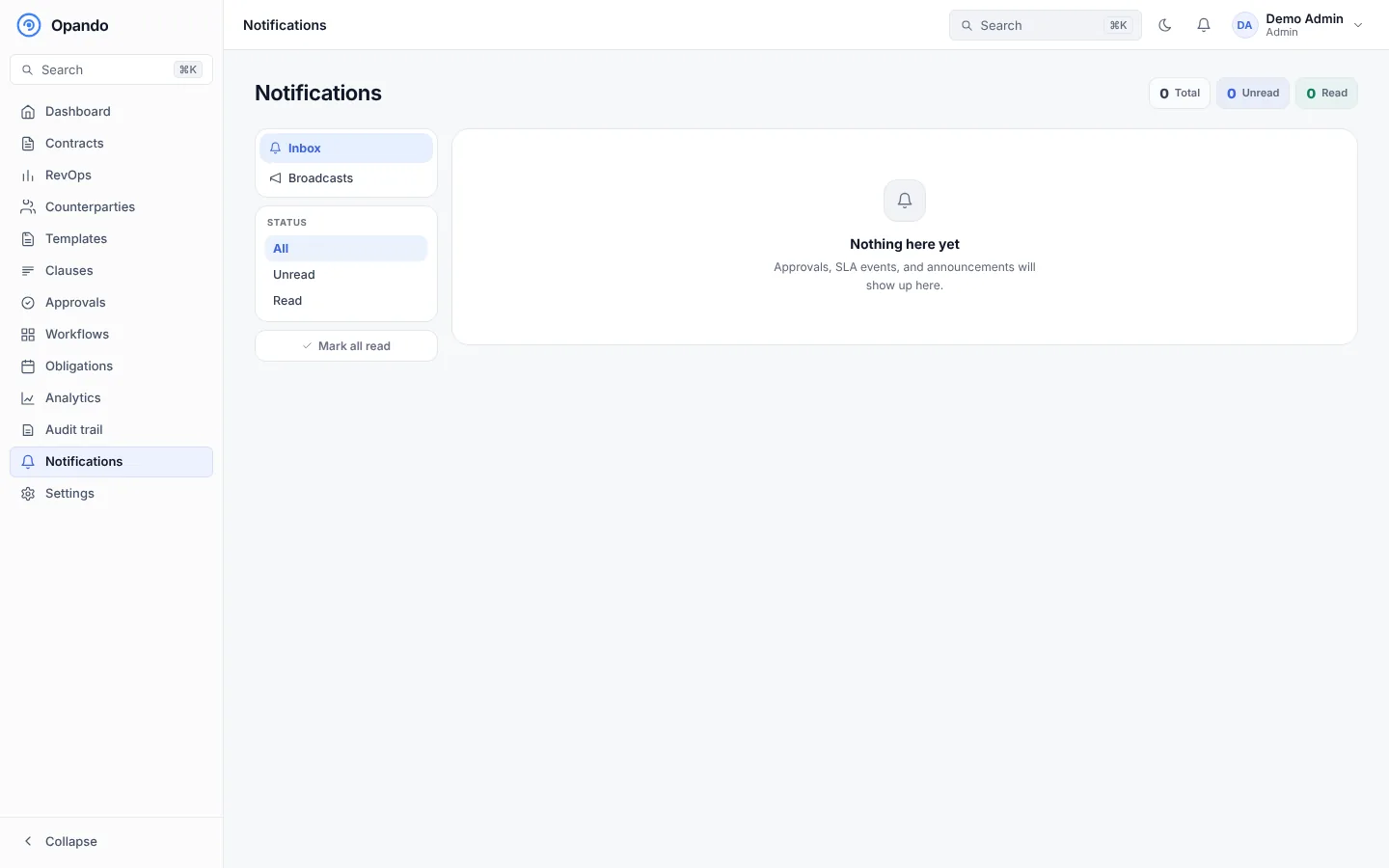
The Notifications page lists all your notifications. Filter by status (all, unread, read) and type. Use Mark read on one or Mark all read. Select a notification to go to the contract or page it is about.
Broadcasts (admins)
Admins can send an announcement to everyone in the workspace: select Send broadcast, write a title and message, and optionally add a deep link and an action label (the button people select to open it). Sent history lists earlier broadcasts with their read rate.
Email notifications
Which emails the workspace sends is set by an admin in Settings → Notifications. Some emails are always on, such as the signing request a signer needs to sign.
Push notifications
On a phone or desktop browser you can turn on push notifications for approval requests and SLA alerts. See Settings → RevOps.