Signing guide for counterparties
This page is for people outside the company that sent you a contract: customers, vendors, partners. You don't need an Opando account to review and sign.
1. Open the link
You'll get an email from the sender with a link to the document. The link works only for your email address and is valid for a limited time (shown on the page as Link valid until). If it has expired, ask the sender for a new one, or request one from the page.
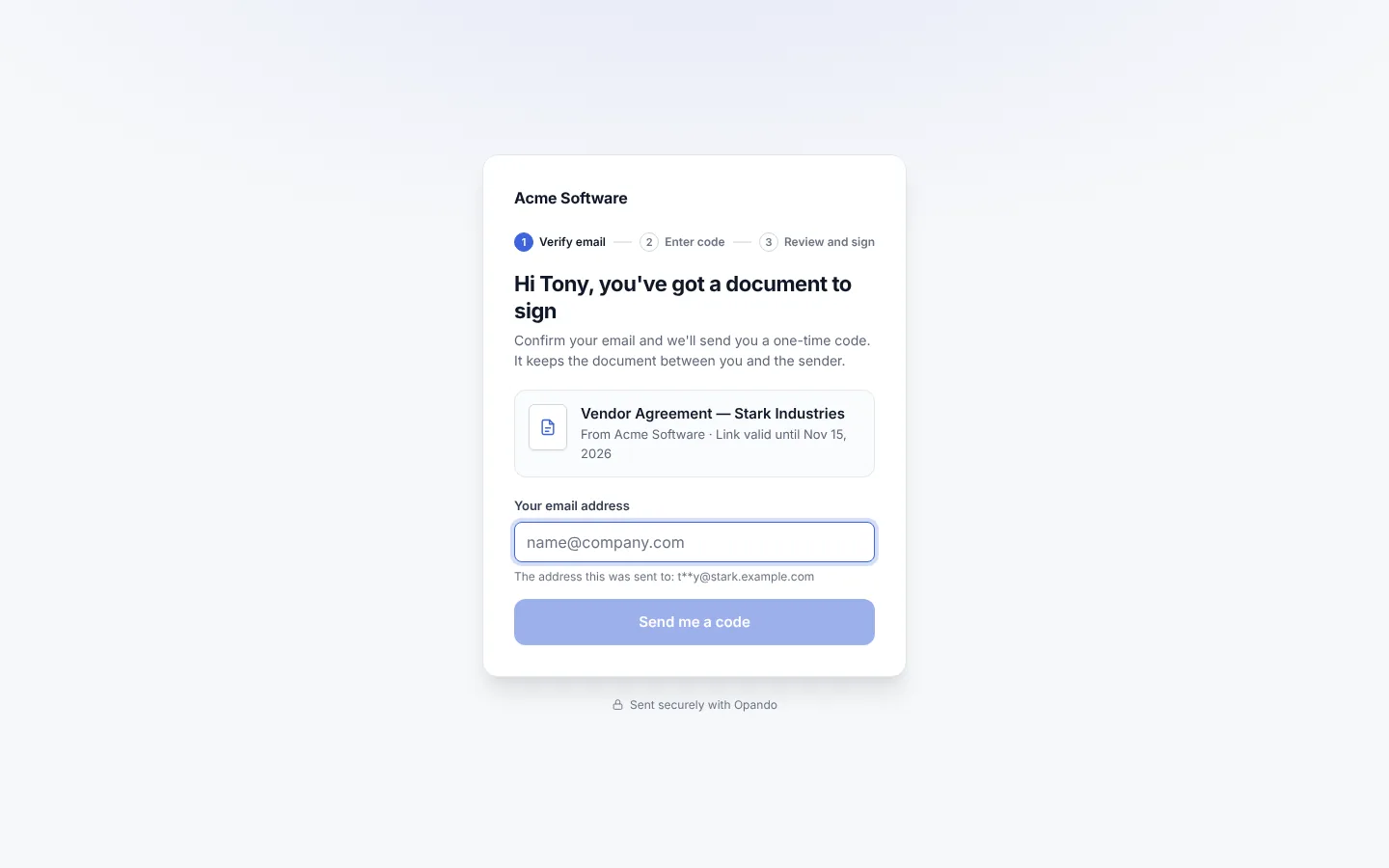
2. Confirm your email
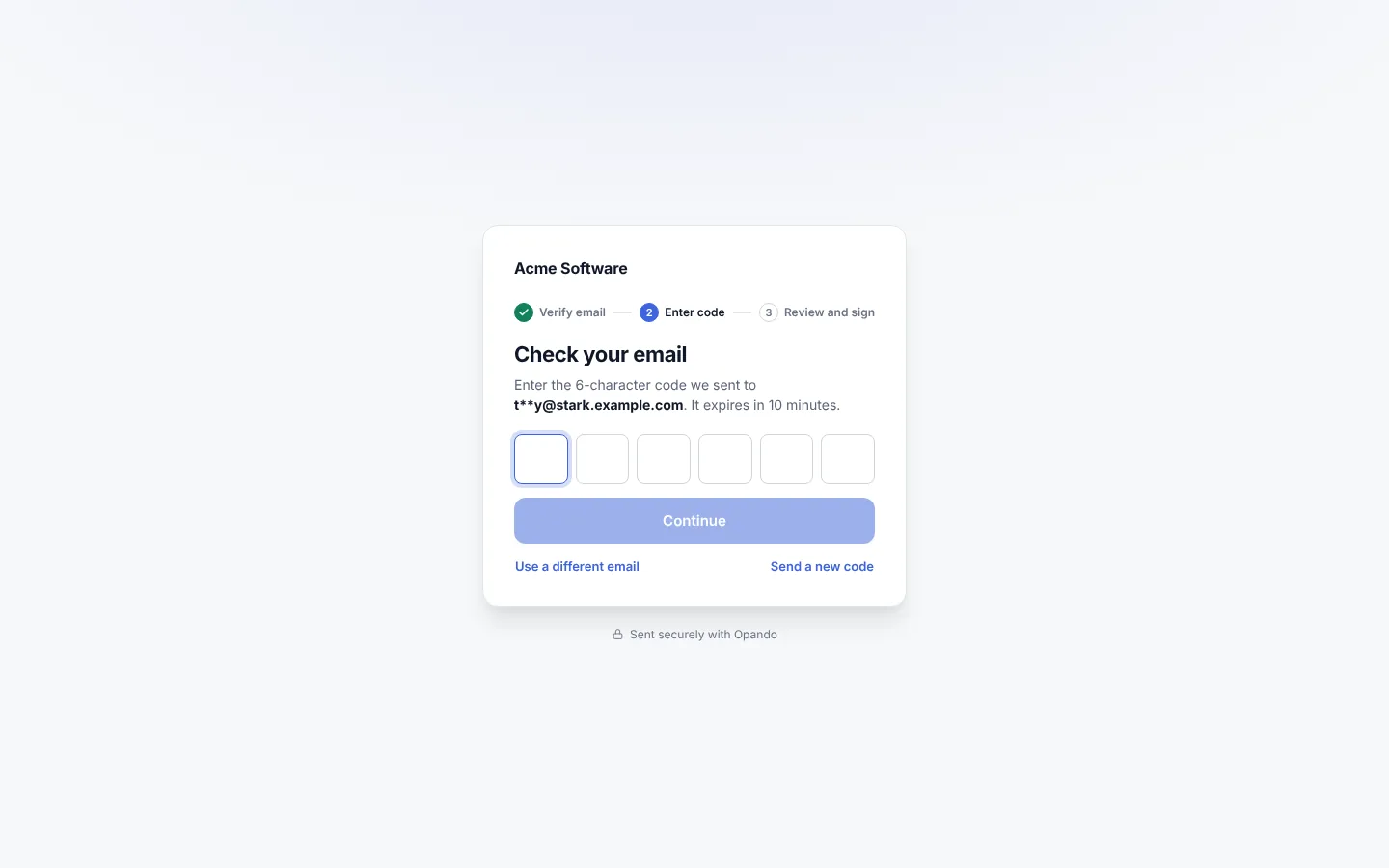
To keep the document between you and the sender, confirm your email address. Opando sends you a one-time code.
Enter the 6-character code from the email and select Continue. The code expires after 15 minutes; select Send a new code if you need another, or Use a different email.
3. Read the document
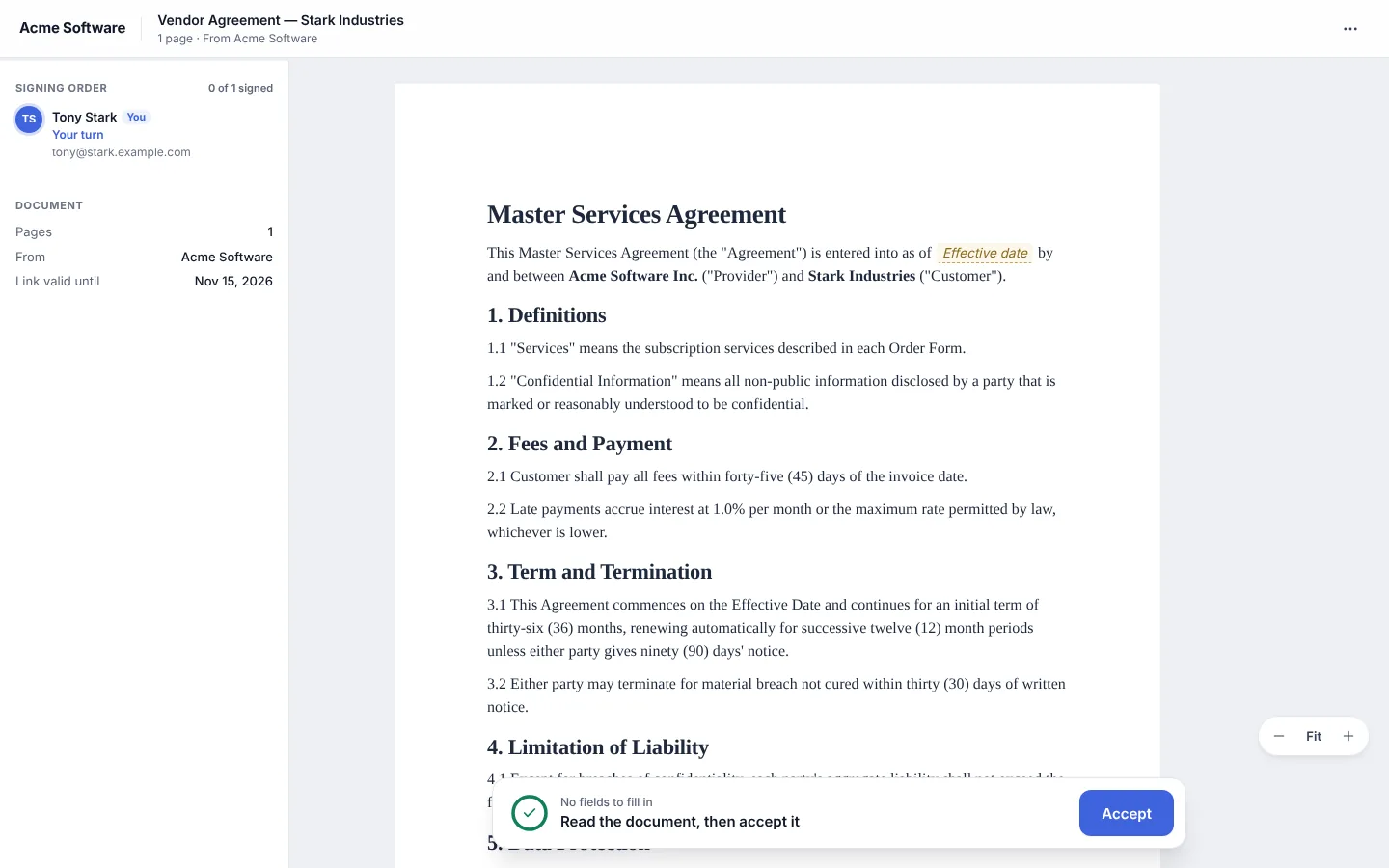
- The left panel shows the signing order, who has signed, and document details: pages, sender and how long the link is valid.
- Zoom with −, Fit and +.
- If it isn't your turn yet, you can read the document now and sign when it's your turn.
- A plain-language summary may be available.
4. Ask for changes
If the sender allows it, you can propose changes before signing:
- Select text in the document and choose Comment on this text.
- Write your question or comment, and optionally suggested wording.
- Your comments stay in a draft until you send them from Comments. Send them when you've added them all.
The sender reviews your comments, and may accept them or reply with a counter-proposal. When they reply, you see their counter-proposal next to your proposal, and can accept or decline it. Signing continues once the changes are agreed.
5. Fill in your fields and sign
The guide bar at the bottom takes you through each field: it shows your progress, the current field, and Next, Sign or Finish.
- Fill-in fields: type the value the sender asked for, such as your title. Some fields are filled in automatically when you sign (for example the date).
- Signature fields: the first time, adopt your signature. Enter your full name and job title, then choose how to sign: type your name, draw it, or upload an image (PNG or JPG up to 200 KB). Selecting Adopt and sign means you agree the mark is your electronic signature, as legally valid as a handwritten one.
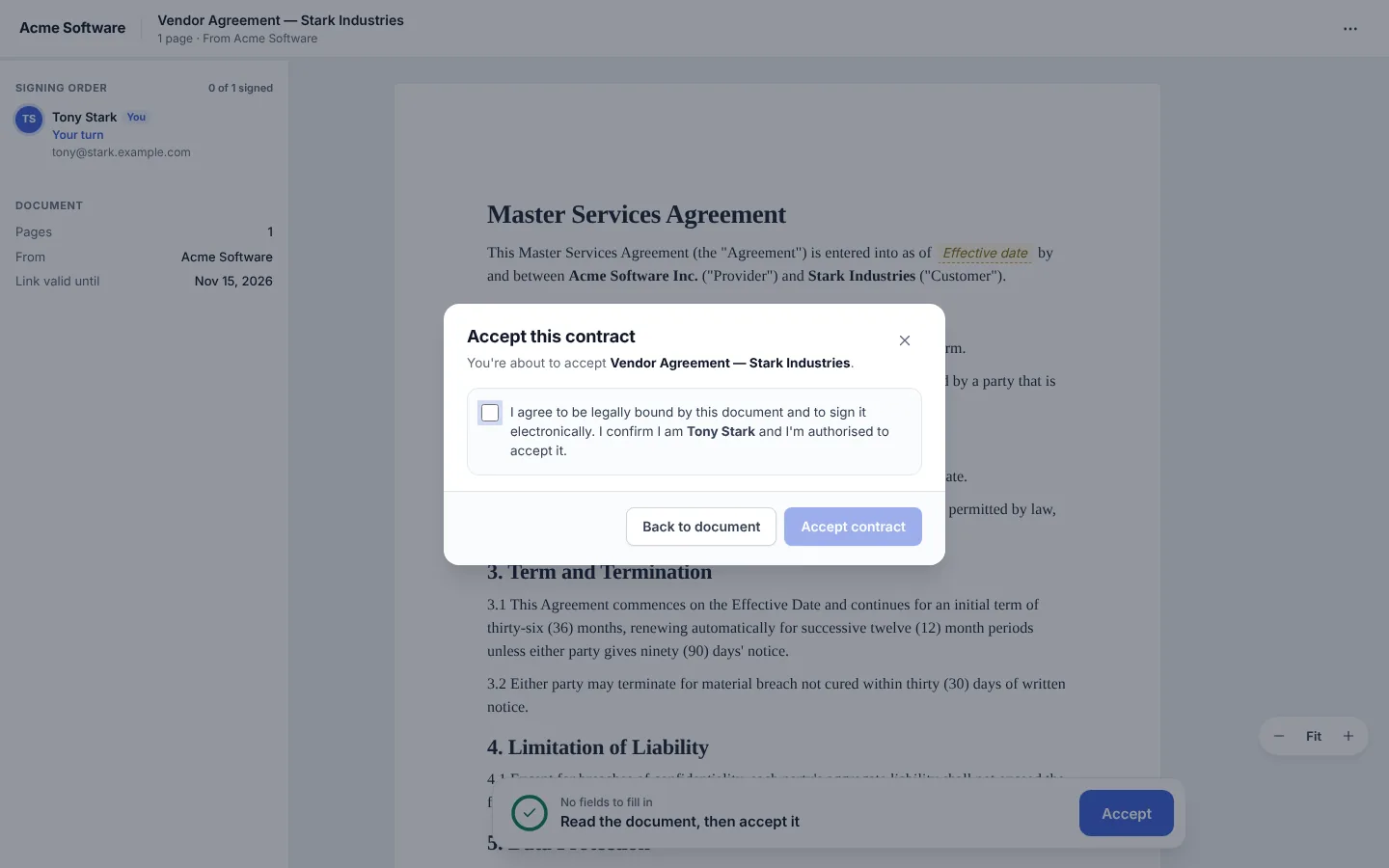
- If the document has no fields for you, you accept it instead.
When you finish, confirm: tick I agree to be legally bound by this document and to sign it electronically, check what you are signing and the details you entered, and submit.
After everyone has signed, you can download the signed copy.
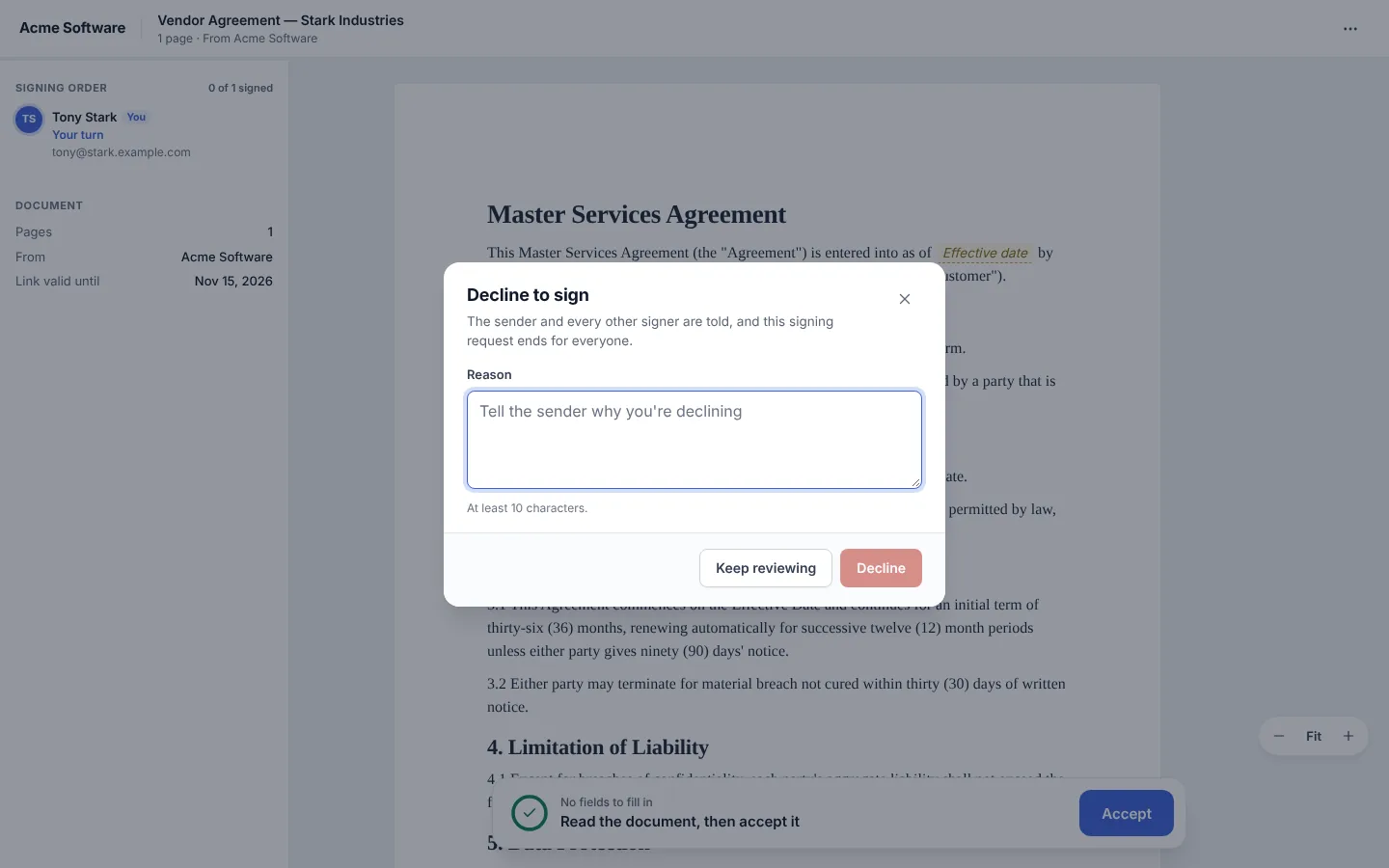
Decline to sign
Open the … menu at the top right and choose Decline to sign. Tell the sender why (at least 10 characters). The sender and every other signer are told, and the signing request ends for everyone.
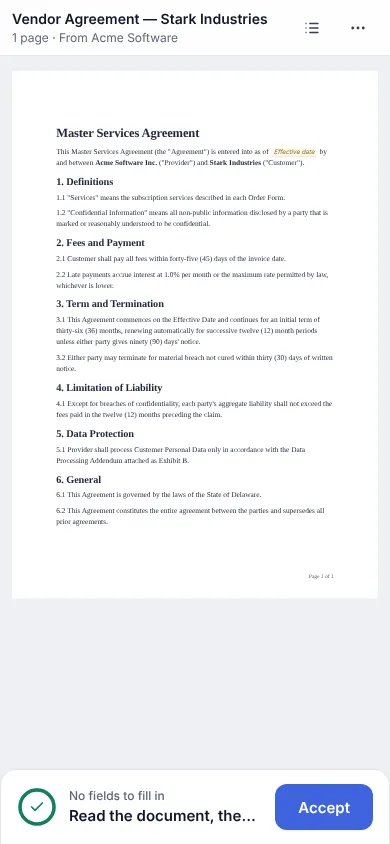
On a phone
The portal works on phones. The document scrolls normally and the guide bar stays at the bottom.
Problems?
- "This link can't be used": it may have expired, been replaced by a newer link, or the request was cancelled. Ask the sender.
- Temporarily unavailable: the sender's workspace is paused. Try again later; already-signed copies stay available.
- No code arrived: check spam, wait a minute, then select Send a new code.