Templates
The Templates page holds your workspace's contract templates and email templates.
Contract templates
A contract template is a reusable starting point for a contract type: the standard text of your NDA, MSA or SOW, with variables where the details change.
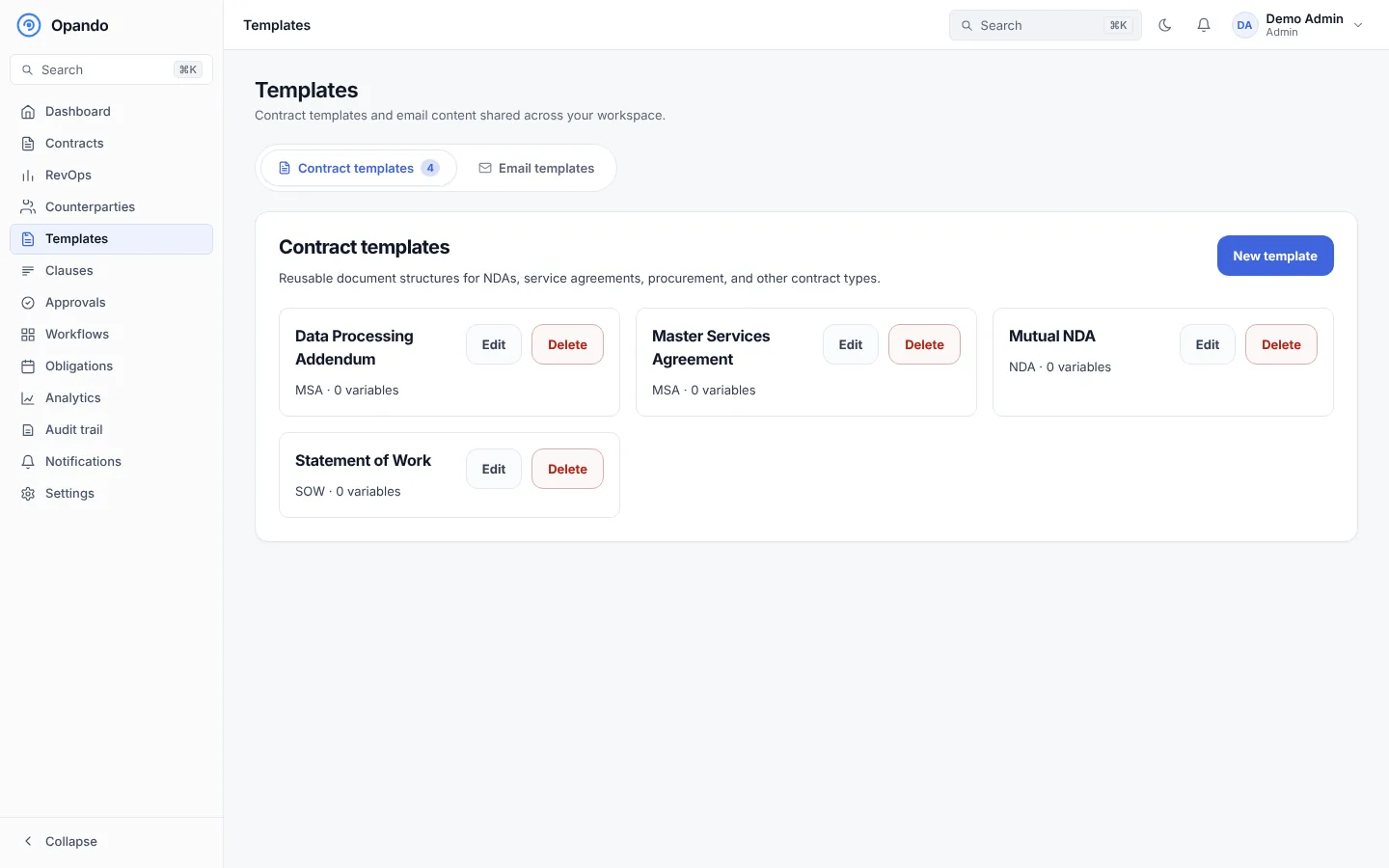
Create a template
- Select New template.
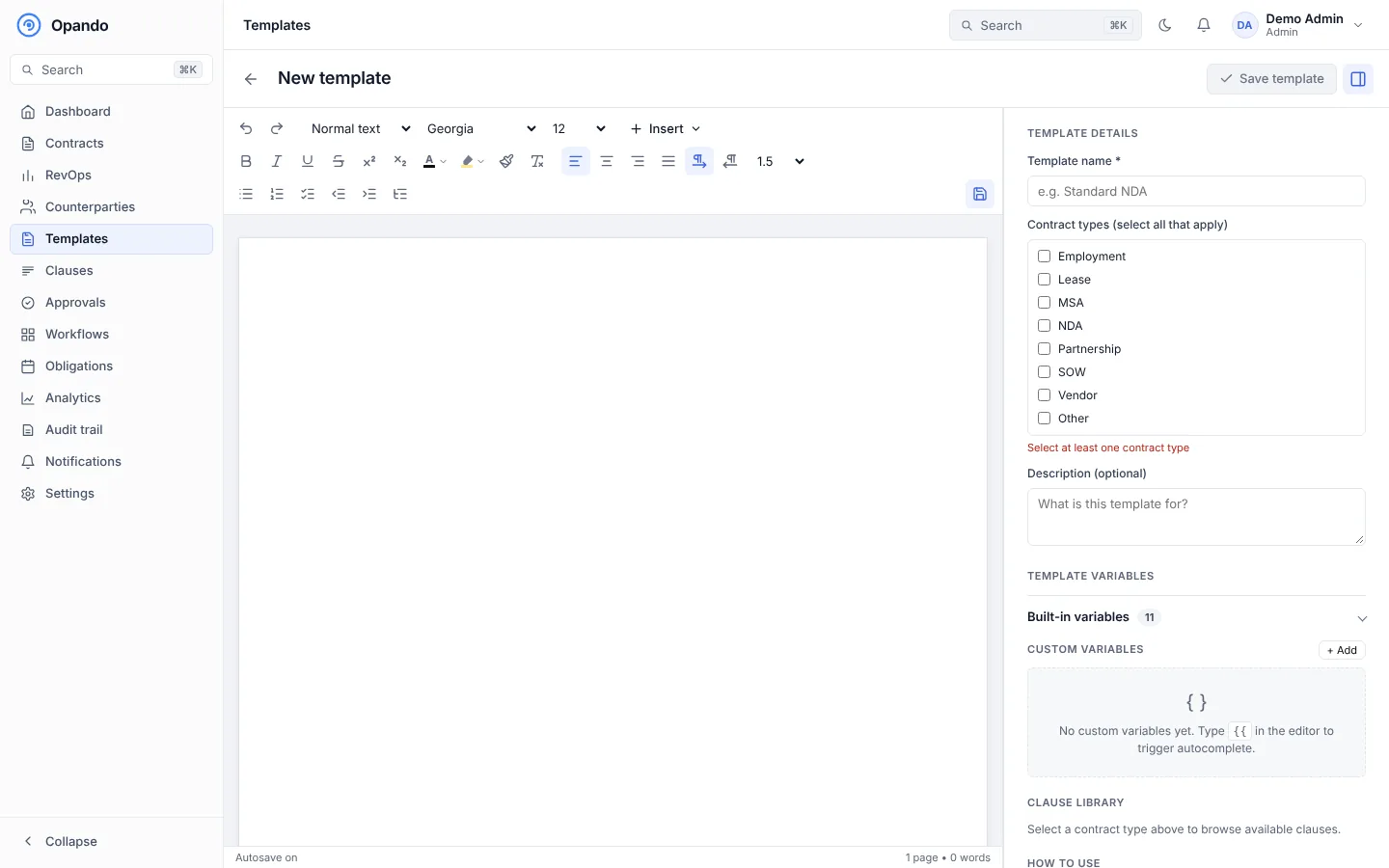
- Give it a Template name, choose the contract types it applies to (one or more), and add an optional description.
- Write the template in the editor, or insert a Word document with Insert → Word document (.docx)….
- Add variables with
{{in the text (autocomplete suggests them), or from the Variables panel. - Insert approved wording from the Clause library panel.
- Save.
Edit a template
Select Edit on a template. The editor is the same one used for contracts (see Editing), with three side panels:
- Variables: the built-in variables that fill in automatically (counterparty name, effective date, contract title and so on) and your custom variables. Select Add to create one.
- Clauses: approved clauses for the template's contract types.
- Settings: the name, description and contract types.
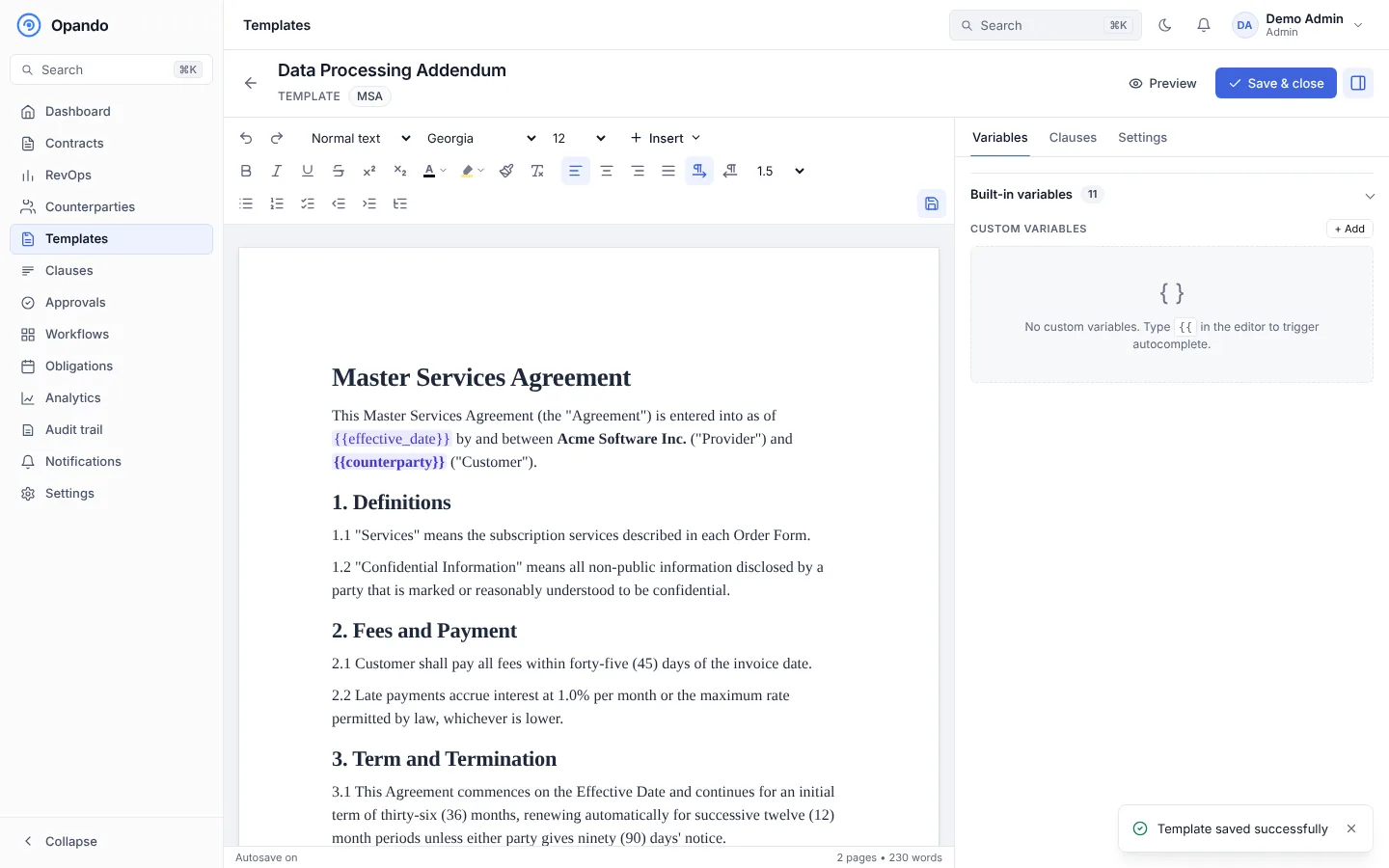
Select Preview to see the template with sample values, and Save & close when done. If you leave with unsaved changes, Opando asks whether to save them.
Changes to a template affect new contracts only. Contracts already created from it keep their text.
Delete a template
Select Delete on the template. You need the Templates: delete permission.
Email templates
The Email templates tab lets you change the wording of the emails Opando sends: invitations, password resets, approval requests, signing requests, reminders, renewal notices and so on.
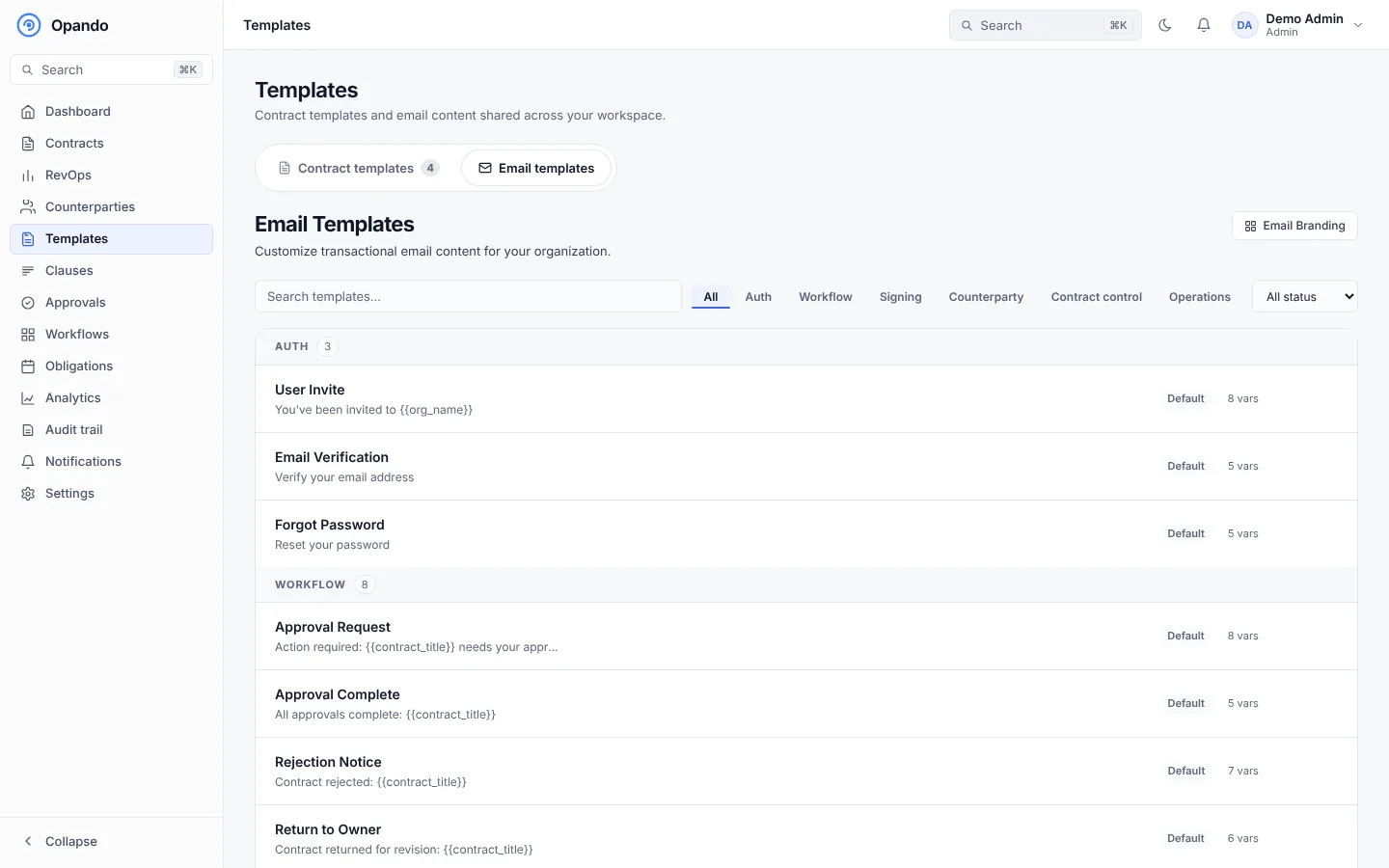
- Search and filter templates by category and status.
- Open a template to edit its subject line and body. A live preview shows the result.
- Insert available variables such as the organisation name, contract title or link.
- Restore default puts back Opando's original wording.
- Email branding opens the logo and banner settings. See Header, footer and branding.