Departments and roles
Opando controls access with departments and roles:
- A department groups people, for example Legal, Finance, Sales or Executive.
- A role is a set of permissions inside a department, for example Legal reviewer or Finance approver.
- Each user has a profile (Admin or User), a department and a role. Admins have every permission.
Workflows route approvals to departments and roles, so set these up before you build workflows.
Departments
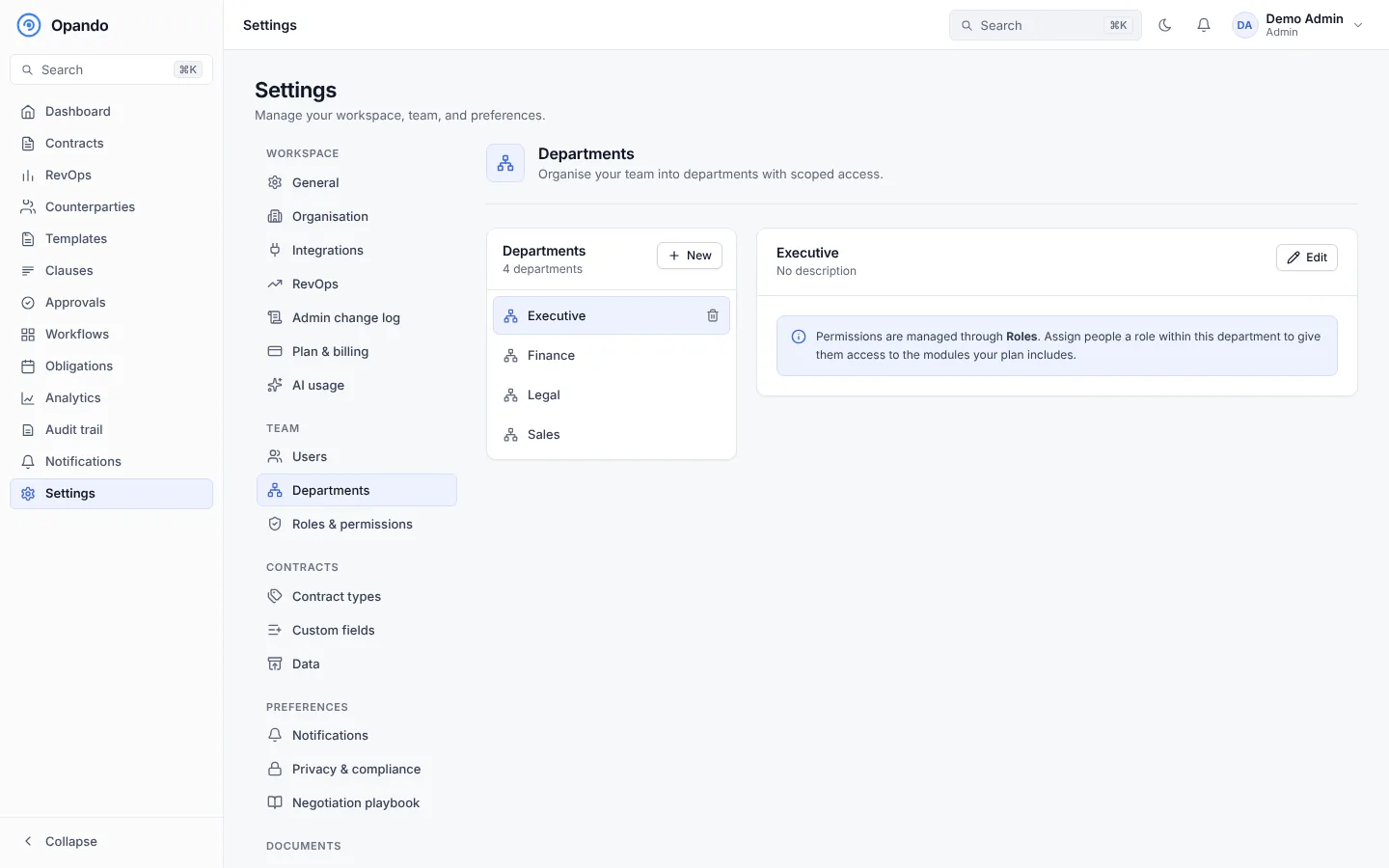
Select New department, give it a name and description, and save. Select a department to edit or delete it. Departments group people; the roles inside a department set what they can do.
Plan
More than one department needs the Pro or Enterprise plan.
Roles and permissions
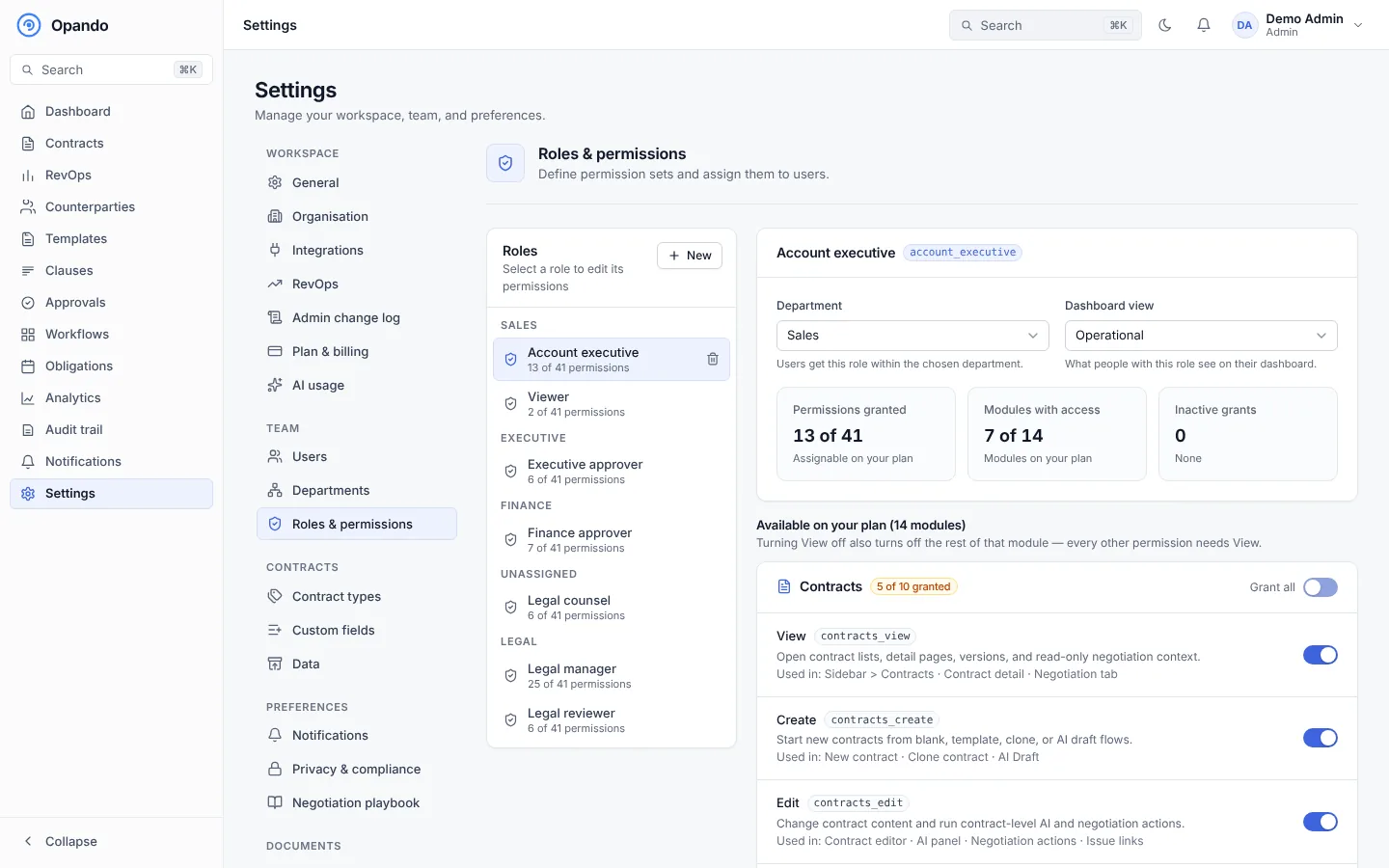
Roles are listed by department. Select a role to see its summary (permissions granted, modules with access, inactive grants) and its permissions, grouped by module: Contracts, Templates, Clauses, Approvals, Workflows, Obligations, Dashboard, Export, Analytics, Playbook, Branding, Counterparties and RevOps. Switch each permission on or off.
- New role: choose the department, a display name (for example Legal Reviewer), a role key (lowercase, for example
legal_reviewer) and a description. - Granted · inactive on plan marks a permission the role has but your plan doesn't include. It takes effect if you upgrade.
- Delete role: refused while people hold it or while it has pending work; hand that over first.
Dashboard view
Each role has a dashboard view: Operational (contract stats and RevOps signals), Executive (portfolio KPIs, pipeline and renewal forecast) or Combined.
Default roles
New workspaces start with roles such as Legal manager, Legal reviewer, Finance approver, Executive approver, Account executive and Viewer. See Roles and permissions for what each one can do.